Takumi Runner Now Supports Threat Detection

Takumi Runner now provides threat detection, which proactively detects threats in CI/CD pipelines. When a supply-chain incident occurs — like the ones Takumi Guard has reported on in the past — we promptly investigate the trace data collected through Takumi Runner or cicd-sensor, and immediately notify you when a threat is detected.

Benefits
Until now, you had to review and investigate the trace logs collected by Takumi Runner yourself. Investigating them effectively requires a certain amount of expertise, and the response needs to be fast.
With this feature, when a supply-chain incident occurs, an impact investigation that leverages our know-how and systems is carried out promptly, and you are notified if you are affected.
Getting Started
To receive notifications, you need to enable threat notifications in the settings.
In the Shisho Cloud console, open Runner > Settings and configure the destination under Threat Notifications.
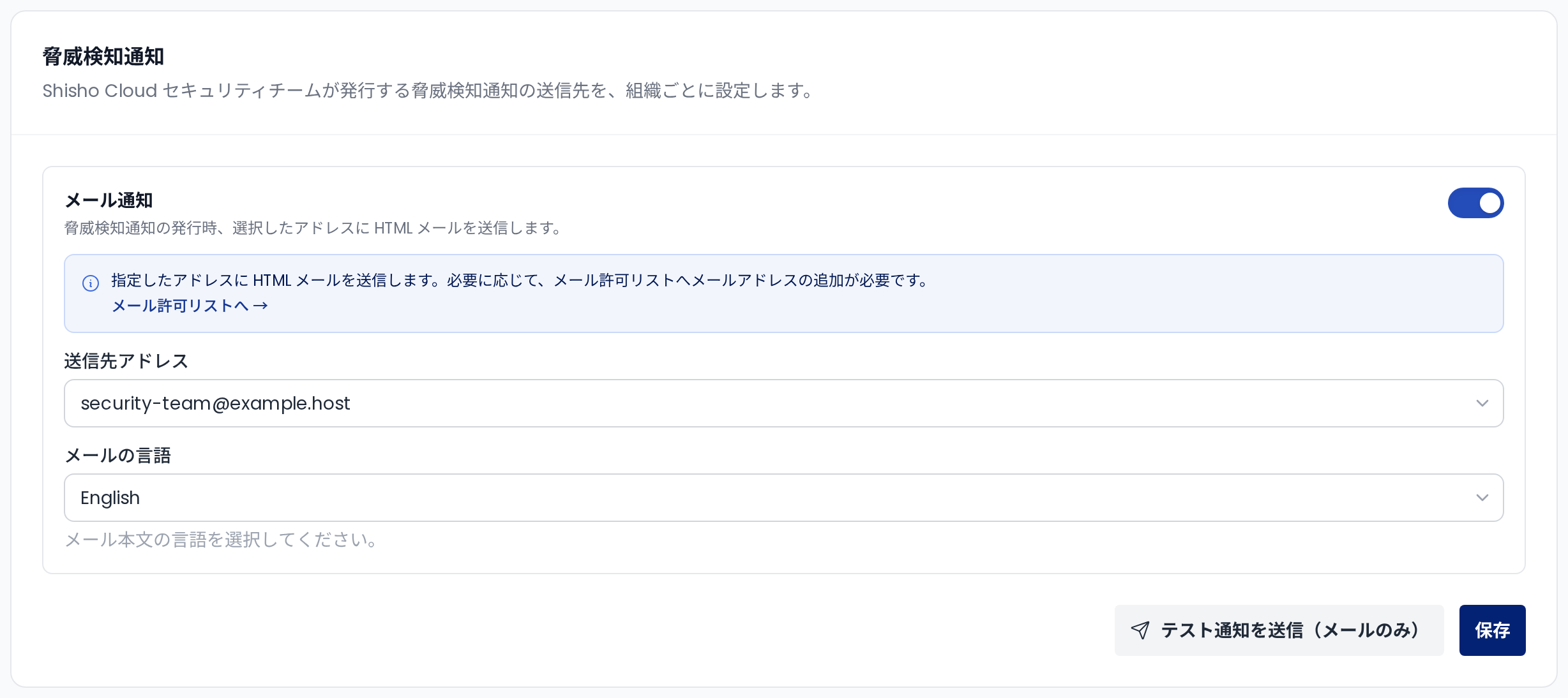
Turn on the Email notifications toggle and choose the destination address from Target address. Press "Save" and the setup is complete: notifications will be sent when a threat is detected in a future incident.
You can also send a test from this screen to confirm in advance that notifications arrive correctly.
As of this writing, notifications are supported via email only. Webhook support is planned.
For details, see the Threat Detection user guide.
Pricing
Threat detection is included in the Takumi Runner base plan. It is not metered.
For details on Takumi Runner plans, see Pricing & Billing.
Getting Started with Takumi Runner
To use Takumi Runner, you need a Takumi subscription and Runner enabled.
- Go to https://cloud.shisho.dev/hello/takumi and sign in
- Register your organization and subscribe to Takumi
- Open Runner > Settings from the sidebar on the left
- Click the "Enable" button to enable Runner
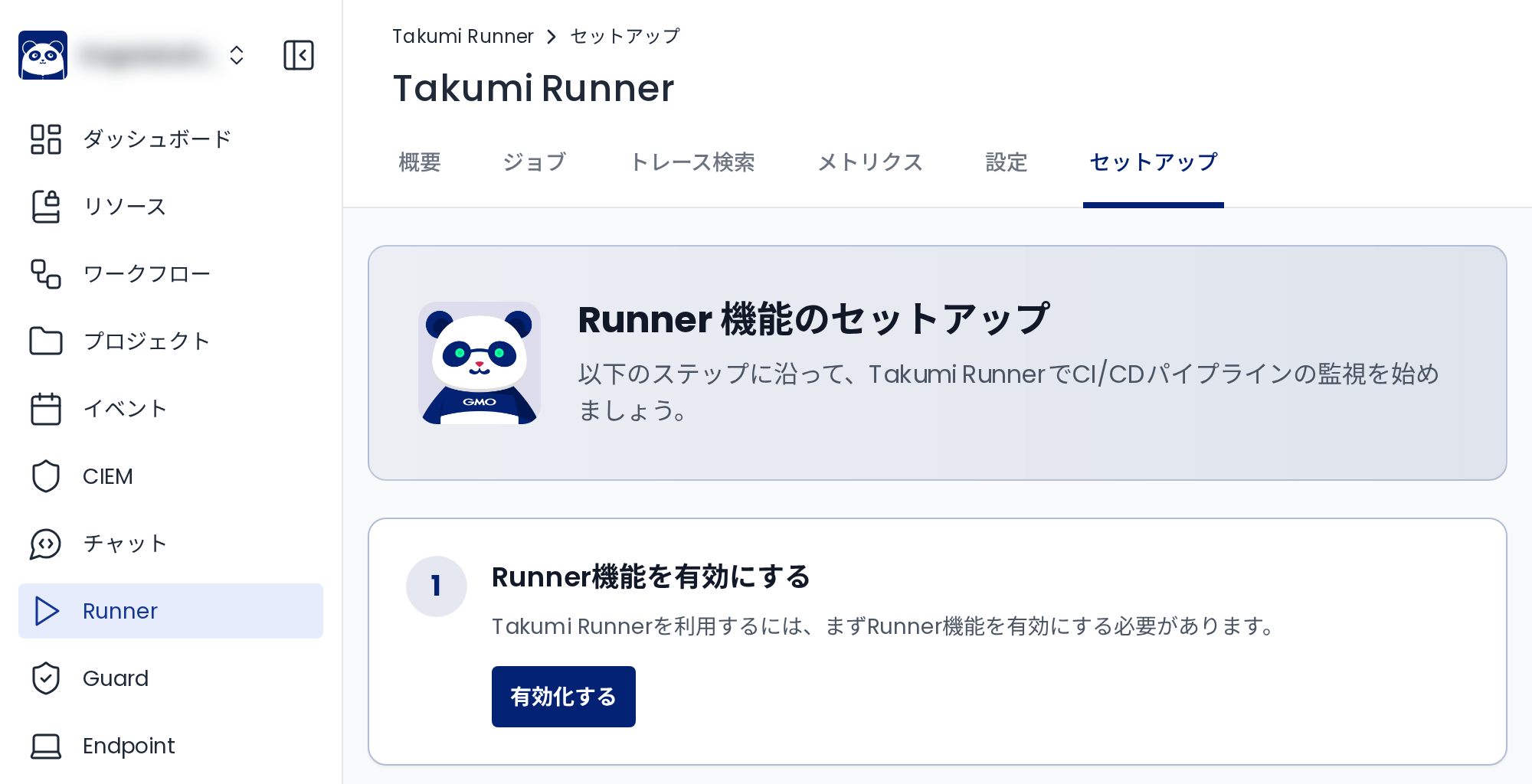
Once Runner is enabled, follow the Takumi Runner user guide to complete the setup.