Quickstart
The English user guide is currently in beta preview. Most of the documents have been automatically translated from the Japanese version. Should you find any inaccuracies, please reach out to Flatt Security.
This page walks you through getting Takumi Hosted Runner set up and running your first workflow. If you use Takumi Runner through the cicd-sensor integration, see Integrating cicd-sensor.
Prerequisites
To use Takumi Runner, the following conditions must be met:
- You have a Shisho Cloud organization and a user account belonging to it
- You have a GitHub Organization and admin permissions on it
- Your base subscription is active
- The user performing initial setup (enabling the Runner feature, installing the GitHub App, etc.) has the Takumi Manager and API Integration Manager roles in Shisho Cloud
- The user viewing dashboards and job execution history has the Takumi Runner User role in Shisho Cloud
Using Takumi Runner with public repositories requires enabling the Allow public repositories option in the GitHub Organization's runner group settings (Settings > Actions > Runner groups). This option is disabled by default, so verify and update it during Takumi Runner setup. Without it, jobs remain in queued state indefinitely. See GitHub's official documentation for details. Note that workflow runs triggered by contributors outside your organization are also billed to your organization.
Steps
1. Enable the Runner Feature
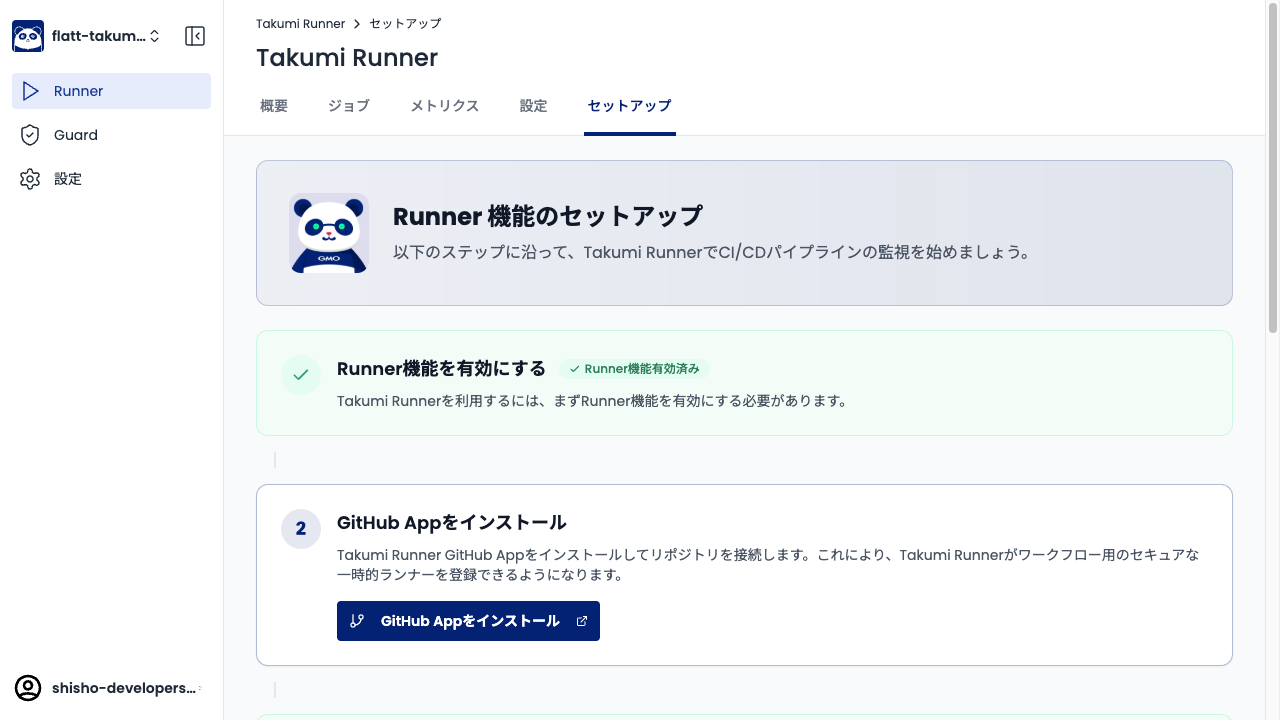
Open Runner from the Shisho Cloud console sidebar and go to the Setup tab. A setup wizard will appear — complete the first step to enable the Runner feature.
2. Install the GitHub App
In the next step of the setup wizard, click the Install GitHub App button. You will be redirected to the GitHub installation page.
- Select the scope for which to enable the Runner:
- Choose All repositories to enable for all repositories
- Choose Only select repositories to enable for specific repositories only
- Click Install to complete the installation
Installing the GitHub App requires Owner permissions on the GitHub Organization. If you do not have the required permissions, request the installation from the Organization admin. After admin approval, you can link the app from the Shisho Cloud console under Settings > Service Integrations > CI/CD Integration by selecting Link existing GitHub App.
For details on the access permissions the GitHub App requests, see GitHub Integration > GitHub App Permissions.
3. Edit Your Workflow File
Change runs-on to takumi-runner in your existing workflow file (.github/workflows/*.yml):
jobs:
  build:
    runs-on: takumi-runner
    steps:
      - uses: actions/checkout@v4
      - run: npm install
      - run: npm test
4. Run the Workflow
Push code or trigger the workflow manually on GitHub. Takumi Runner will automatically pick up the job and run it on a secure VM.
If the job does not start after waiting a few minutes, check the GitHub Organization's runner group settings (Settings > Actions > Runner groups). For the "Default" group, make sure "Repository access" is set to "All repositories", or set to "Selected repositories" with the repository you want to use with Takumi Runner registered.
5. Check the Traces
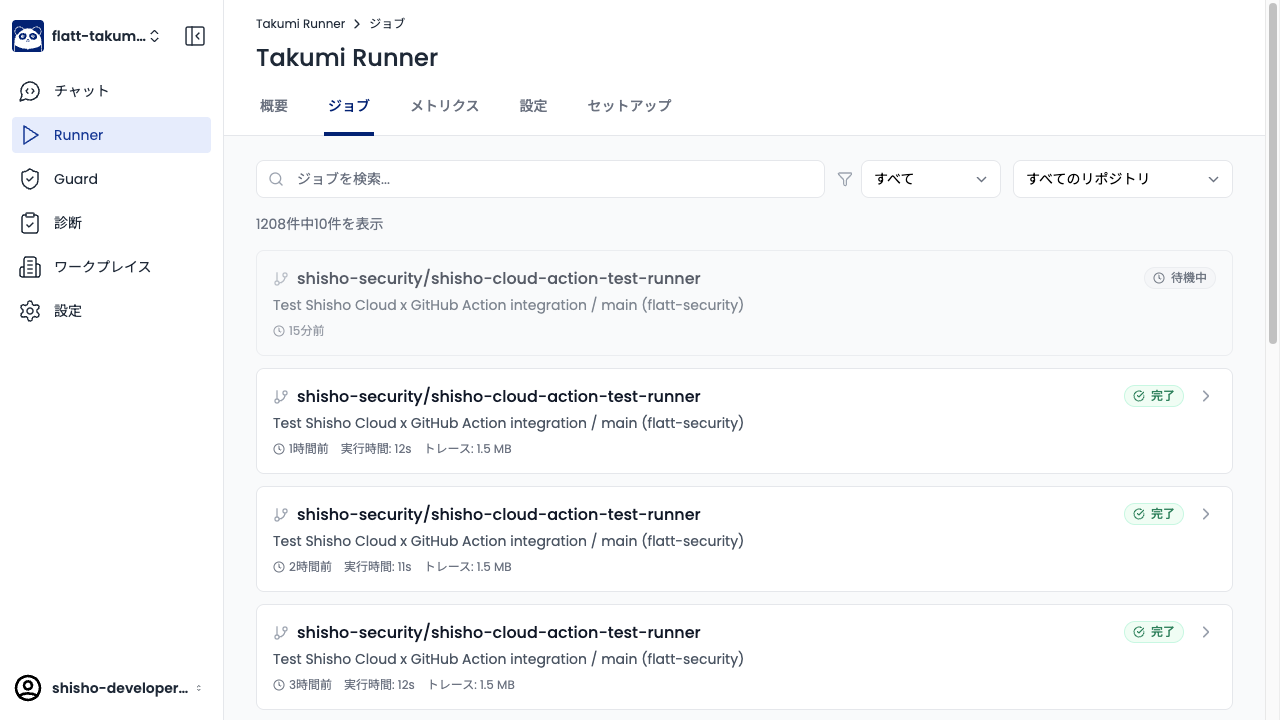
Once the workflow completes, the job execution history appears under Runner > Jobs in the Shisho Cloud console.
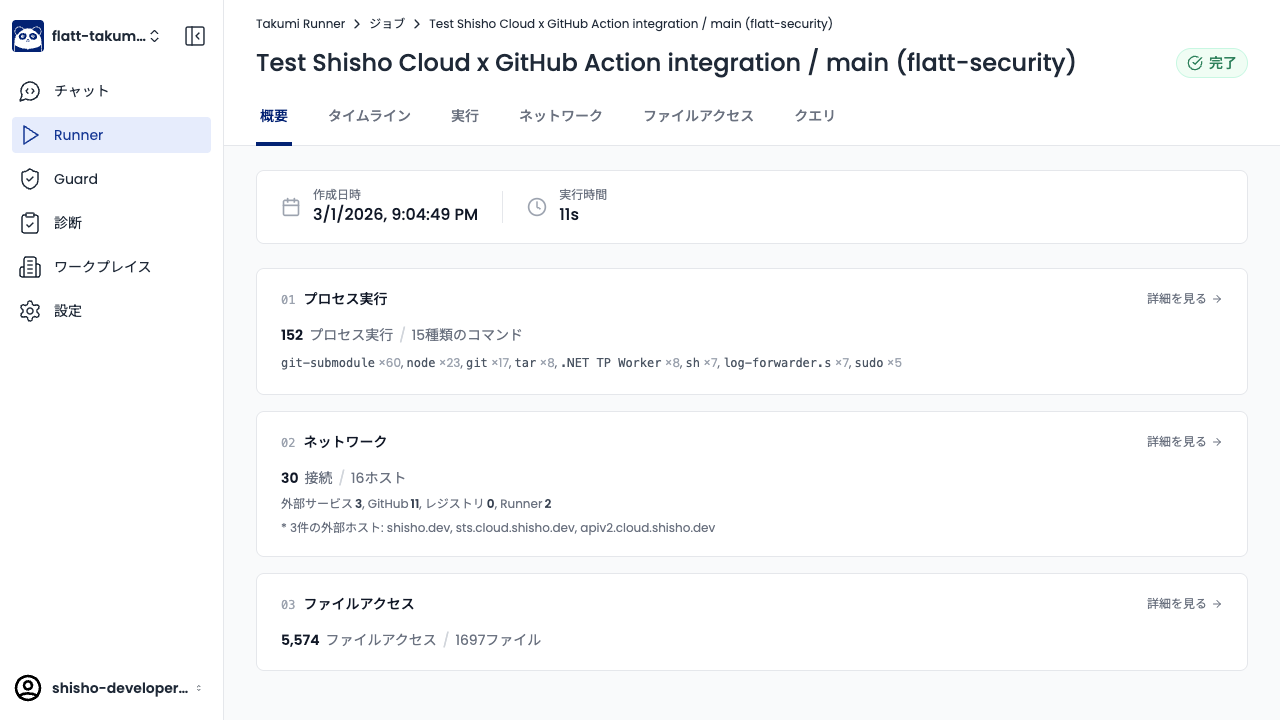
Click a job to view the overview screen, where you can see process executions, network connections, and file accesses.
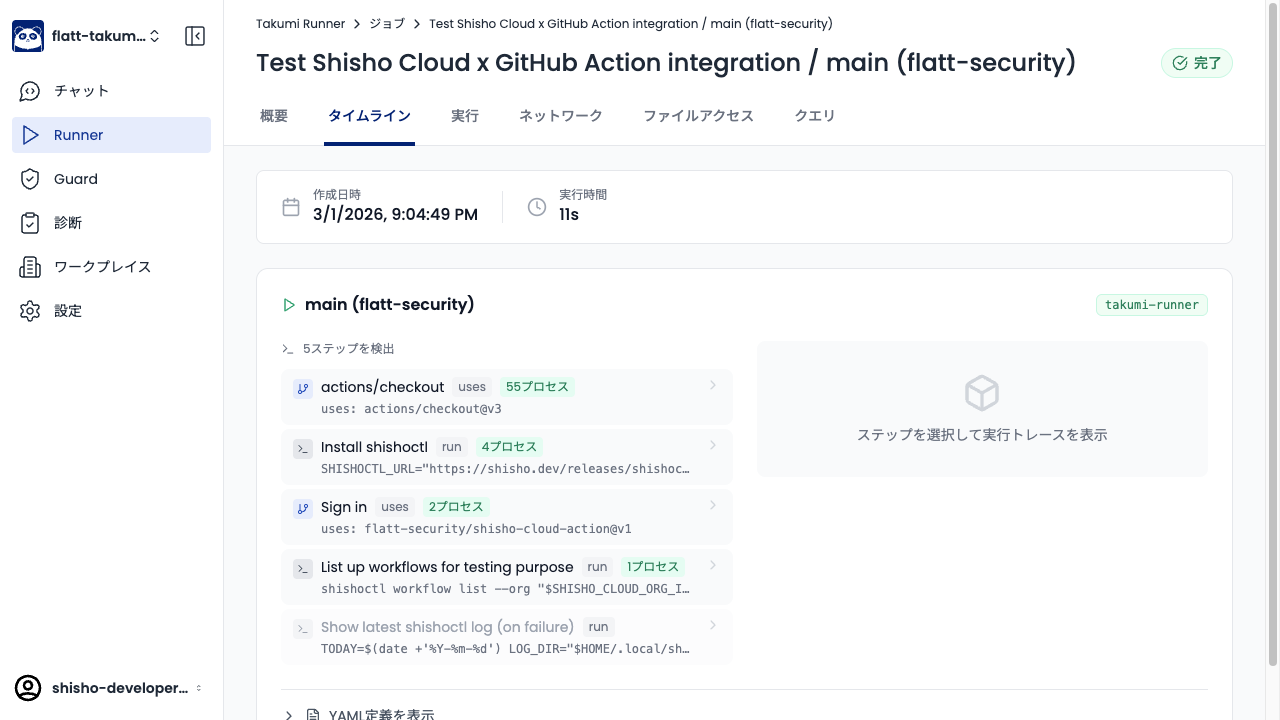
The Timeline tab shows each workflow step and its associated traces.
Next Steps
- For details on trace data, see Trace Collection
- To review execution history, see Job History