Project Management Commands for shishoctl Released

The shishoctl project ... command suite has been expanded with comprehensive project management capabilities.
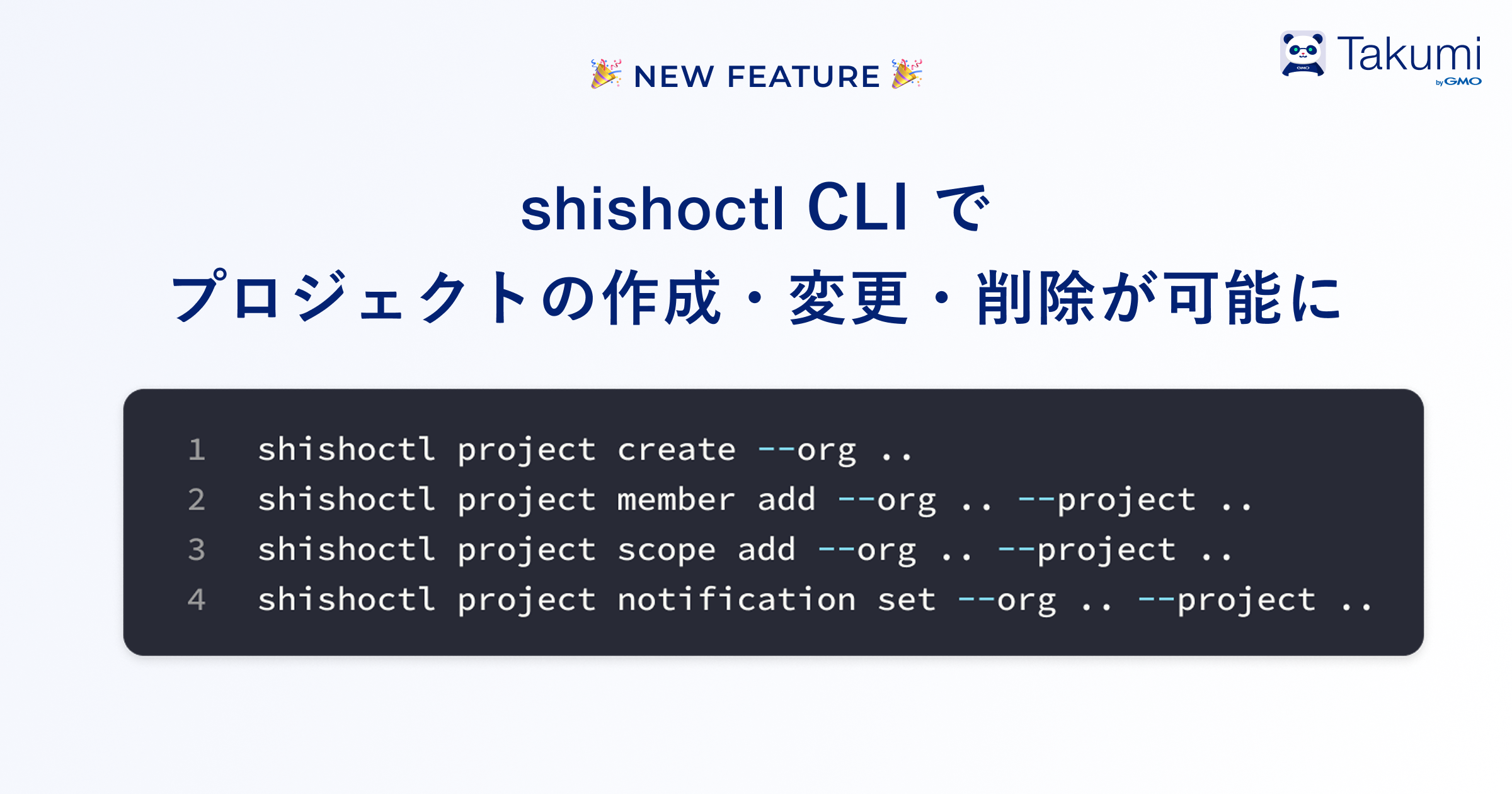
The expanded shishoctl project ... commands now support project creation/deletion, member management including roles, scope configuration, and notification channel setup.
Previously, most Shisho Cloud project operations were limited to the web UI only. This expansion enables you to streamline project operations more efficiently through CLI-based automation.
This expansion is available starting from v0.14.0.
Overview
The shishoctl project ... subcommands previously only supported viewing detection results and resources.
The expanded shishoctl project ... commands now enable Shisho Cloud project creation/deletion, member management including roles, scope configuration, and notification channel setup.
For example, you can create a new project as follows:
shishoctl project create --org <ORGANIZATION_ID> --name <PROJECT_NAME> --description <DESCRIPTION>
You can add members to the created project as follows:
# Add existing user to your project
shishoctl project member add --org <ORGANIZATION_ID> --project <PROJECT_ID> --user <USER_ID> --role owner

# When you need to invite members to Shisho Cloud at the same time (if the user doesn't exist in the Shisho Cloud organization)
shishoctl project member invite --org <ORGANIZATION_ID> --project <PROJECT_ID> --email user@company.com --role viewer
You can add resources to be managed through the project using the shishoctl project scope add command.
For example, to add a Google Cloud project, you can do the following:
# Add Google Cloud project to the scope
shishoctl project scope add --org <ORGANIZATION_ID> --project <PROJECT_ID> --googlecloud-project-number <GOOGLECLOUD_PROJECT_NUMBER>
Notification settings can also be changed.
You need to modify the options for the shishoctl project notification set command depending on the notification destination you want to configure:
# Add email notification
shishoctl project notification set --org <ORGANIZATION_ID> --project <PROJECT_ID> --email user@company.com

# Add Slack notification
shishoctl project notification set --org <ORGANIZATION_ID> --project <PROJECT_ID> --slack-workspace-id <WORKSPACE_ID> --slack-channel-id <CHANNEL_ID>
Getting Started
Shisho Cloud users can start using these features immediately.
User guide: