Takumi Graybox Assessment Now Available

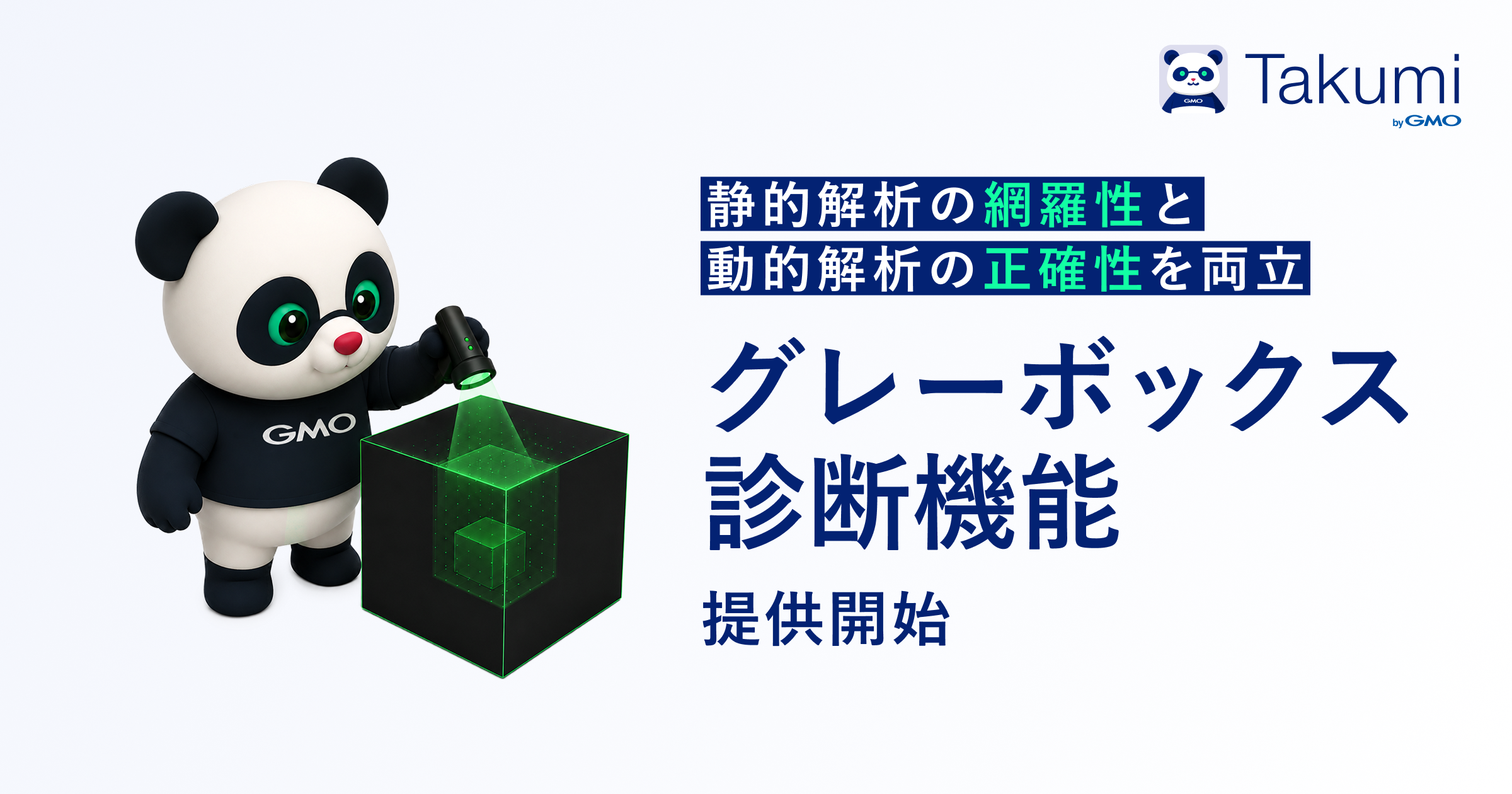
Takumi now supports graybox assessment.
Specify both your source code and the URL of the application running that code. Takumi analyzes the code to enumerate candidate vulnerabilities and attacks the running application, then reports only the ones it manages to reproduce as findings.
Overview
Whitebox assessment reads the source code directly, so it can find vulnerabilities that an external investigation — that is, a blackbox approach — could never reach. What the code cannot tell you is whether a candidate it surfaces actually reproduces in the environment you run. Blackbox assessment reports only vulnerabilities that do reproduce in that environment, but it struggles with vulnerabilities that are hard to find without reading the code, and with those hidden in functionality that is not publicly exposed.
Graybox assessment takes the strengths of both. Static analysis enumerates candidate vulnerabilities comprehensively, and every candidate is then verified for reproducibility against the running application, so the assessment delivers coverage and accuracy at the same time.
Reports Backed by Reproduction
Every finding recorded in a graybox report was reproduced against your running application. Candidates that static analysis raised but dynamic verification could not reproduce are recorded in a separate section of the report instead of as findings, so reading the report is enough to tell which vulnerabilities actually reproduce.
Each finding also documents the procedure used to reproduce it. A developer can follow the same steps to confirm that the vulnerability occurs, and can run them again after a fix to verify that the fix holds.
Getting Started
This feature is available to all "Takumi byGMO" users and can be freely used within your monthly credit allowance. No additional fees or plan changes required.
Click the "Create Assessment" button in the "Assessment" tab of the global sidebar, then select "Graybox Assessment".
▼ User Guide: Graybox Assessment