Scheduled Tasks
The English user guide is currently in beta preview. Most of the documents have been automatically translated from the Japanese version. Should you find any inaccuracies, please reach out to Flatt Security.
Takumi can run the same task on a recurring schedule. This is useful for automating routine security checks, reports, and monitoring tasks.
To set up tasks from Slack, see Slack Channel Settings. Tasks set up via Slack do not appear in the Shisho Cloud byGMO web console.
Setting up a Task
From the Chat Interface
Click the calendar icon in the chat input area.
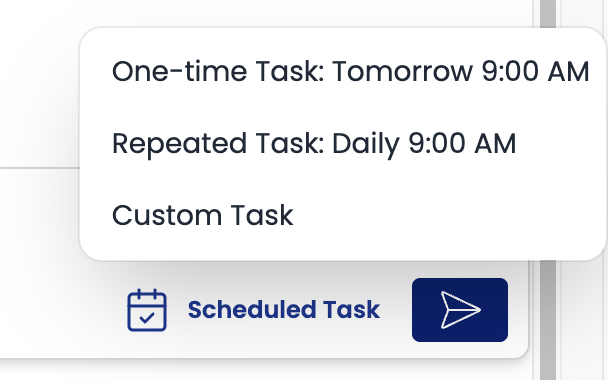
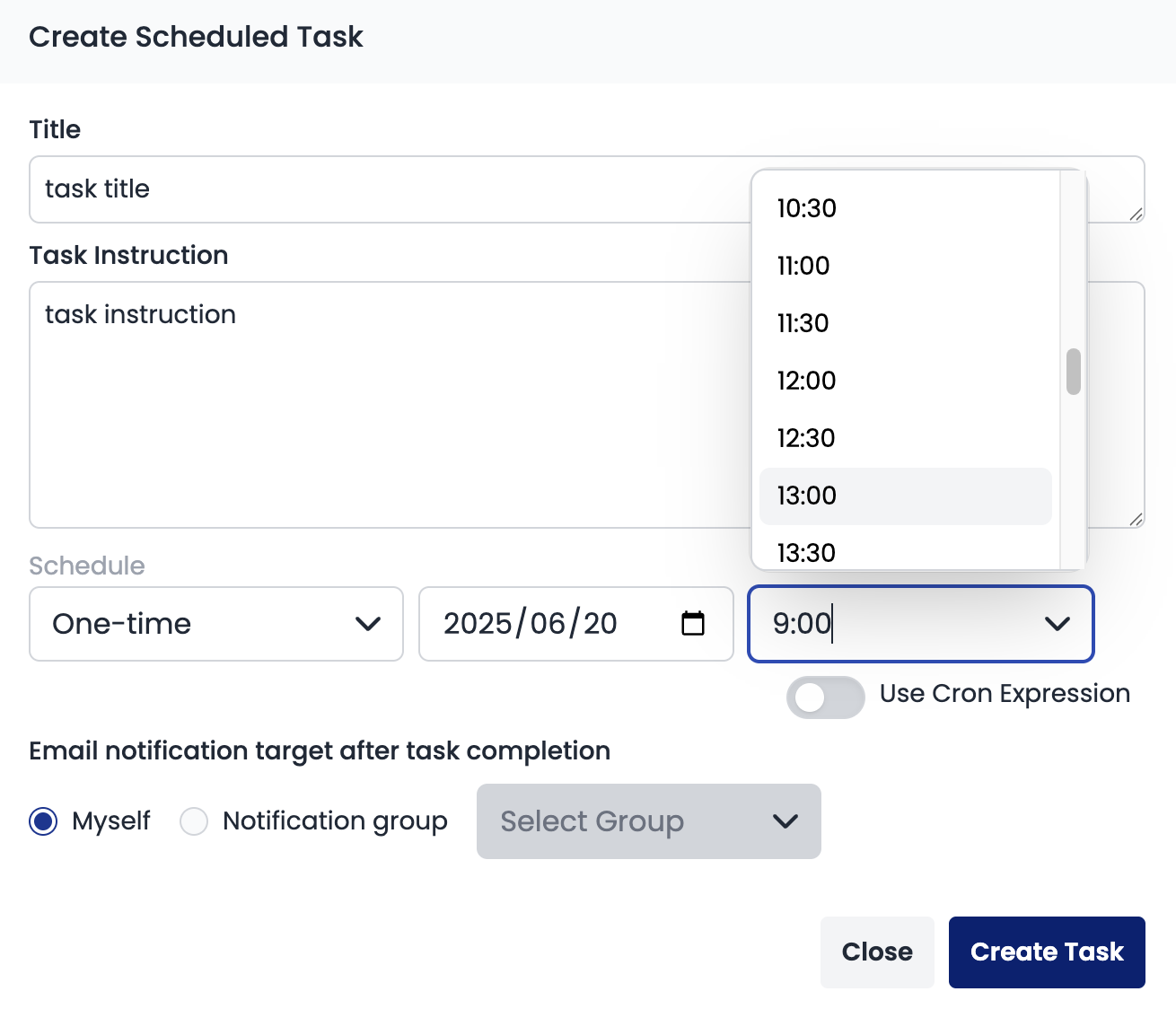
Fill in the following fields in the dialog:
- Title: A descriptive name for the task
- Instructions: What you want Takumi to do
- Schedule: Choose a one-time or a recurring schedule
- Email Notification: Who should receive the result after the task runs
Schedule Types
Schedules come in two flavors:
- One-time task: Runs once at a specific date and time
- Recurring task: Runs on a daily / weekly / monthly preset or a custom cron expression (e.g.,
9 30 * */2 *for 9:30 AM every two days)
When scheduling a task, specifying a time before or equal to the submission time may cause the task to not be submitted properly.
Managing Your Tasks
You cannot change a task's scheduling type (one-time / recurring) after creation. Create a new task and delete the old one instead.
Editing from the Chat Area
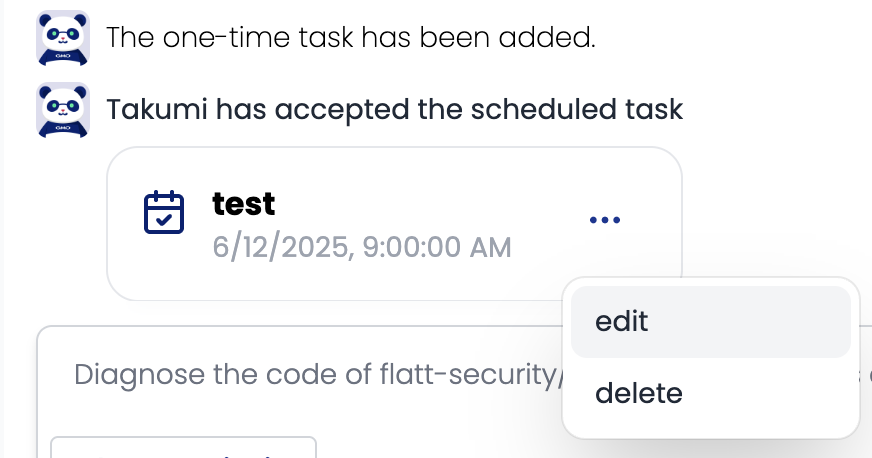
When Takumi creates or suggests a scheduled task in chat, a task card with the task details appears. From the card you can:
- Click the
menu(...) button to see available actions - Select
Editto modify the task details in a dialog - Select
Deleteto remove the task
Viewing All Tasks
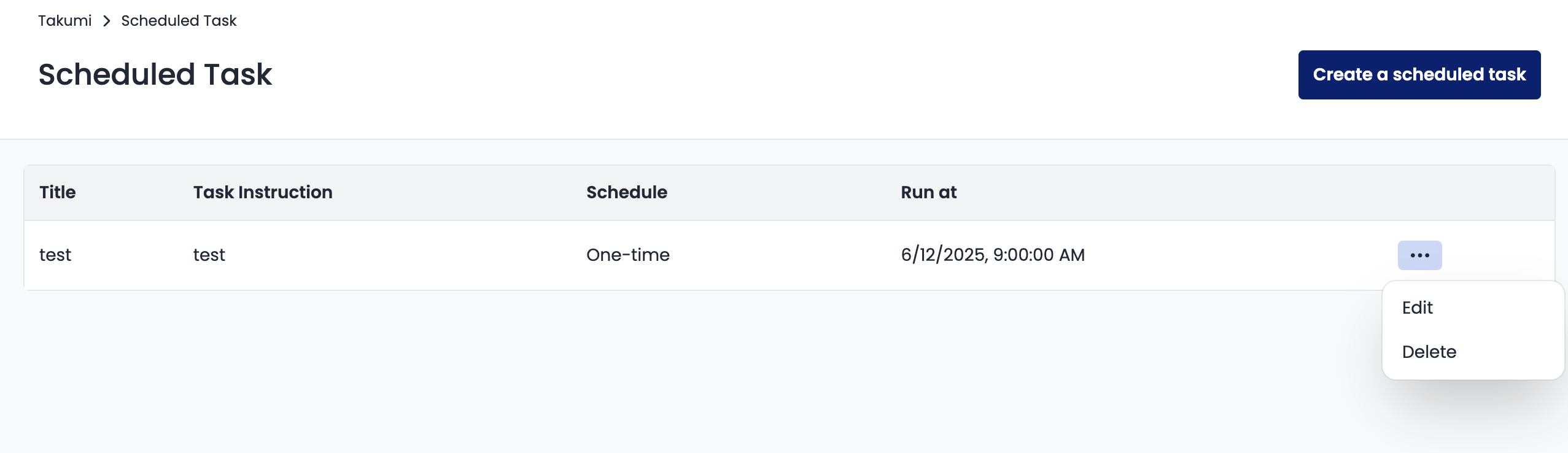
Click the calendar icon (📅) in the Takumi dashboard header to open the Tasks page.

Editing a Task
To edit a task:
- Find the task in the task list
- Click the
menu(...) button - Select
Editto change the schedule, instructions, or notification target
Deleting a Task
To delete a task:
- Click the
menu(...) button on the task - Select
Deleteand confirm
Notification Targets
Task results can be delivered to:
- Myself: Only the logged-in user receives the notification
- Group: Sent to a notification group (useful for team-wide reports)
Credit Consumption
When the work a scheduled task asks Takumi to perform involves AI inference, credits are consumed each time the task runs. Consumption varies with what you actually ask Takumi to do.