Penetration Test
The English user guide is currently in beta preview. Most of the documents have been automatically translated from the Japanese version. Should you find any inaccuracies, please reach out to Flatt Security.
The AI penetration testing feature is currently being rolled out incrementally. To request access, please apply from this page.
Overview
The AI penetration testing feature autonomously discovers and exploits vulnerabilities to achieve a specified objective.
You simply define the attack target and a goal (e.g., "Obtain user data"), and Takumi automatically executes the entire process of reconnaissance, vulnerability discovery, and exploitation. Once the test completes, a report summarizing the attack process and results is generated.
It can be used from the Shisho Cloud byGMO web interface.
How It Differs from Standard Assessments
Penetration testing differs from whitebox and blackbox assessments in its purpose and approach.
| Whitebox / Blackbox Assessment | Penetration Test | |
|---|---|---|
| Purpose | Comprehensively detect vulnerabilities across the entire application | Verify whether a specific goal (e.g., obtaining confidential information) is achievable |
| Approach | Systematically test based on a feature × perspective matrix | Autonomously explore attack paths toward achieving the goal |
| Test Scope | All combinations of detected features and perspectives | Focused on paths necessary to achieve the goal |
| Output | Vulnerability list with details per perspective | Report summarizing the attack process and results |
| Best For | Comprehensive security assessment | Validating specific risks from an attacker's perspective |
Penetration testing is not designed for comprehensive vulnerability detection. It answers the question "Can this goal be achieved?" For comprehensive vulnerability detection, use Whitebox Assessment or Blackbox Assessment.
Pre-Assessment Requirements
Before starting a penetration test, organization authentication is required. For details, see "Pre-Assessment Organization Verification or Ownership Verification".
How to Create a Penetration Test
Click "Assessment" in the sidebar, then select the "Pentest" tab at the top of the screen to view the penetration test list. Click the "New Pentest" button to open a dialog where you choose a creation method.
- Create new pentest: Create a new test with a blank configuration
- Create from existing pentest: Create a test by copying the configuration from a previous test. Useful for re-testing the same target or running with slightly modified settings
After selecting either option, you will be taken to the configuration screen.
Settings
The basic settings are as follows:
- Name: Enter a name to identify this test
- Report Language: Select the report language (Japanese or English)
- Credit Threshold: Set the maximum credit limit for the test. A value of 100 or higher must be specified
Scope
Define the in-scope and out-of-scope targets for the test. Takumi uses the scope definition to determine which systems to test.
Register at least one system under In Scope as a permitted test target. Under Out of Scope, register any systems that must not be accessed during the test. For example, if any related infrastructure or external services — such as admin panels on the same domain, third-party APIs, or other cloud resources within the same account — should not be included in the test, explicitly register them as out-of-scope. If the out-of-scope boundaries are not clearly defined, Takumi may access those systems while exploring attack paths.
Takumi is designed to respect scope boundaries, but due to the autonomous nature of its attack path exploration, the possibility of accessing out-of-scope systems cannot be entirely ruled out. In the unlikely event that this occurs, all actions performed during the test are recorded and can be reviewed after the fact. See Reviewing Test Actions for details.
Each entry can be assigned one of the following types:
| Type | Description | Example |
|---|---|---|
| URL | Web application URL | https://example.com |
| IP Address | IP address or CIDR | 192.168.1.0/24 |
| AWS | AWS account ID | 123456789012 |
| Google Cloud | GCP project ID | my-project-id |
| Azure | Azure subscription ID | xxxxxxxx-xxxx-xxxx-xxxx-xxxxxxxxxxxx |
| Other | Targets that don't fit the above | S3 bucket s3://company-data |
Each entry can optionally include additional notes.
Objective
Define the objective of the test. It consists of the following three elements:
- Ultimate Attack Target: Specify the URL or system that serves as the starting point of the attack. You can select from the in-scope entries or choose "Custom" to enter a value freely
- Goal: Select the goal to achieve. The following four presets are available:
- Obtain user data
- Obtain personal information
- Obtain confidential information
- System intrusion (arbitrary code execution)
- Additional details (optional): Describe goal details, target data definitions, constraints, etc.
Destructive Actions
You can choose how much Takumi is allowed to perform destructive actions against the target during testing — actions that cause a large-scale outage, irreversible data loss, or fatal corruption of the system.
The following options are available:
- Avoid: Takumi avoids destructive actions, finishing without achieving the objective rather than performing one — even when it is the only remaining path.
- Minimize: Takumi exhausts non-destructive approaches first and performs a destructive action only as a last resort when there is no other way.
- Allow: Takumi performs destructive actions without special restriction.
Because the target system may behave unexpectedly depending on its state or configuration, even with Avoid selected, this cannot guarantee that the target will never experience an unexpected destructive side effect.
Credentials
If login is required for the target system, configure credentials. Multiple credentials can be set, each with the following fields:
-
Auth Type: Select "Password" or "Other"
- For password authentication, enter username and password
- For other, enter a description of the authentication procedure
-
Role / Account Type (optional): Describe the role of the account, such as admin or regular user
-
Target (optional): Select the target for this credential from the scope entries
-
Account Email: Select whether the account signs in with your own address or with "Takumi-managed email". Choose "Takumi-managed email" when the target sends a one-time code by email at sign-in. For the configuration steps, see Signing In With an Emailed One-Time Code
The only built-in authentication method is ID / password. To use TOTP, select "Other" as the auth type and describe the procedure. Authentication methods that require out-of-band communication other than email, such as SMS code verification, are not supported.
Reference Files
You can upload files that Takumi can reference during the test. Use this when you have materials such as API specifications or architecture diagrams that may help guide the test.
- Up to 5 files can be uploaded
- Maximum file size is 10 MB per file
Command Execution Rules
Define the rules Takumi must follow when it runs attack commands.
Right before Takumi runs a command, it is automatically checked against the rules defined here, the scope, and the destructive actions policy, and stopped if it violates any of them. If no rules are specified, the check is based on the scope and the destructive actions policy.
Before You Start
A penetration test actively attacks the target system just as a real attacker would. Before starting, be sure to review the following. The confirmation dialog shown when starting a test also asks you to agree to these points.
- Ownership or consent for the target system: The target must be a system you administer, or one for which you have explicit consent from its administrators. If you run a test against a third party's system without their consent and damage occurs, you are liable in accordance with the Terms of Service.
- Impact on the target system: Operations that modify or destroy the target system or its data may be performed during the test. Even when the Destructive Actions policy is set to "Avoid", this impact cannot be fully eliminated.
- Resources created during the test: Verification accounts or resources may be created on the target system during the test. Takumi removes them as much as possible when the test ends, but this does not guarantee that all of them are reliably deleted. Since they could serve as a foothold for attacks, review the target environment and remove any unnecessary ones after the test completes.
- Out-of-scope access: Access to out-of-scope targets is monitored and suppressed, but because Takumi autonomously explores attack paths, it cannot be fully prevented. See Scope for details.
Starting the Penetration Test
Once all settings are configured, click the "Start Pentest" button. A confirmation dialog will appear — agree to the points in Before You Start and confirm to start.
Once the test starts, its status changes to "Running".
Monitoring Progress
During a running test, click the "View progress" button on the test's detail page to view the real-time progress screen. Penetration tests typically take hours or more to complete.
The progress screen displays a timeline showing attack milestones in chronological order, and an attack map visualizing the attack paths. The progress screen remains accessible after the test completes.
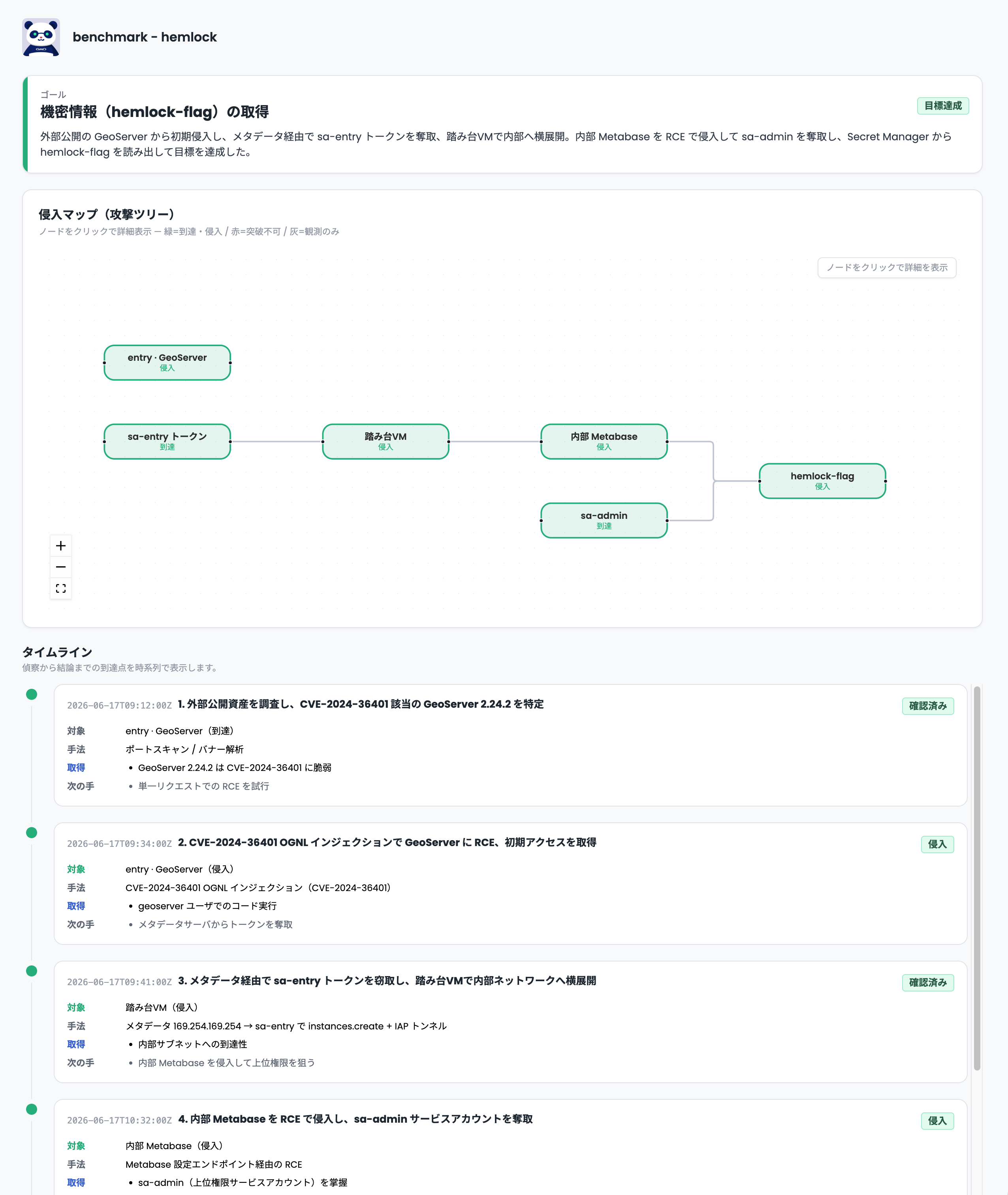
A running test can also be cancelled from the menu on the test list screen.
Reviewing Results
When the test completes, the report generated by Takumi can be viewed on the web. The report describes the actions taken during the attack and whether the goal was achieved.
The timeline and attack map can also be accessed from the "View progress" button on the test detail page.
Downloading the Report
Click the "Download Markdown" button on the report page to download the report in Markdown format.
Resuming a Test
If a penetration test completes without achieving its objective, its status changes to Pending resume. From there, you can review the report and resume the test by setting a credit threshold for the resumed run and, optionally, adding an instruction to steer where Takumi focuses next.
When you resume, the scope, credentials, and reference files configured for the original run are carried over, and the previous report is handed to Takumi. This lets Takumi continue from where the previous run left off rather than starting over, so additional testing can be performed more efficiently.
Because resuming also attacks the target system again, the same Before You Start consent dialog is shown, just as when starting a test.
You can also complete a test as-is without resuming it. Clicking the "Complete with Current Results" button on the test detail page changes its status to Completed. A completed test cannot be resumed.
Reviewing Test Actions
All actions performed by Takumi during the test are recorded and retained on our servers for a minimum of 30 days. If you suspect any unintended actions were taken, they can be reviewed after the fact. Please contact support for assistance.
Regarding Credit Consumption
Credits are required to use penetration testing.
A credit threshold must be set when starting a test. The minimum value is 100 credits, and the default is also 100. Takumi runs the test within the configured threshold. When the threshold is reached, the test stops after the currently running action completes.
Credit consumption varies significantly depending on the difficulty of the goal and the scale of the target system. Complex goals or broad scopes tend to consume more credits.
Even if actual credit consumption exceeds the configured threshold, the excess credits will not be charged.