Whitebox Assessment
The English user guide is currently in beta preview. Most of the documents have been automatically translated from the Japanese version. Should you find any inaccuracies, please reach out to Flatt Security.
Overview
Takumi's whitebox assessment feature receives source code via GitHub repository connection or file upload, performs assessments, and outputs the results as a report on the web.
It can be used from the Shisho Cloud byGMO web interface. Unlike Periodic Assessment, this feature does not require Slack integration.
How to Start an Assessment
Click "Assessments" in the sidebar, then click the "Create Assessment" button in the upper right corner of the screen to start an assessment.
Carry Over Settings from an Existing Assessment
When you want to run a new assessment with the same settings as a previous one, you can carry over the configuration of an existing assessment instead of filling in the form from scratch. Follow these steps:
- Click the "Create Assessment" button in the upper right corner of the assessment list.
- Select "Create from existing assessment" in the dialog.
- Choose the assessment whose settings you want to carry over.
The creation form opens pre-filled with the selected assessment's configuration. Review and adjust the settings, then start the assessment.
You can also use this feature to retry an assessment that failed during execution, keeping the same settings.
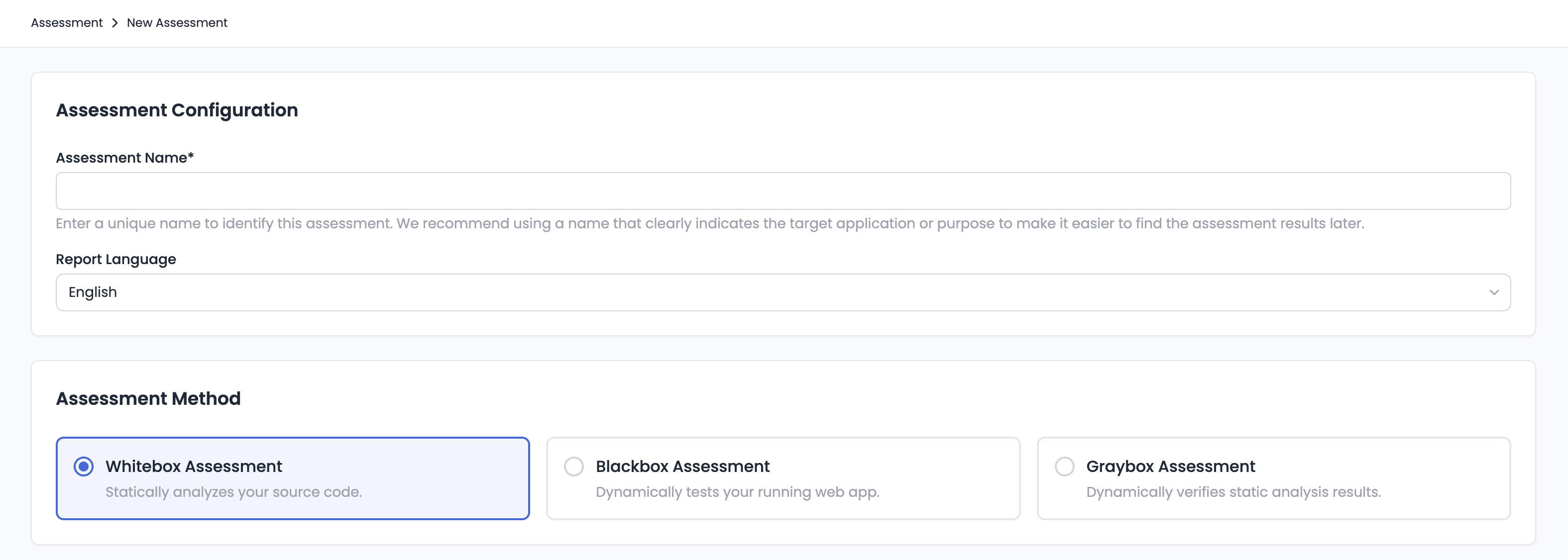
Assessment Configuration
The main items on the configuration screen are:
- Assessment Name: Enter a name to identify this assessment.
- Report Language: Select the language of the assessment report (English or Japanese).
- Assessment Method: Select "Whitebox Assessment".
Assessment Type
You can select one of the following two modes:
- Full Assessment: Feature enumeration and the initial scan of the target source code are performed in one seamless process. After completion, the assessment pauses in a "Pending" state.
- Scoped Assessment: Features are first enumerated from the target codebase. Once complete, the enumerated features are displayed.
Credit Threshold
Credit thresholds can be set separately for the feature enumeration and scanning phases (for "Scoped Assessment" mode, only feature enumeration). Takumi performs feature enumeration and scanning within the specified credit thresholds.
Source Code Configuration
You can provide source code using one of the following methods:
GitHub Repositories
You can specify one or more GitHub repositories. Click the "Add Repositories" button to add repositories for assessment. You can also specify the branch of the target repository at this point. If not specified, the repository's default branch will be used for assessment.
File Upload
You can upload source code archives directly. This is useful when GitHub integration is not available or for assessing local codebases.
- Supported formats:
.zipor.tar.gz - Click the "Upload Files" button to select and upload your archive
- The extracted root directory will be displayed and used for file scope specification below
File Scopes
You can specify file paths to include in or exclude from the assessment. All file paths support glob patterns (e.g., src/auth/**, backend/services/**). Leaving the scope empty will assess the entire codebase.
Include Scopes
- Target: Select the target repository or uploaded file.
- Feature Type (optional): Specify a feature category (e.g.,
authentication,payments,api). - File Path: Specify file paths to include in the assessment.
Please note that even if specified as an assessment target, file paths may be excluded based on Takumi's judgment.
Exclusions
- Target: Select the target repository or uploaded file.
- Reason (optional): Document the reason for exclusion (e.g., "Test code", "Auto-generated files").
- File Path: Specify file paths to exclude.
Reviewing Feature Enumeration Results
When feature enumeration completes in "Scoped Assessment" mode, a matrix of detected features and assessment perspectives is displayed. On this screen, you can set the credit threshold for scanning and assessment priorities for each feature and perspective.
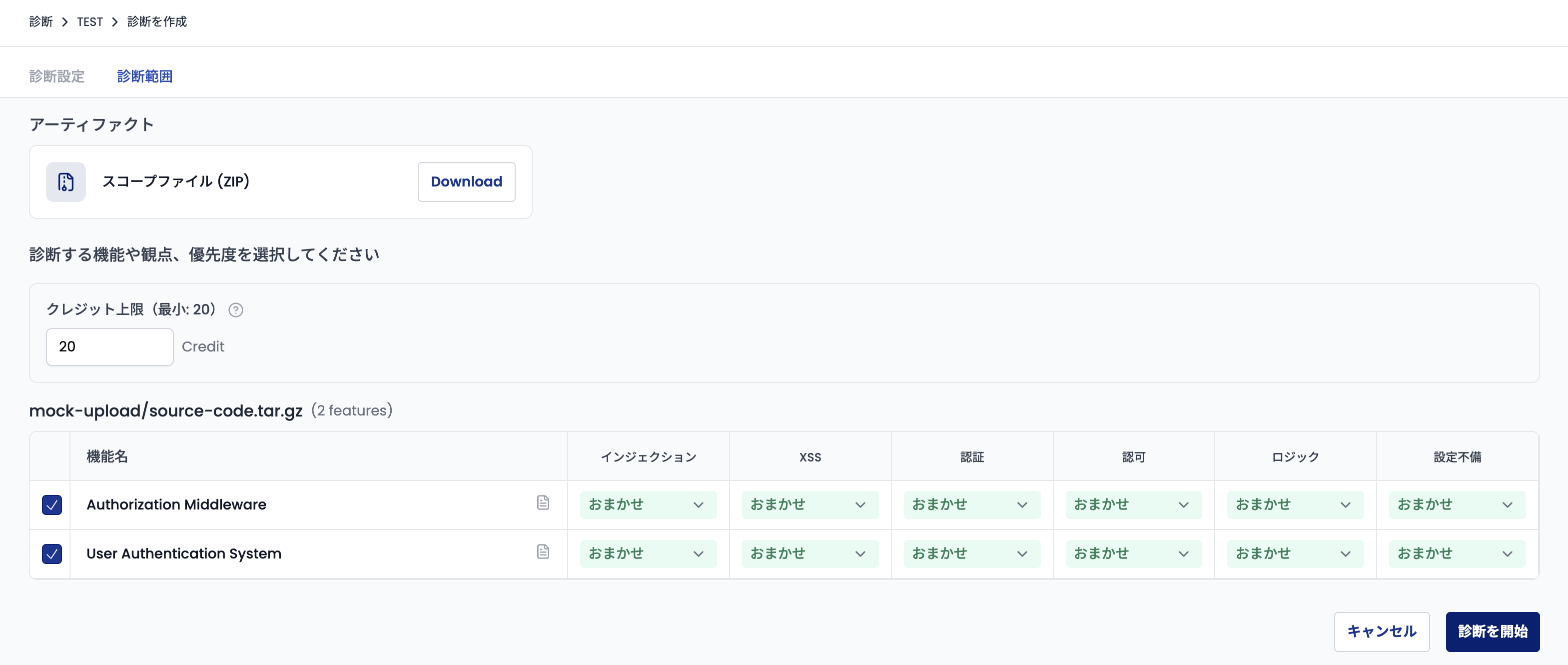
You can set priorities of "Auto, High, Medium, Low, None" for each combination of feature and perspective. Higher-priority items are scanned first. When "Auto" is selected, Takumi automatically determines the priority based on risk analysis.
After completing the configuration, click the "Start Pentesting" button to begin the scan.
Reviewing Results and Running Additional Scans
When the specified credit threshold is reached during a scan or scanning for all combinations is complete, the assessment pauses in a "Pending" state.
Opening a "Pending" assessment displays the matrix screen again. Each cell shows one of the following states:
| State | Description |
|---|---|
| Scanned | Displayed for combinations where scanning has completed |
| Skipped | Displayed for combinations that were skipped because scanning was deemed unnecessary |
| Priority menu | Displayed for combinations that have not yet been scanned |
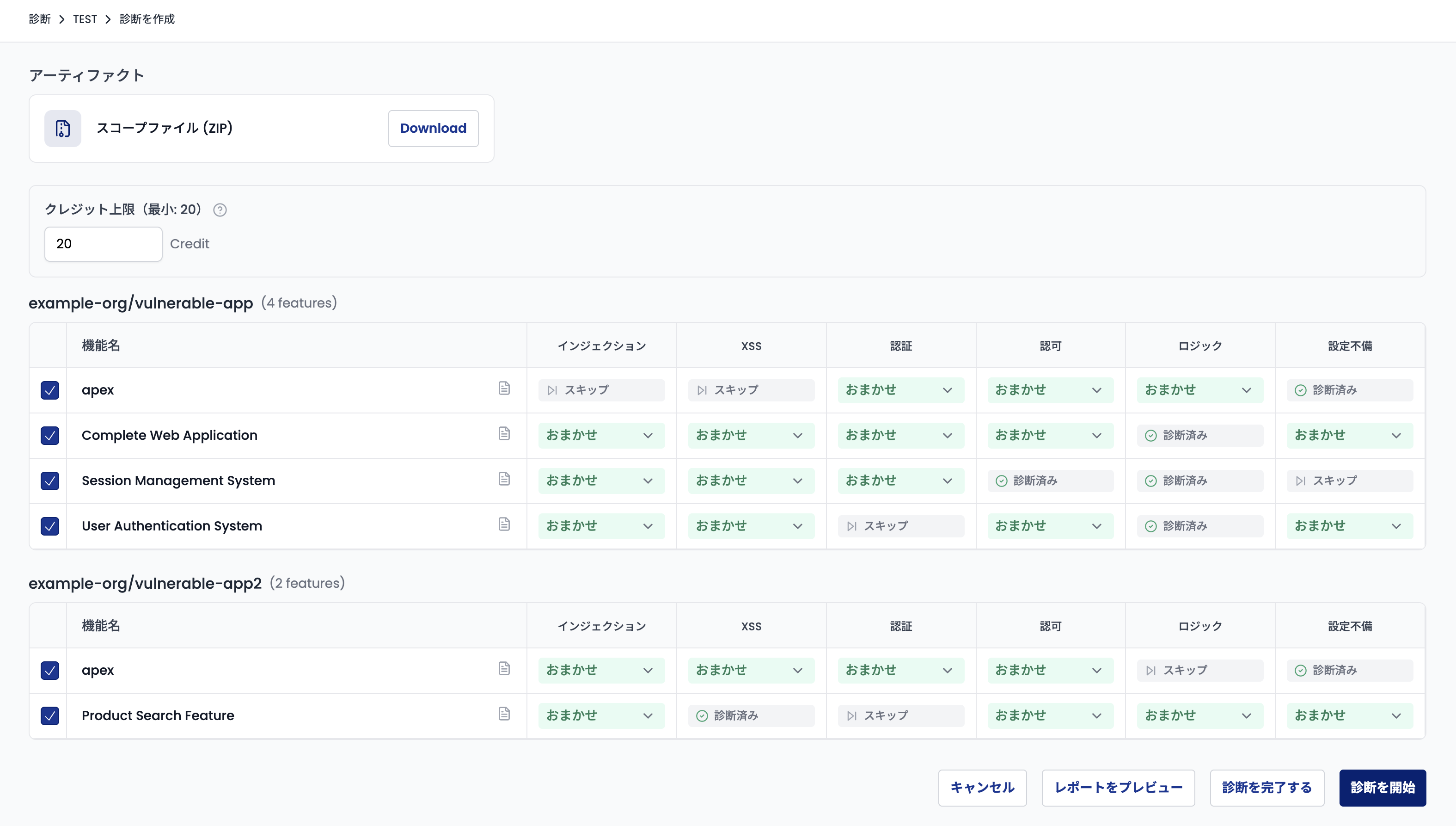
From this page, you can:
- Preview the interim report: Click "Preview Report" to open the current report in a new tab
- Run additional scans: Set the credit threshold and priorities for unscanned combinations, then click "Start Pentesting" to run additional scans
- Complete the assessment: If no additional scans are needed, click the "Complete Assessment" button to finalize the assessment
Checking Assessment Results
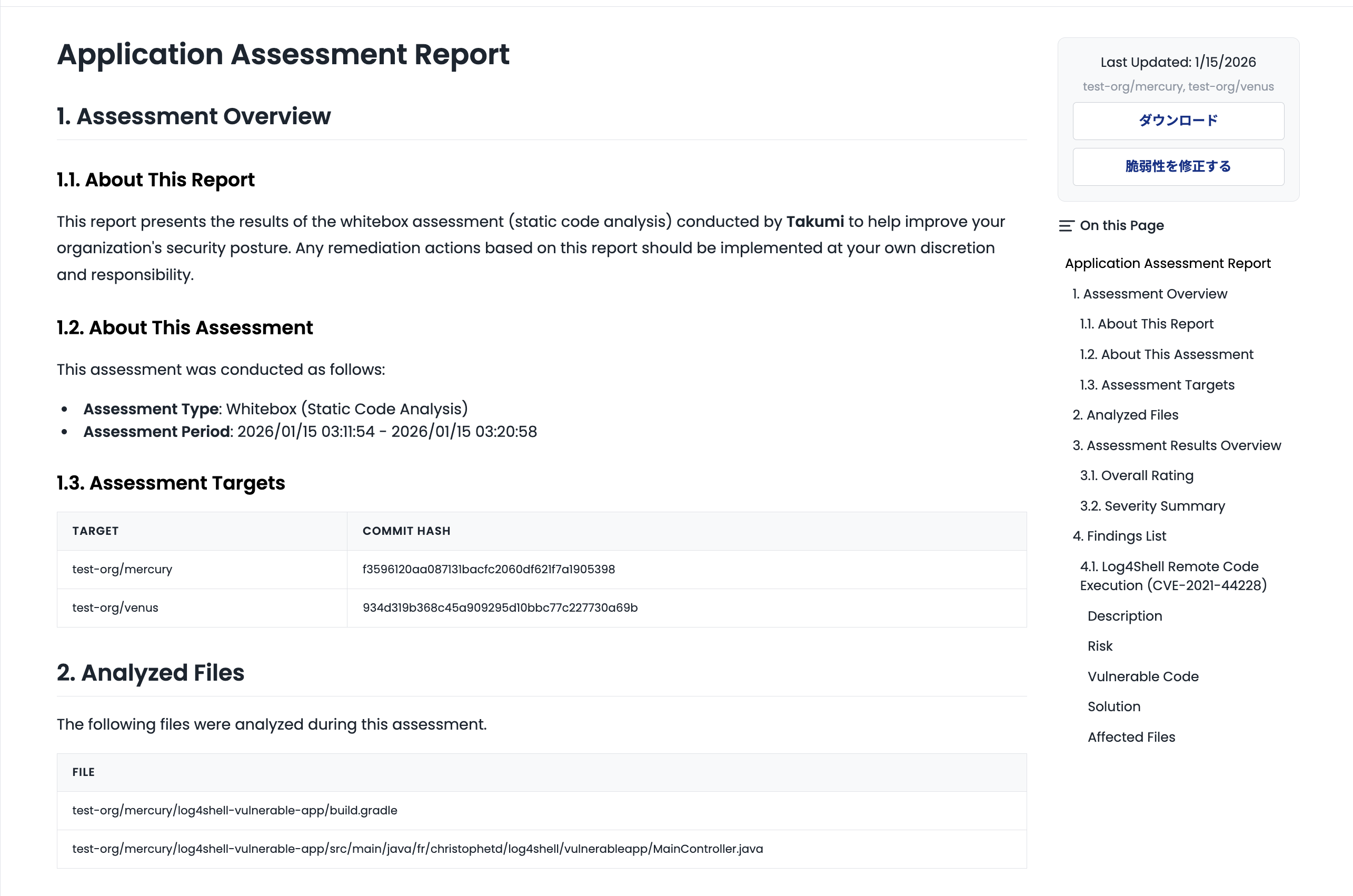
Assessment reports can be viewed on the web, as shown in the following screen.
Each item in the assessment results explains which feature was assessed from what perspective, and what severity and risk vulnerabilities were found. The report includes specific file paths where vulnerabilities were detected.
Exporting a PDF Report
You can download the assessment report as a PDF with a branded cover page. Click the "Issue PDF Report" button on the assessment report page and choose a cover page language (English or Japanese). Once the PDF is ready, a download link will be sent to the email address associated with your account.
Download links expire after 15 minutes. If a link expires, click the download button again to get a new one. Note that issued PDFs are deleted after 30 days, so save a local copy if needed.
Handling of Assessment Data
Assessment data — the assessment settings and execution results such as feature enumeration results, execution messages, and reports — can be viewed only by users who belong to the organization that created the assessment and hold one of the following roles.
- Owner (
organization/owner) - Takumi manager (
organization/takumi_manager) - Takumi user (
organization/takumi_user)
Creating and running an assessment is likewise available to users holding one of these roles.
Of these roles, only users with the "Owner" or "Takumi manager" role can delete an assessment.
Deleting an Assessment
To delete an assessment, click "Assessments" in the sidebar to open the assessment list, click the menu icon on the right side of the target assessment's row, and select "Delete". In the confirmation dialog, type delete and click the "Delete" button.
Note that deleting an assessment also deletes its associated data, including the assessment settings, feature enumeration results, and reports. Deletion cannot be undone — once deleted, an assessment and its data cannot be restored.
Assessment Perspectives
In whitebox assessments, reviews are conducted from the following perspectives. The actual assessment perspectives and their priorities can be configured depending on the characteristics of the target repository.
Feature-Level Assessment
- Injection
- File System Vulnerabilities
- XSS
- Broken Authorization
- Business Logic Flaws
Repository-Level Assessment
- Misconfiguration
- Broken Authentication
Vulnerabilities such as Injection and XSS are tested for each feature identified by Takumi in advance to ensure the comprehensiveness of the assessment. On the other hand, perspectives such as Misconfiguration and Broken Authentication, which tend to exist in specific locations (e.g., configuration files or middleware layers) rather than being scattered across individual features, are executed only once for the entire target.
For more details, please refer to "Compliance with OWASP ASVS 5.0" below.
Differences from Blackbox Assessments
The whitebox assessment perspectives are structured differently from blackbox assessments to maximize the characteristics of static analysis.
For example, in blackbox assessments, it is meaningful to subdivide categories because SSRF and Command Injection are each tested with different requests and payloads. In contrast, whitebox assessments analyze the source code directly, allowing these to be tracked collectively through a common mechanism: "Taint Tracking" (tracing data from external input to dangerous sinks). Therefore, this assessment consolidates these into a single "Injection" perspective, achieving an efficient and comprehensive review while preventing redundant code scanning.
Compliance with OWASP ASVS 5.0
In whitebox assessments, Takumi detects high-severity vulnerabilities while simultaneously performing a comprehensive inspection based on the international standard OWASP ASVS 5.0.
The correspondence table between assessment perspectives and OWASP ASVS 5.0 Level 1 check items is as follows:
| Assessment Perspective | ASVS Check Items |
|---|---|
| Injection | V1.2.4, V1.2.5, V1.3.2, V1.5.1 |
| File System Vulnerabilities | V5.2.1, V5.2.2, V5.3.1, V5.3.2 |
| XSS | V1.2.1, V1.2.2, V1.2.3, V1.3.1, V3.2.2, V4.1.1 |
| Broken Authorization | V8.2.1, V8.2.2, V8.3.1 |
| Business Logic Flaw | V2.3.1, V14.2.1, V3.5.1 (*1), V3.5.3 |
| Misconfiguration | V3.4.1, V3.4.2, V3.5.2, V4.4.1, V11.3.1, V11.3.2, V11.4.1 |
| Broken Authentication | V3.3.1, V6.2.1–V6.2.8, V6.3.1, V6.3.2, V6.4.1, V6.4.2, V7.2.1–V7.2.4, V7.4.1, V7.4.2, V9.1.1–V9.1.3, V9.2.1, V10.4.1–V10.4.5, V14.3.1 |
(*1) V3.5.1, which covers CSRF, is reported only in graybox assessments, which perform dynamic verification against a running application, in order to suppress false positives.
However, some ASVS items are excluded from the check items for the following reasons:
-
Items covered implicitly
- These are omitted as independent items because the requirements can be verified through the inspection of other, more specific items
- Relevant items: V2.2.1, V2.2.2, V3.2.1, V15.3.1
-
Items outside the scope of static analysis
- Due to the nature of whitebox assessments (static analysis), items related to infrastructure or operations that are difficult or unsuitable to determine from source code are omitted
- Relevant items: V2.1.1, V6.1.1, V8.1.1, V12.1.1 (*2), V12.2.1 (*2), V12.2.2 (*2), V13.4.1 (*2), V15.1.1, V15.2.1
(*2) These items concern TLS configuration and how the application is served, so they are checked separately in graybox assessments, which test against a running application.
Differences from Chat-Based Whitebox Assessment
This feature and the whitebox assessment available via Slack or Web chat run on different Takumi engines.
| Item | Via Chat | Via Web Console |
|---|---|---|
| Comprehensiveness | As before | More comprehensive |
| Assessment Time | As before | Tends to increase |
| Credit Consumption | As before | Tends to increase |
Regarding Credit Consumption
Credits are required to use this feature. Credit consumption varies depending on the characteristics and size of the assessment target.
You can set credit thresholds for the feature enumeration phase and the scanning phase separately when starting and when resuming an assessment. Each phase's consumption will not exceed its specified threshold.
As a rough guide, each combination of a "feature" and a "perspective" (corresponding to a specific cell on the configuration screen) typically consumes approximately 1–3 credits. However, actual consumption also varies depending on factors such as the scale of the target feature and the number of clues Takumi discovers during the assessment, so it may fall outside this range.
Note that while an assessment is running, the credit limit you specified is reserved from your balance in advance, so the displayed credit balance is the value after deducting the reserved amount. See Credit Reservation While a Run Is in Progress for details.
Even if actual credit consumption exceeds the configured threshold, the excess credits will not be charged.
For example, if the credit threshold is set to 10 and the actual consumption is 11, the final billed credit consumption will be 10.