Slack Channel Config
The English user guide is currently in beta preview. Most of the documents have been automatically translated from the Japanese version. Should you find any inaccuracies, please reach out to Flatt Security.
Command Types
After inviting Takumi to your Slack workspace, in addition to directly requesting tasks to Takumi, you can use the following Slack commands:
takumi-scopes: Manage the codebases Takumi can access.takumi-tasks: Manage Takumi's current one-shot and recurring tasks.takumi-knowledge: Manage the knowledge Takumi retains across tasks.
1. Managing Accessible Codebases with takumi-scopes
Repositories that Takumi can access are limited by scope, and you need to add the target repository to the scope when requesting tasks.
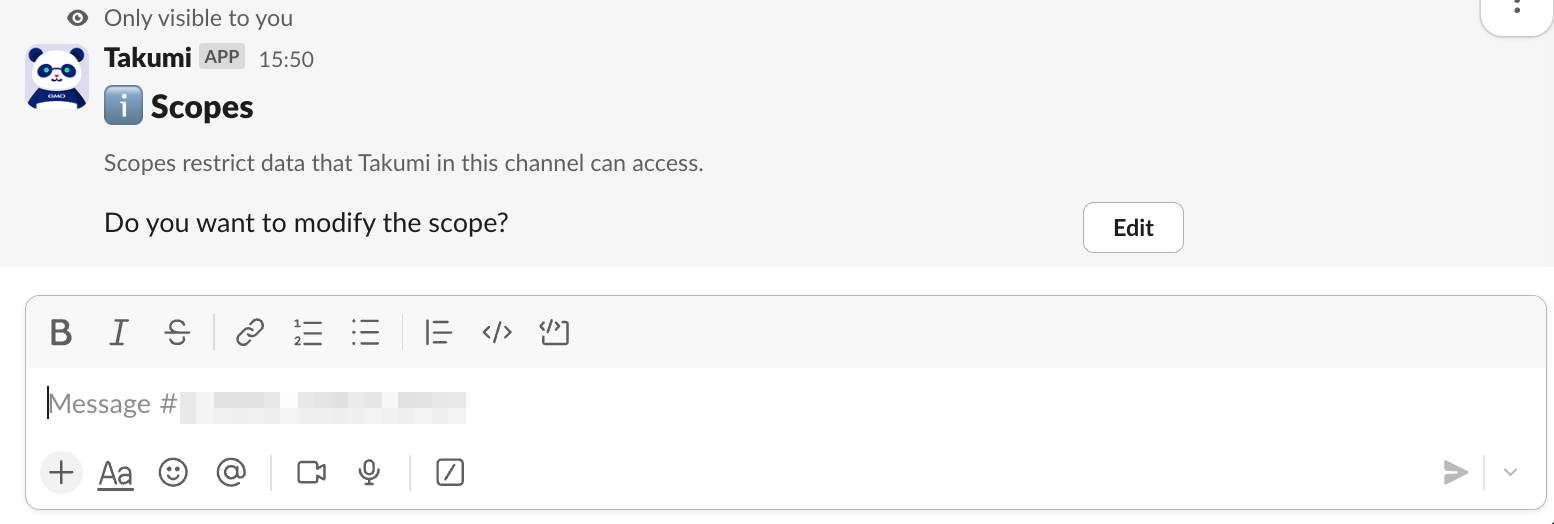
By entering /takumi-scopes in a Slack channel, you can view the repositories Takumi can currently access. Select Edit to add a new repository.
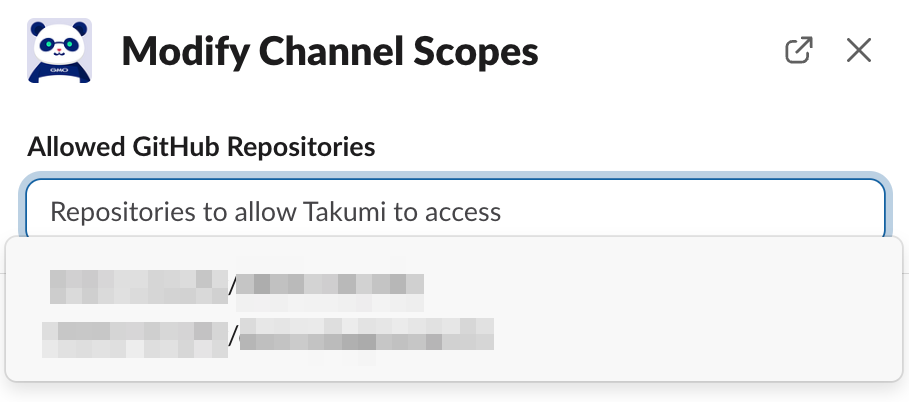
Takumi will display the repositories it's currently permitted to access. Select the repositories you want Takumi to access.
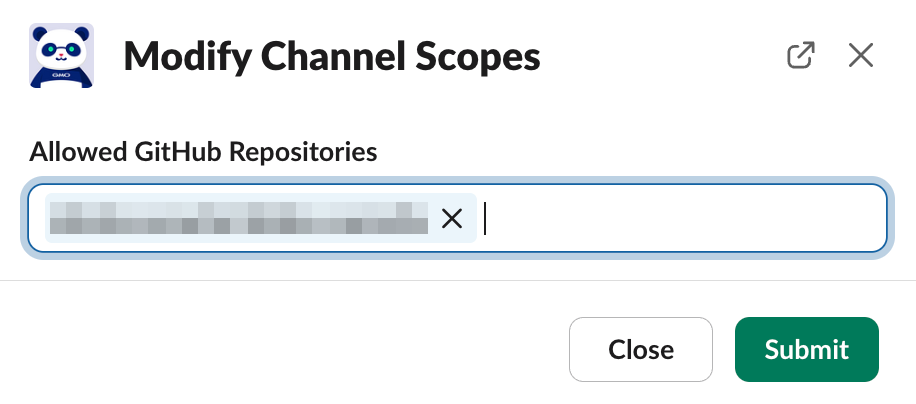
After selecting, confirm with Submit.
By entering the /takumi-scopes command again, you can confirm and modify the added scopes.
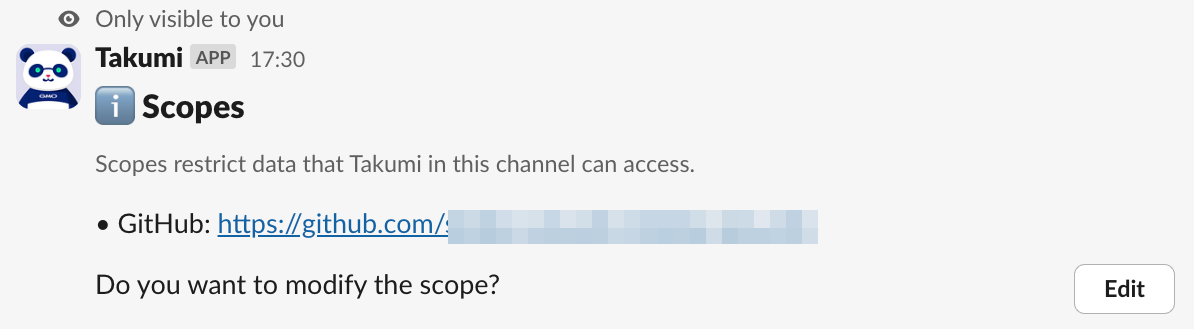
Adding or Removing Repositories via Command Line
You can also add or remove repositories directly using command-line arguments:
/takumi-scopes add https://github.com/owner/repo
/takumi-scopes remove https://github.com/owner/repo
The command accepts GitHub repository URLs in the format https://github.com/owner/repo. For backward compatibility, the legacy format owner/repo is also supported.
If you encounter an error such as "App took too long to respond," please wait a few seconds and try again (it may take time to fetch the list of repositories). Reducing the number of repositories selected during GitHub integration may help mitigate this issue. If the issue persists, please contact customer support.
2. Task Management with takumi-tasks
If you want to request a task to Takumi immediately, you can also directly mention Takumi in the Slack channel.

Alternatively, to configure tasks from Shisho Cloud byGMO, refer to Using Takumi Scheduled Tasks. Tasks set up on Shisho Cloud byGMO cannot be viewed from Slack.
By entering /takumi-tasks in a Slack channel, you can view the tasks currently assigned to Takumi, and buttons to assign recurring tasks (Cron Tasks) and one-shot tasks.
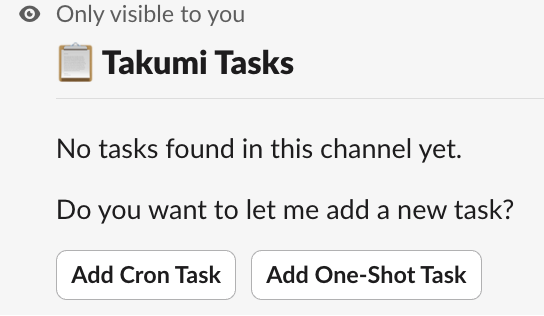
If you encounter an error such as "App took too long to respond," please wait a few seconds and try again. If the issue persists, please contact customer support.
Registering a One-Shot Task
Select Add One-Shot Task to display the one-shot task assignment form. Enter the task title, execution date and time, task details, and reporting destination (channel and mentioned users), and then click Submit to register.
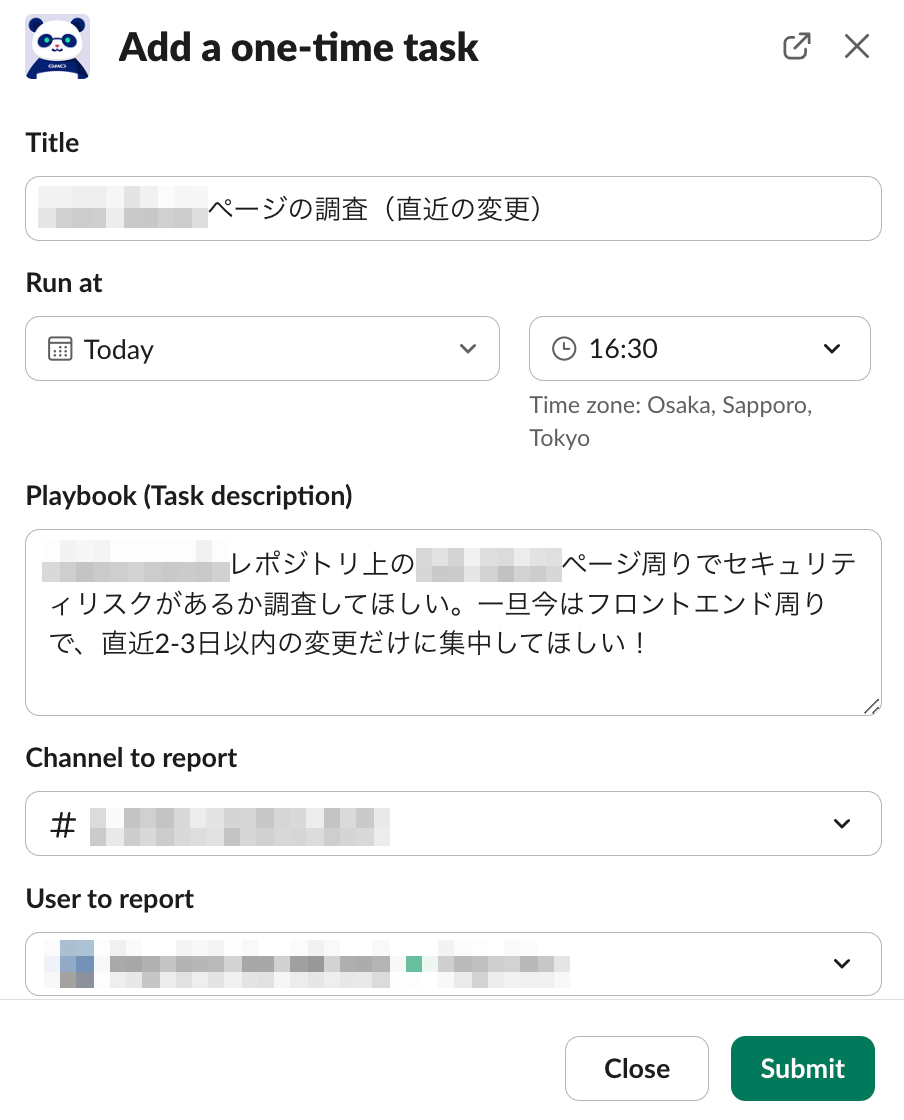
After configuration, execute the /takumi-tasks command again to confirm currently scheduled one-shot tasks. These tasks can be modified or canceled as needed.
At the specified time, Takumi will create a thread within the channel and execute the task.
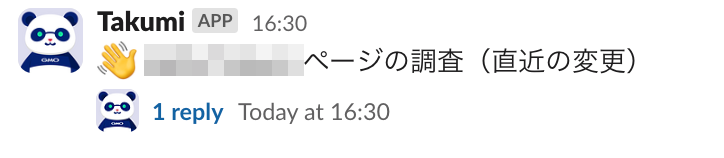
Please note that if you set the execution time of a One-Shot task to the same time as when you submit it, or before it, the task will not be added.
Registering a Recurring Task (Cron Task)
Select Add Cron Task to display the recurring task assignment form. Similar to one-shot tasks, fill in the required fields and register with Submit. The timing in which to execute these tasks are to be specified in cron format.
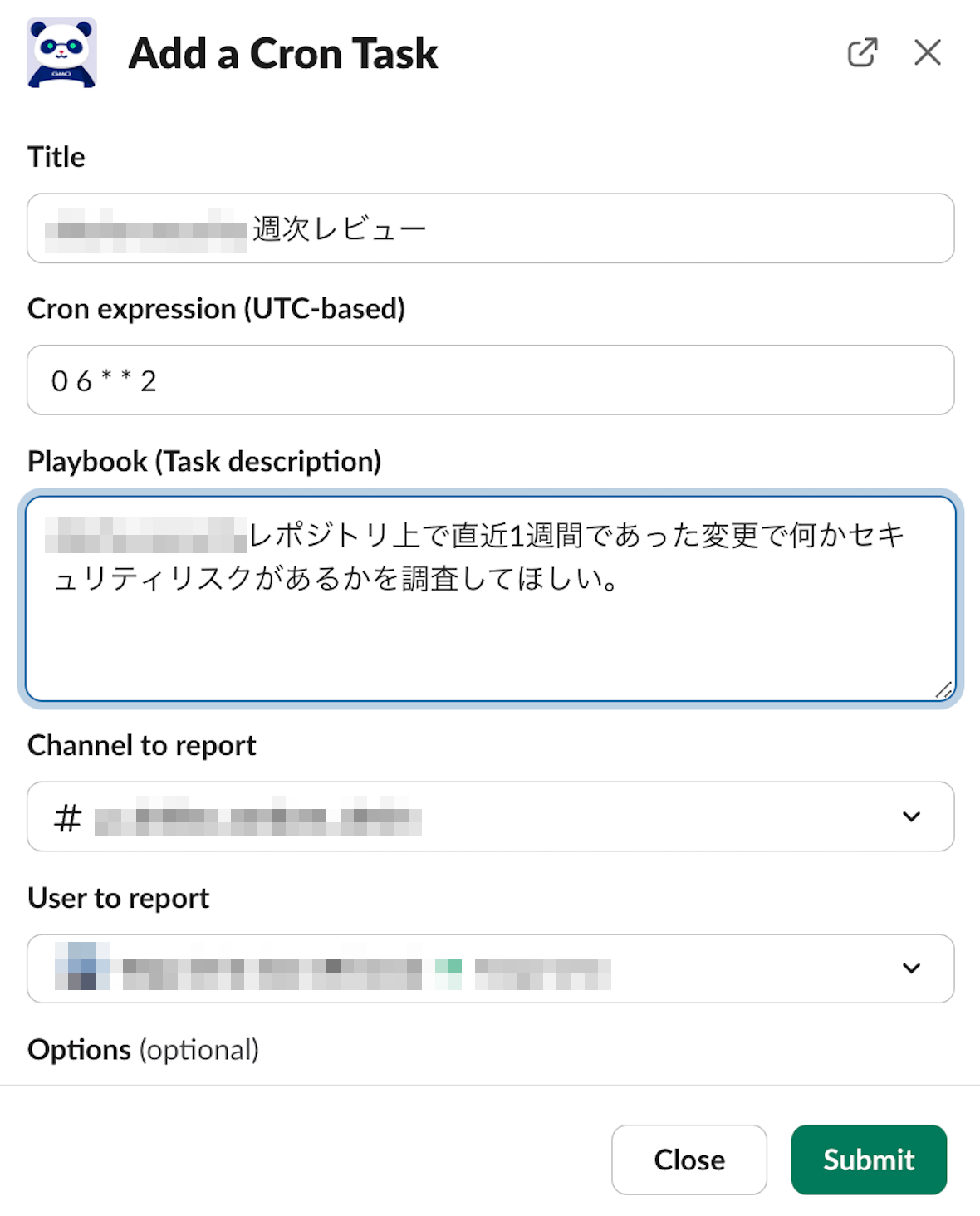
After configuration, you can confirm and modify currently configured recurring tasks by executing the /takumi-tasks command again.
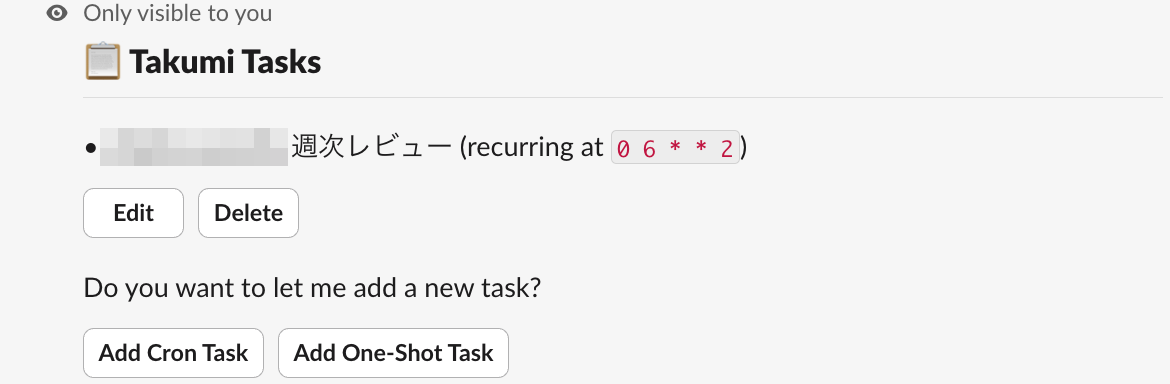
At each specified time, Takumi will create a thread within the channel and execute the specified task.
3. Knowledge Management with takumi-knowledge
By entering /takumi-knowledge in a Slack channel, you can view and register the knowledge Takumi currently retains across tasks.

Select Add to manually register knowledge.
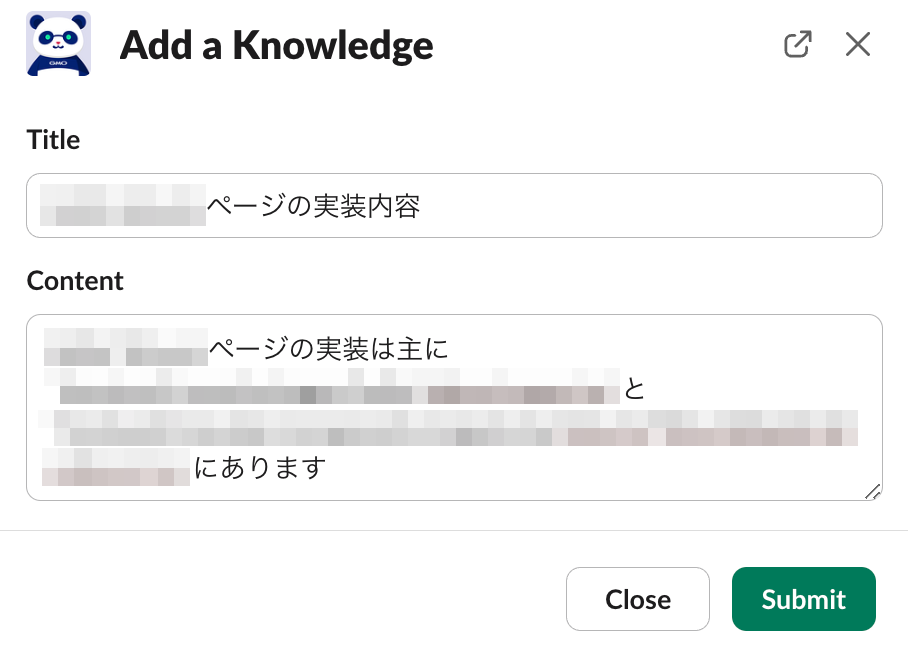
Execute the /takumi-knowledge command again to view and modify the added knowledge.
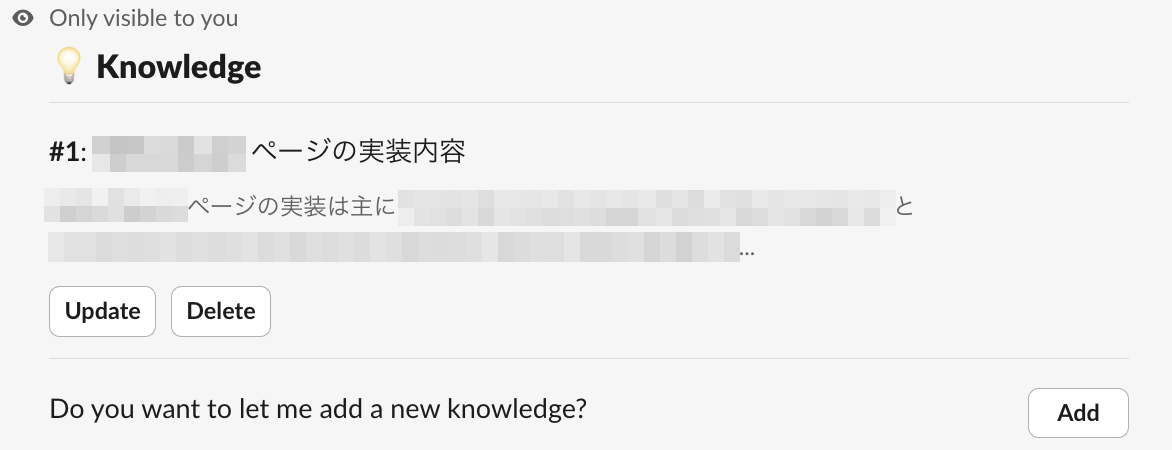
Select Delete to remove the registered knowledge.