Takumi Agent for Endpoint Released


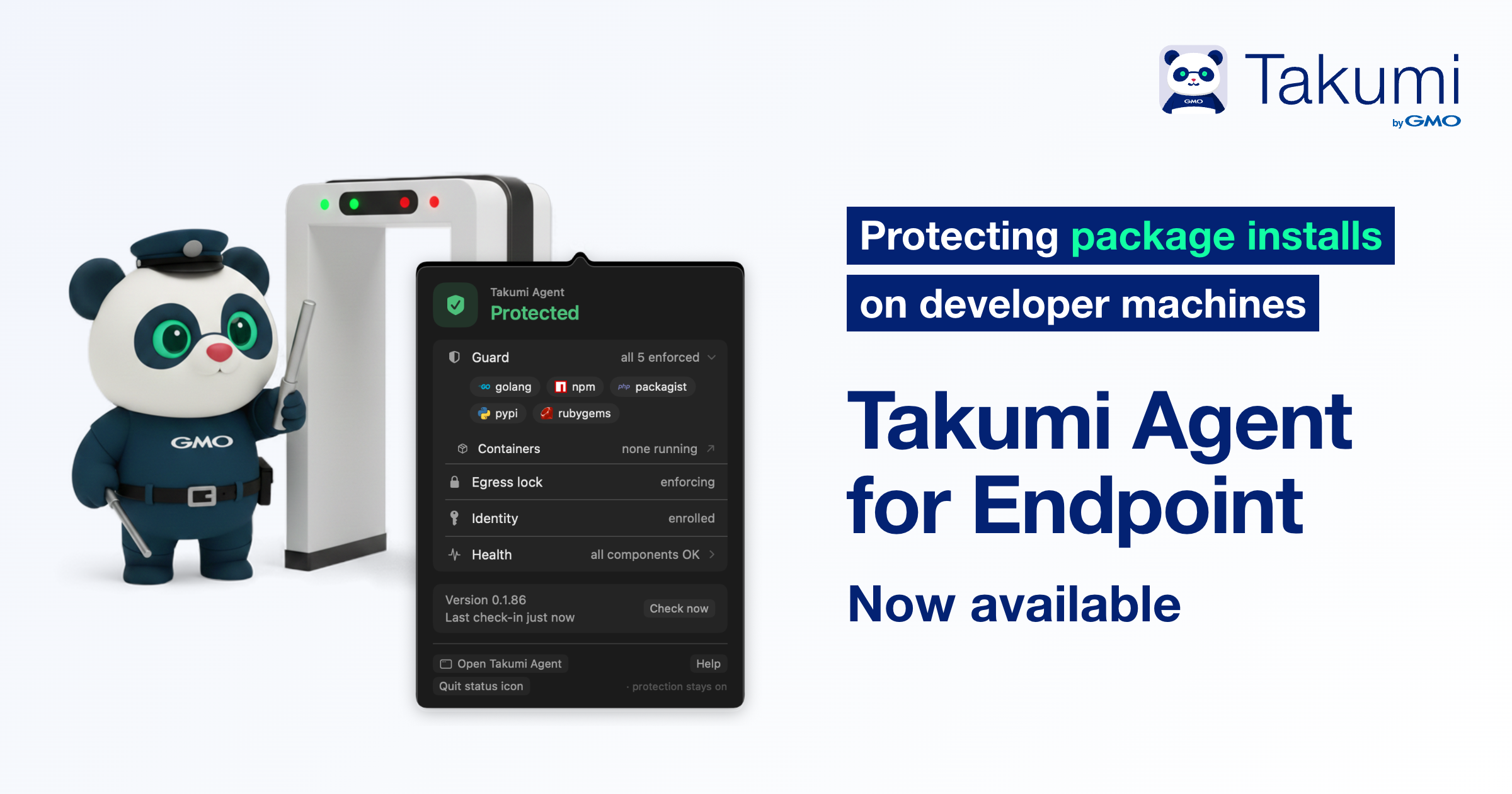
Takumi Agent for Endpoint protects your organization's Macs with Takumi Guard. It works through Takumi Agent, a macOS agent installed on each Mac that sends every package install through Takumi Guard.
Install it once, and every tool on the Mac is protected without configuring each package manager, while each device's protection state shows up in the Shisho Cloud console.
Background
Developers install packages all day: in new projects, with new tools, and more and more through AI coding agents that run commands on their own. Each of those installs is a chance for a malicious package to reach the Mac.
Takumi Guard checks installs against known malicious packages, but with the registry setup every package manager has to point at Guard. One unconfigured tool or a stray --registry flag sends downloads straight to the public registry, and nothing tells you it happened.
Takumi Agent removes that gap. It sends installs from every tool on the Mac through Takumi Guard, and shows in the console whether each device is protected.
Nothing to Configure per Tool
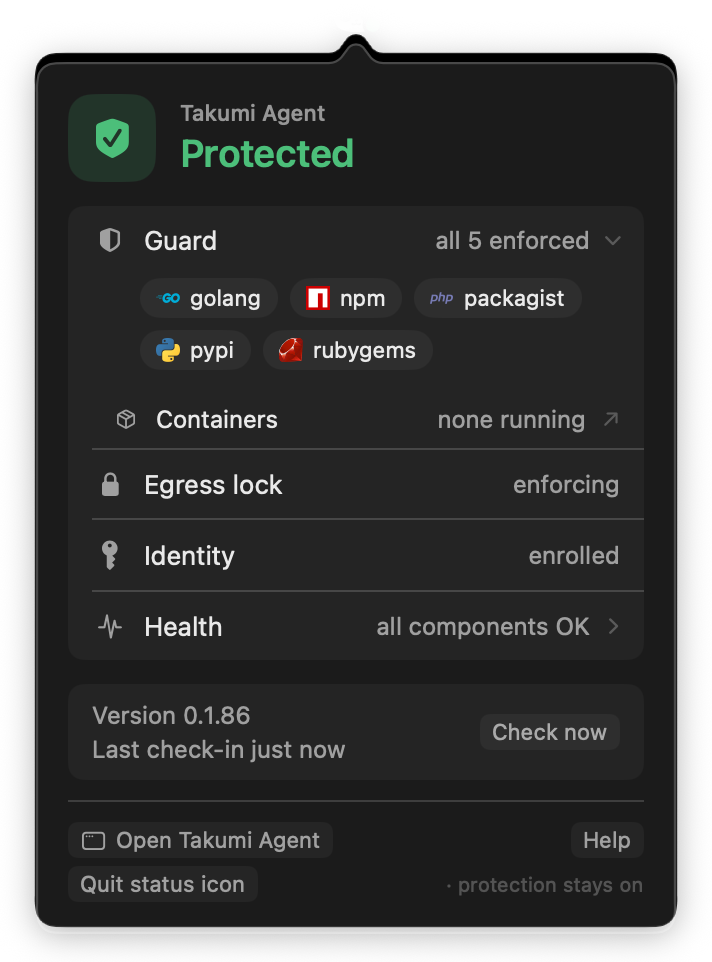
Takumi Agent captures traffic to the supported public package registries at the network layer, using a macOS system extension, and sends it through Takumi Guard. It covers all five Guard ecosystems: npm (incl. Yarn), PyPI, RubyGems, Go modules, and Packagist (Composer). The coverage table lists the registry hostnames.
Because nothing has to be configured per tool, AI coding agents and newly installed tools are covered from their first install. A download that can't be checked fails instead of going through unchecked. The menu bar panel shows the Mac's state and each ecosystem Guard enforces.
Visible from the Console
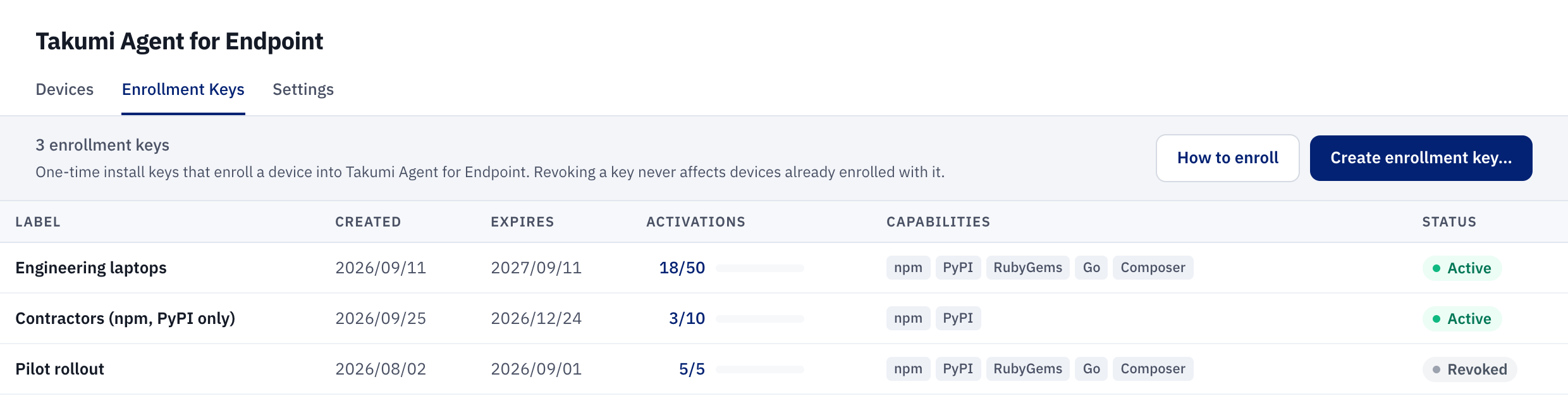
In the console, Endpoint → Devices lists every enrolled Mac with its state: Protected, Degraded, Not Protected, Offline, Removed, or Revoked. Each device's details show which protections are active on it. Device states explains what each state means and what to do about it. Enrollment keys, which register Macs in your organization, are created and managed on the Enrollment Keys page.
The Mac shows the matching verdict in its menu bar panel, and names the cause and the fix when something is wrong.
Install in Minutes
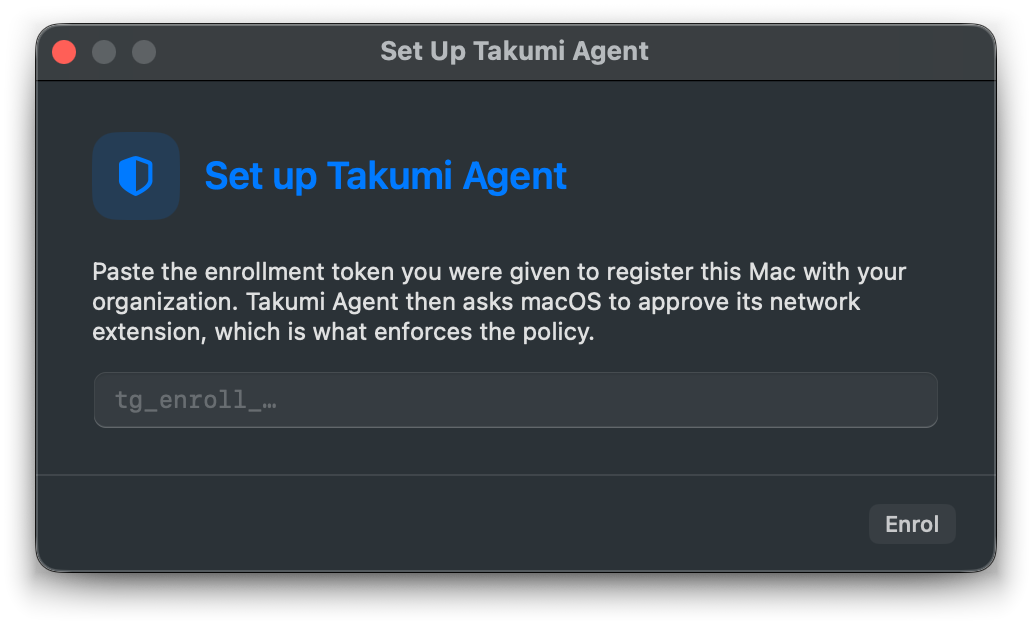
Download the installer package, run it, and paste an enrollment key into the setup window. An administrator then approves the macOS prompts once per Mac. After that, new releases install in the background on every Mac.
Inside the App
The Takumi Agent app window shows each Guard ecosystem and whether it's enforced on the Mac. Its Containers page gives you the setup for trusting the device certificate in each container runtime, so tools inside containers can install through Takumi Guard too.
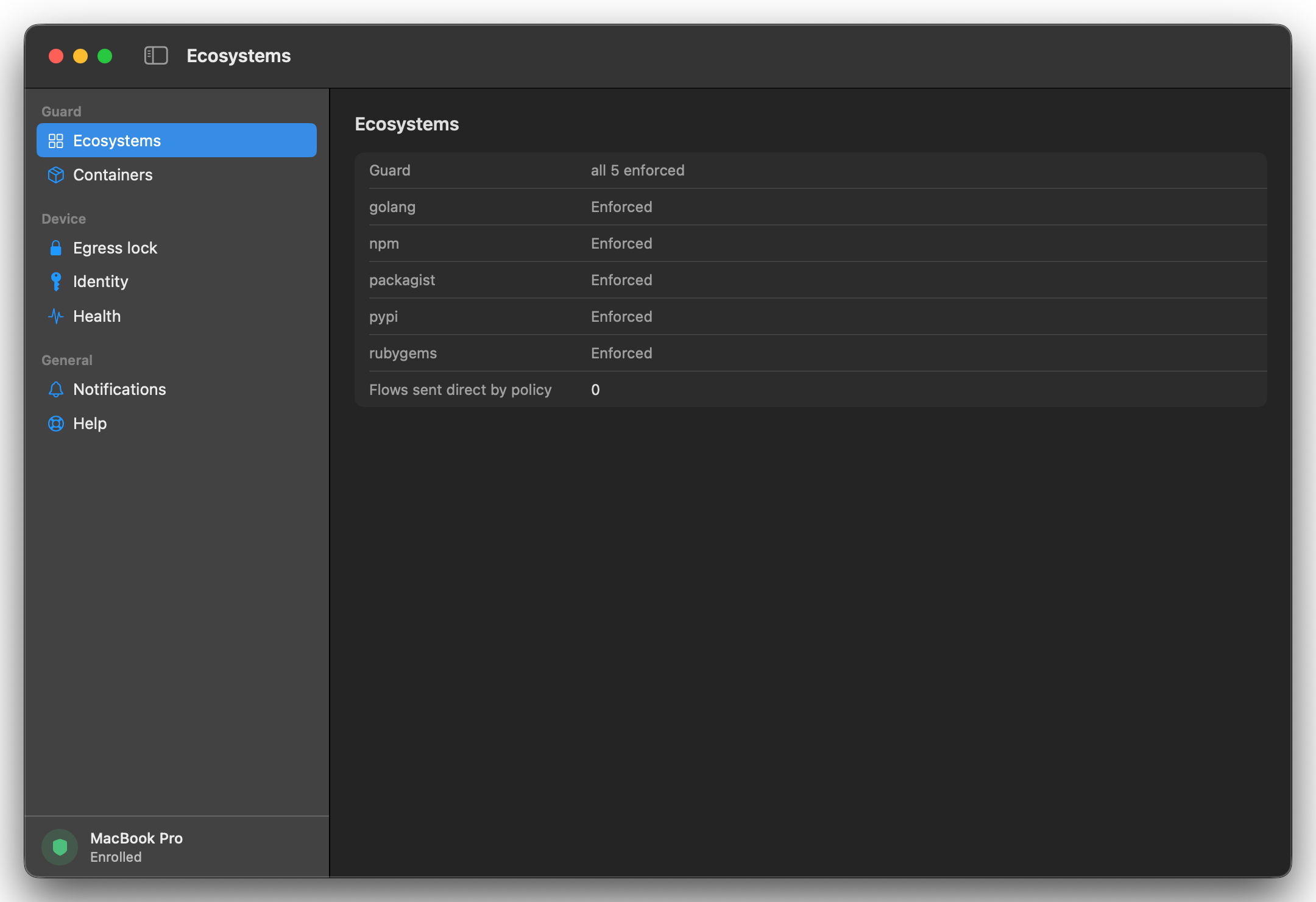
Takumi Agent and the existing registry setup apply the same Takumi Guard verdicts. The registry setup still fits CI, Linux, and Windows machines. Takumi Agent or the registry setup? compares the two.
Pricing
Takumi Agent for Endpoint is billed per device, per enabled feature, on your organization's Takumi subscription. Guard protection is ¥1,000 per device per month, with no free quota, so billing starts with the first device. Devices with Guard protection get the full Takumi Guard feature set, including package installation logs and breach notifications. Your organization does not need to enable Guard or hold Guard org user tokens for these.
See Pricing and Subscription & Billing for details.
A Mac set up with the Guard admin deployment script uses a Guard org user token, billed per token. After installing Takumi Agent on that Mac, revoke its token under Guard → Tokens, so the Mac is billed once, as an Endpoint device. See Moving from the Admin Deployment Script.
Getting Started
You need an Apple silicon Mac running macOS 13 or later, and an administrator to approve the macOS prompts.
- In the console, open Endpoint → Settings and enable Guard protection under Billed features. This requires an active Takumi subscription.
- Open Endpoint → Enrollment Keys and click Create enrollment key.
- Download and run the installer: takumi-agent-latest.pkg.
- Paste the enrollment key into the setup window and approve the macOS prompts.
The Quickstart walks through each step.
▼ User Guide: Takumi Agent for Endpoint