Quickstart
The English user guide is currently in beta preview. Most of the documents have been automatically translated from the Japanese version. Should you find any inaccuracies, please reach out to Flatt Security.
This page covers installing Takumi Agent on a Mac: create an enrollment key in the console, run the installer package, and approve the macOS prompts in the setup window. You don't need the Terminal.
Prerequisites
- An Apple silicon Mac.
- macOS 13 (Ventura) or later.
- An administrator account. You need one to install the package, enroll the device, and trust the Mac's device certificate.
The prompts to expect
Setup shows these system prompts, in this order. Approving them is the installation.
- The installer's administrator password, when the package installs.
- Notification permission (optional). If you decline, the Mac can't alert you when it stops being protected.
- Administrator credentials to trust the device certificate.
- The system extension approval, in System Settings, followed by your administrator password.
- "TakumiAgent Would Like to Add Proxy Configurations". This one starts capturing installs.
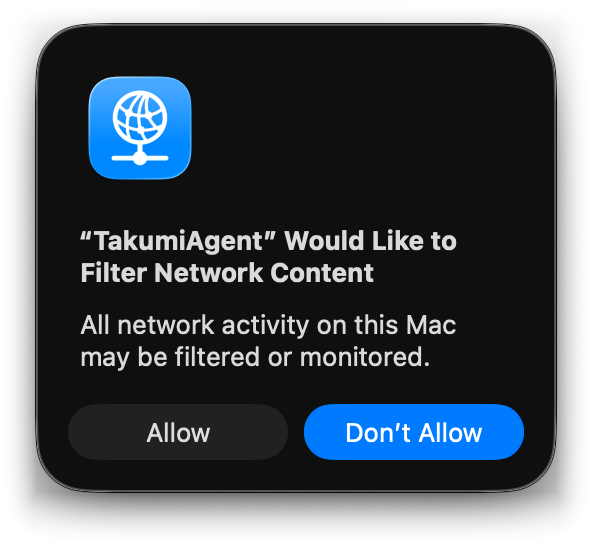
- "… would like to filter network content". A separate prompt, for the egress lock.
Step 1: Download the package
Download the latest installer: takumi-agent-latest.pkg. Each release is also kept at https://shisho.dev/releases/takumi-agent-<version>.pkg. You only install once. After that the agent updates itself (see Updates).
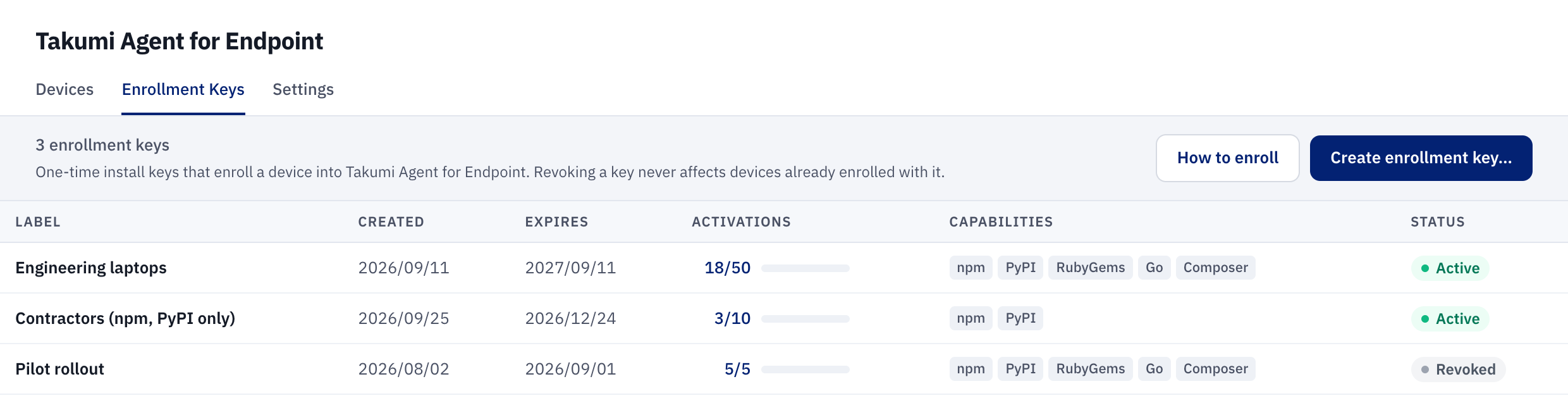
Step 2: Create an enrollment key
In the console, open Endpoint → Enrollment Keys → Create enrollment key.
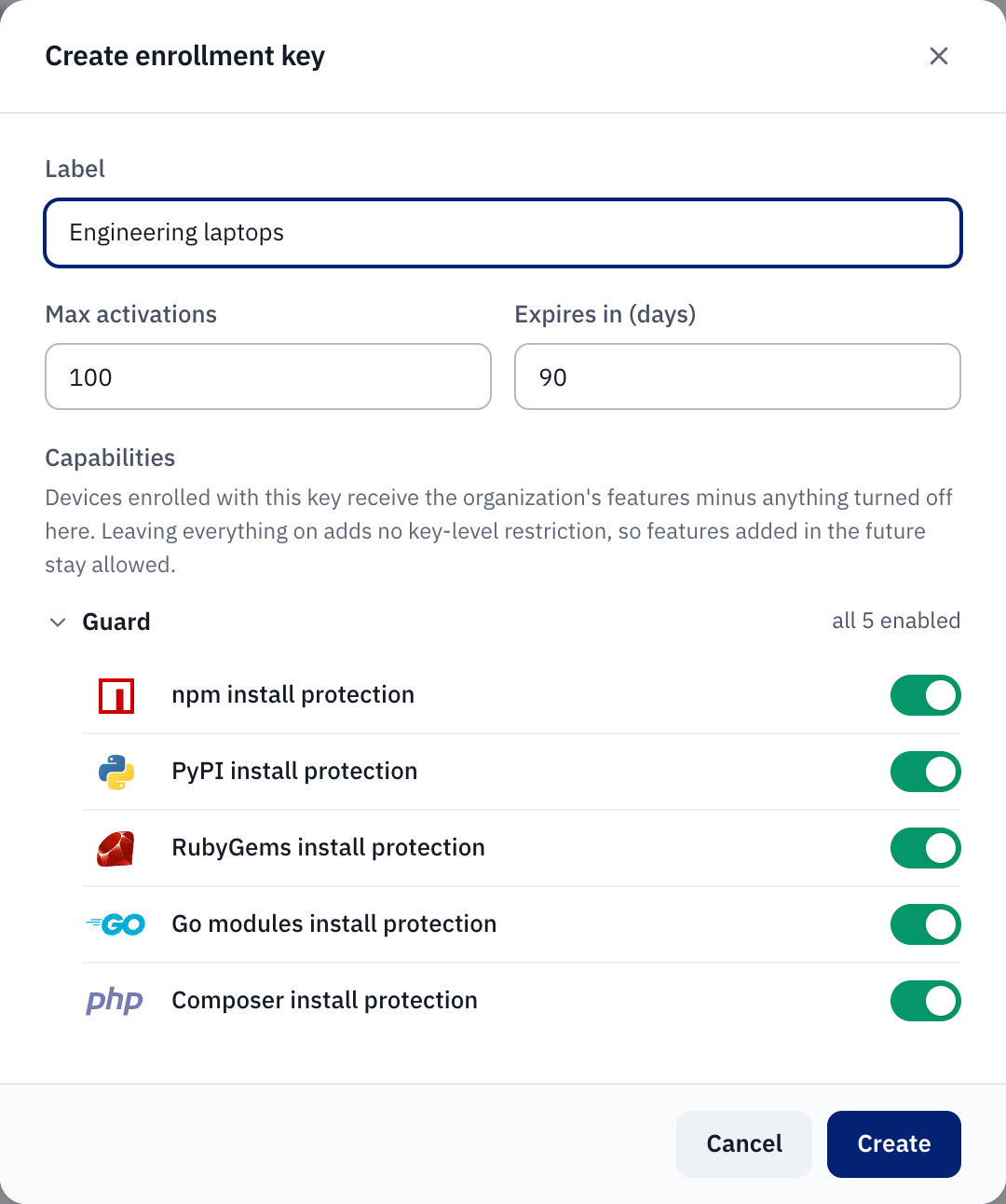
In the dialog, set a label, the maximum number of activations, and how long the key is valid. The toggles below limit which Guard capabilities devices enrolled with this key get. Leave them all on for no restriction. Managing devices describes each toggle.
Copy the key, which looks like tg_enroll_…, right away. It is only shown once.
Creating and viewing enrollment keys needs the Owner or Takumi Manager role (see Roles and Permissions). If you don't see the Create enrollment key button, ask an organization owner.
Step 3: Install the package
Double-click the package and enter an administrator password. The package always installs to /Applications.
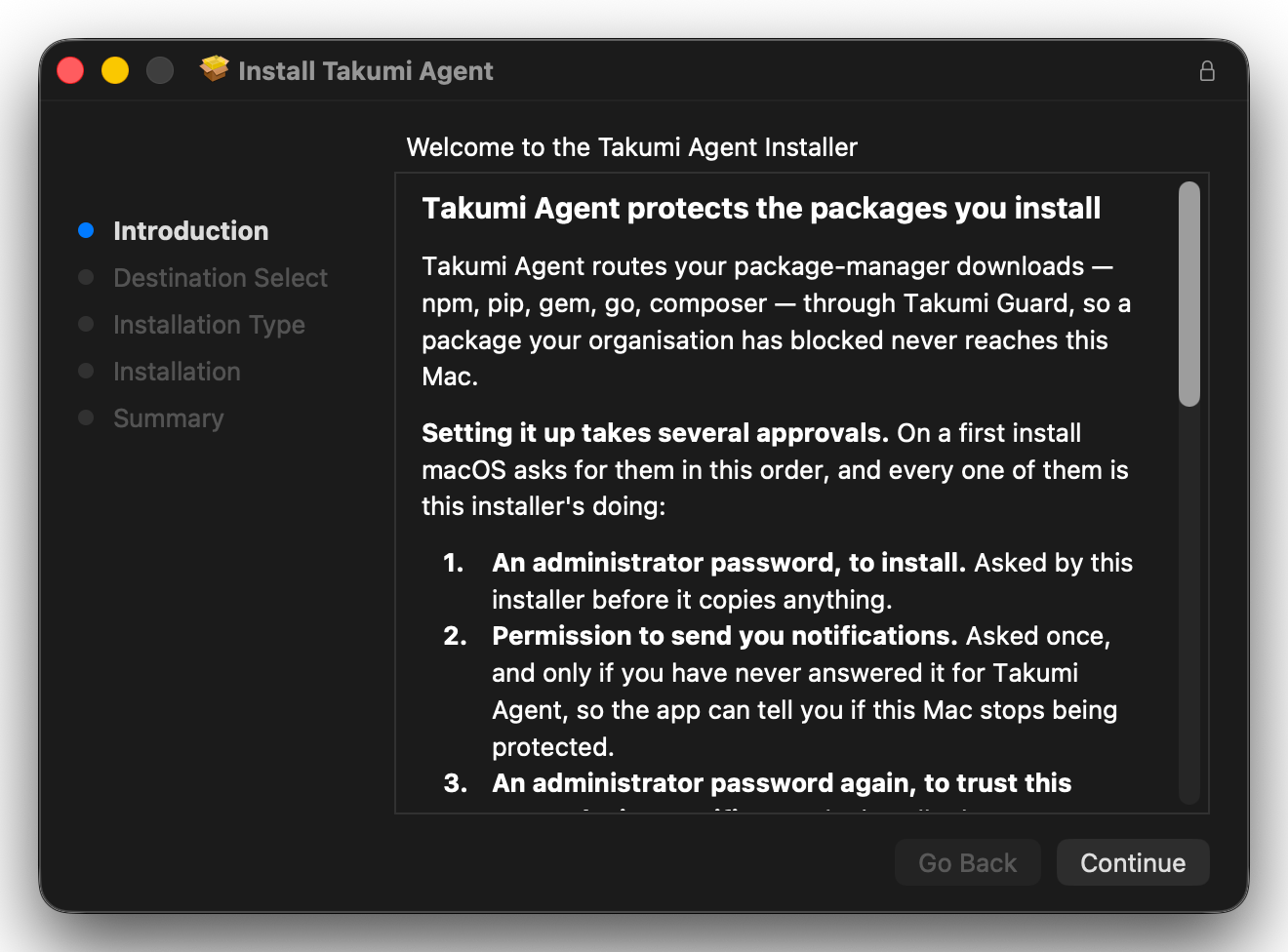
Besides the app, the installer sets up a background service, so protection keeps running when nobody is logged in.
On a first install, with someone logged in to the Mac's desktop, the setup window opens when the installer finishes. Otherwise it opens at the next login, or you can open Takumi Agent from /Applications.
Scripted install
To install from the command line, download the package and pass the enrollment key to installer in the TAKUMI_AGENT_ENDPOINT_ENROLLMENT_TOKEN environment variable:
curl -fLO https://shisho.dev/releases/takumi-agent-latest.pkg
sudo TAKUMI_AGENT_ENDPOINT_ENROLLMENT_TOKEN=tg_enroll_… installer -pkg takumi-agent-latest.pkg -target /
On a first install, the device enrolls during installation, and the setup window skips Step 4 and starts at Step 5. If the key is rejected, the install still completes, and the setup window asks for the key at Step 4 as usual.
Step 4: Paste the enrollment key
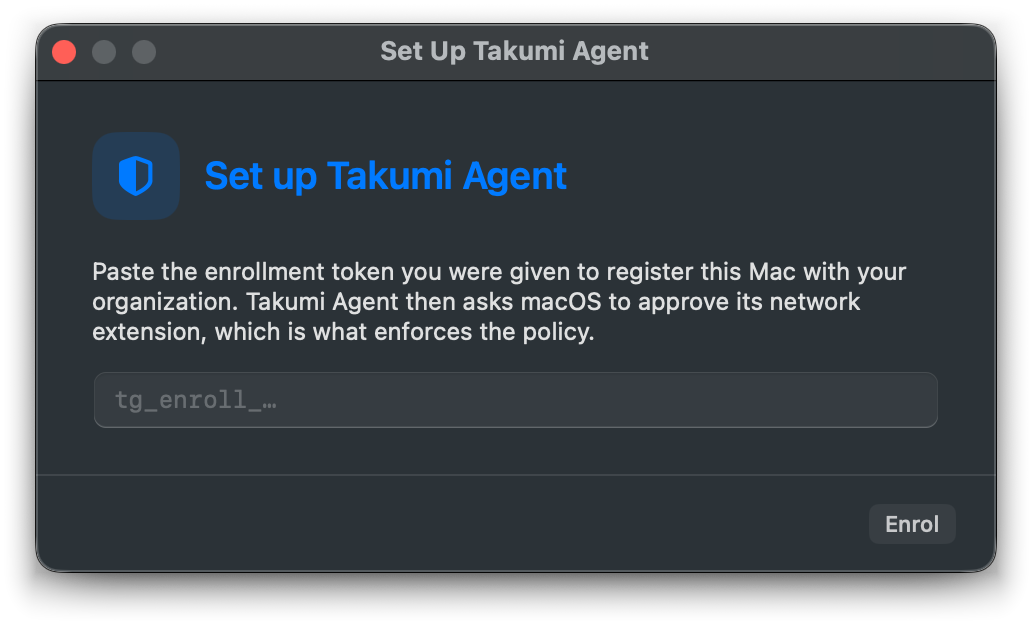
Paste the key from step 2 into the setup window. This registers the Mac as a device in your organization.
Step 5: Trust the device certificate
macOS asks for administrator credentials so the Mac trusts its own device certificate in the System keychain.
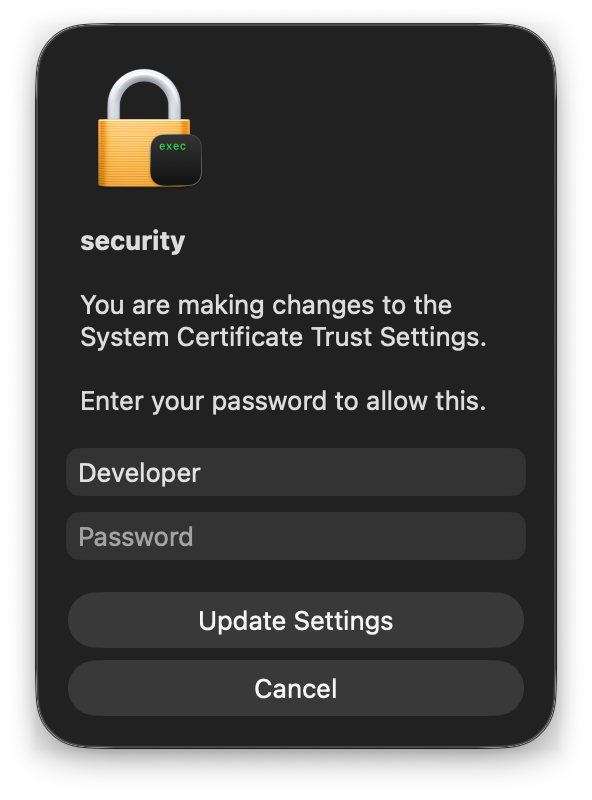
macOS only allows this with an administrator's direct approval, so the installer can't do it for you. Until it's done, the device shows Not protected everywhere and captured installs fail closed. Nothing is let through unchecked.
If you dismiss the dialog, the app asks again at the next launch, and the menu bar shows a Finish setup… button.
A non-administrator can't complete this step or enroll the device, and the app says so. The device stays Not protected until an administrator opens Takumi Agent.
Step 6: Approve the system extension, proxy configuration and filter
Next come three separate approvals. Approve all three.
Allow the system extension
First, macOS asks you to allow the system extension. Without it, Takumi Agent can't see registry traffic at all. Click Open System Settings: it opens Login Items & Extensions with the Network Extensions list. Turn TakumiAgent on and enter your administrator password.
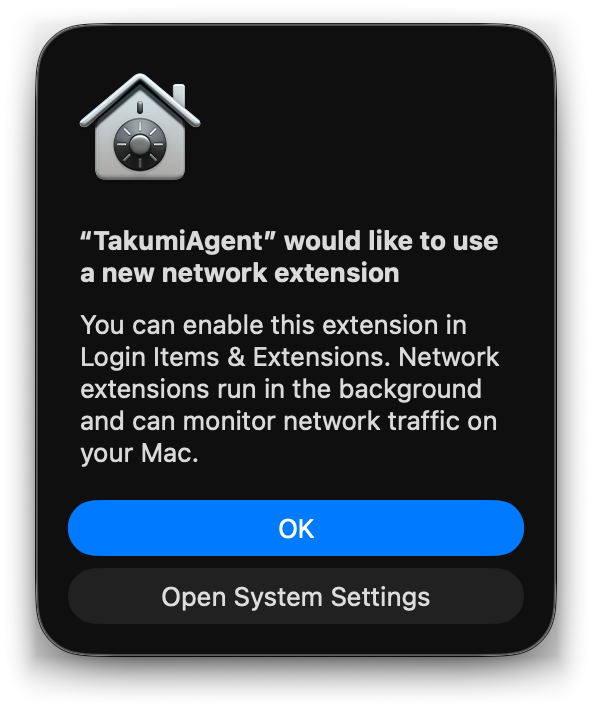
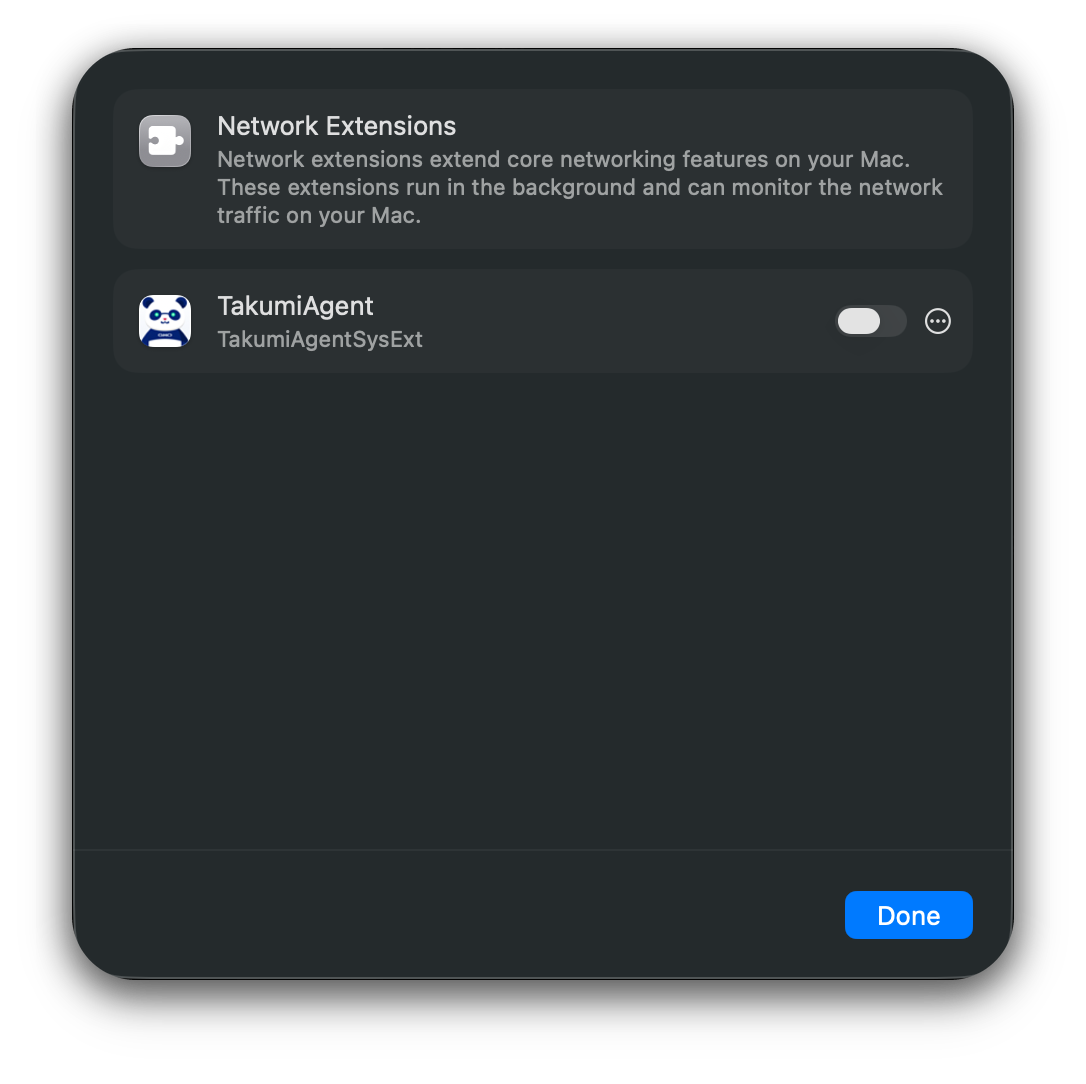
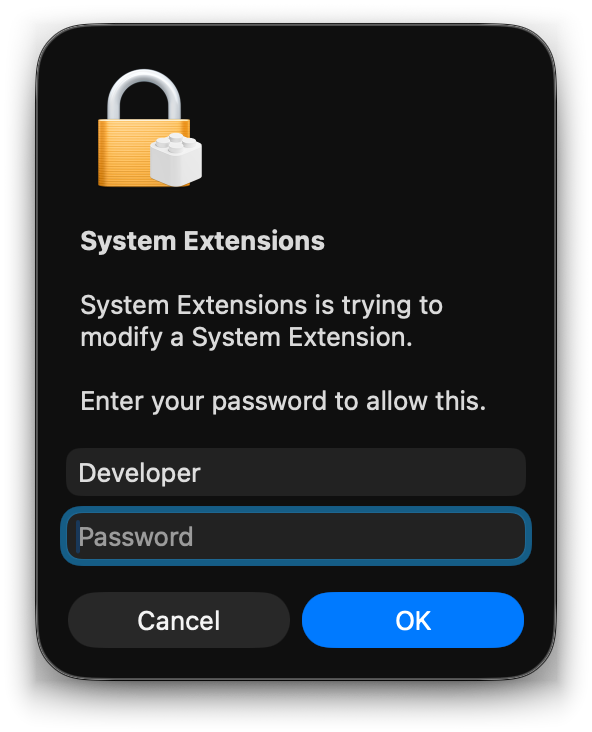
If you closed the prompt, open System Settings → General → Login Items & Extensions and select By Category, and click the ⓘ next to Network Extensions.
Allow the proxy configuration
Then macOS shows "TakumiAgent Would Like to Add Proxy Configurations". Click Allow. Nothing is inspected until you do.
Allow content filtering
The last dialog asks to let Takumi Agent filter network content. This is the egress lock, which blocks direct connections to the supported registries so they can't be reached around Takumi Guard. Click Allow. Capture works without it, but the Mac shows Needs attention until you approve it.
The setup checklist updates as the app sees each step complete:
| Checklist step | Meaning |
|---|---|
| Extension approved | The system extension is approved |
| Network filter on | The network filter is enabled |
| Installs inspected | The background service is inspecting installs |
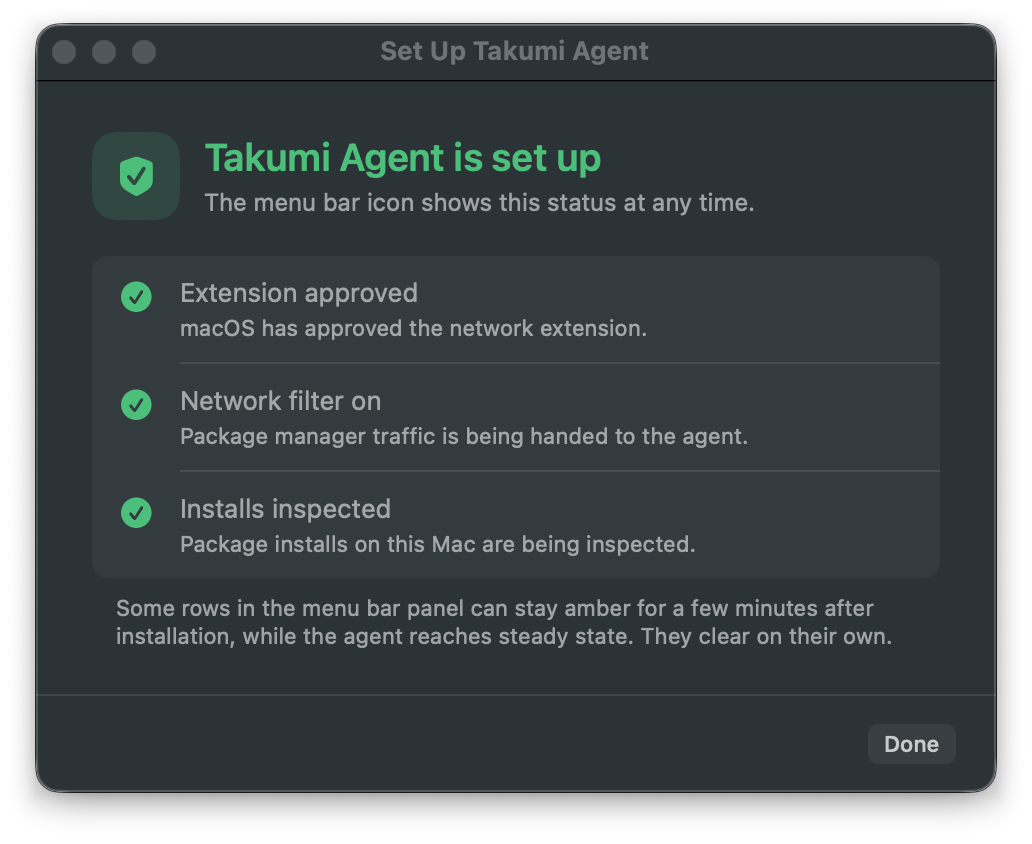
If the window still says "This Mac is still not protected" with all three steps checked, see Troubleshooting.
If you dismissed a prompt, use Reopen the approval prompt or Open System Settings… to get it back. A Turn on network filter button appears when the filter is off, and the panel shows Enable egress lock… if you declined the content filter.
Step 7: Check the menu bar
When setup is done, the Takumi panda  shows up in the menu bar with a status badge in its corner. A green dot means Protected. Device states lists the others.
Click the panda to open the panel. The header shows the same state. Below it is a row for each part of the protection (Guard, which expands to show each ecosystem, Containers, Egress lock, Identity and Health), with a button wherever there's something you can fix yourself. At the bottom are the agent version, the last check-in time, a Check now button, Open Takumi Agent, which opens the app window, Help, and Quit status icon (protection stays on).
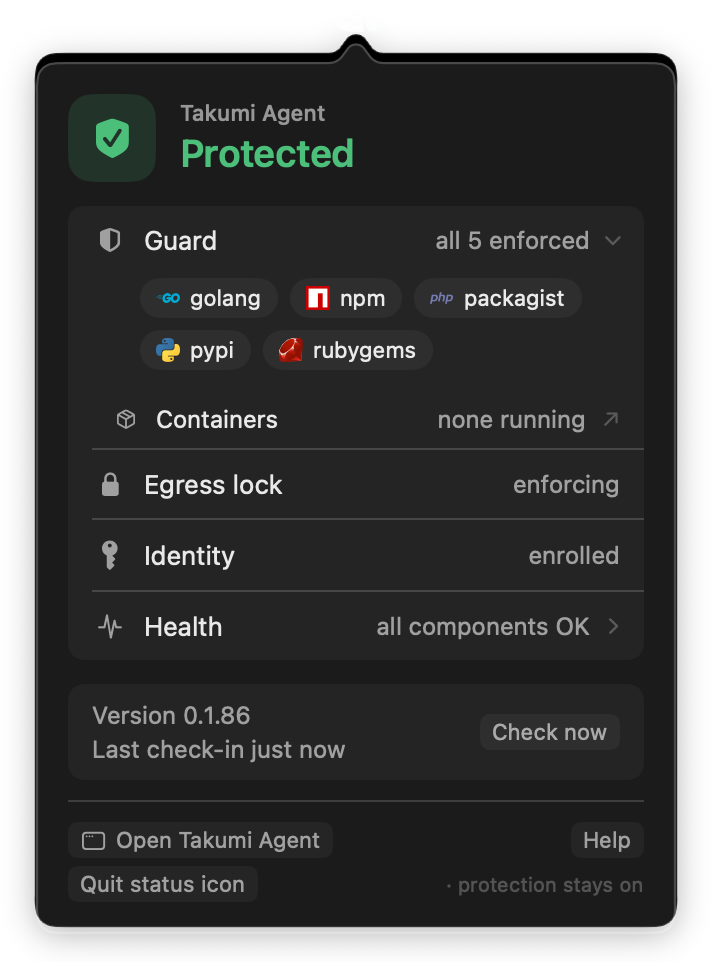
The panel uses the Mac's language setting for Takumi Agent (English or Japanese).
Step 8: Check the console
The device shows up in the console a few seconds after enrolling. After that it reports its state about every 5 minutes.
Open Endpoint in the left navigation (it opens on Devices) and click the device to open its detail panel. Check that the Mac shows Protected.
You can also test with a real package manager. No npm configuration is needed:
npm install @panda-guard/test-malicious
Run it in a new terminal window, because a terminal opened before setup doesn't trust the device certificate yet. npm reports 403 Forbidden: Takumi Guard checked the request and blocked it. If you see something else, open the menu-bar panel and check Device states.
The Guard test module for Go works the same way, with no configuration, and also reports 403 Forbidden:
cd $(mktemp -d) && go mod init verify-takumi-guard && go get github.com/flatt-security/hola-takumi-go@v0.1.0
Before you start working
Quit and reopen your terminals, IDEs and AI coding agents. If you install packages inside containers, set up container trust once. Developing with Takumi Agent explains both.
Updates
The agent updates itself; see Managing devices.
Uninstalling
See Uninstalling. Deleting the app alone leaves the system extension and network configuration behind.