Vulnerability Verification
The English user guide is currently in beta preview. Most of the documents have been automatically translated from the Japanese version. Should you find any inaccuracies, please reach out to Flatt Security.
Overview
Vulnerability Verification automatically verifies whether a reported vulnerability can actually be reproduced.
It executes attack scenarios against the target application and determines whether the vulnerability exists. This can be used not only for re-testing after a fix, but also for validating the legitimacy of vulnerability reports from various sources such as bug bounties or third-party audits.
Creating a Verification Task
There are two ways to create a vulnerability verification task.
From a Takumi Assessment Result
To re-verify a vulnerability detected in a previous blackbox assessment, you can create a task directly from the assessment report page.
- Open the report page of a completed blackbox assessment.
- Click the "Verify Vulnerability" button.
- Select the vulnerability you want to verify, then click "Start Verification".
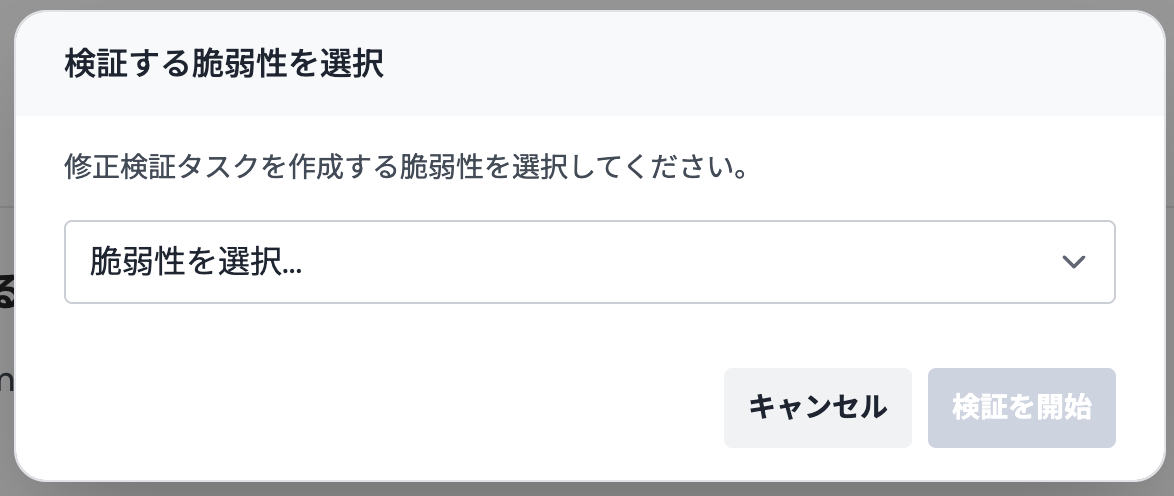
You cannot create duplicate tasks for the same vulnerability. To re-verify, delete the existing task first and then create a new one.
Create Manually
You can also verify vulnerabilities discovered outside of Takumi assessments, such as those from bug bounties or third-party vulnerability reports.
- Open the Vulnerability Verification list page from the tab.
- Click the "Create Task" button.
- Fill in the following information:
- Title: Name of the vulnerability (e.g., SQL Injection in login form)
- Vulnerability Report: Detailed description of the vulnerability. Include reproduction steps, affected endpoints, and impact
- Target URL: URL of the application to verify
- Credentials: Enter if the target application requires authentication (optional)
- Click "Start Verification".
The more detailed the vulnerability report, the more accurate the verification will be. Including reproduction steps and specific request examples is recommended.
Reviewing the Result
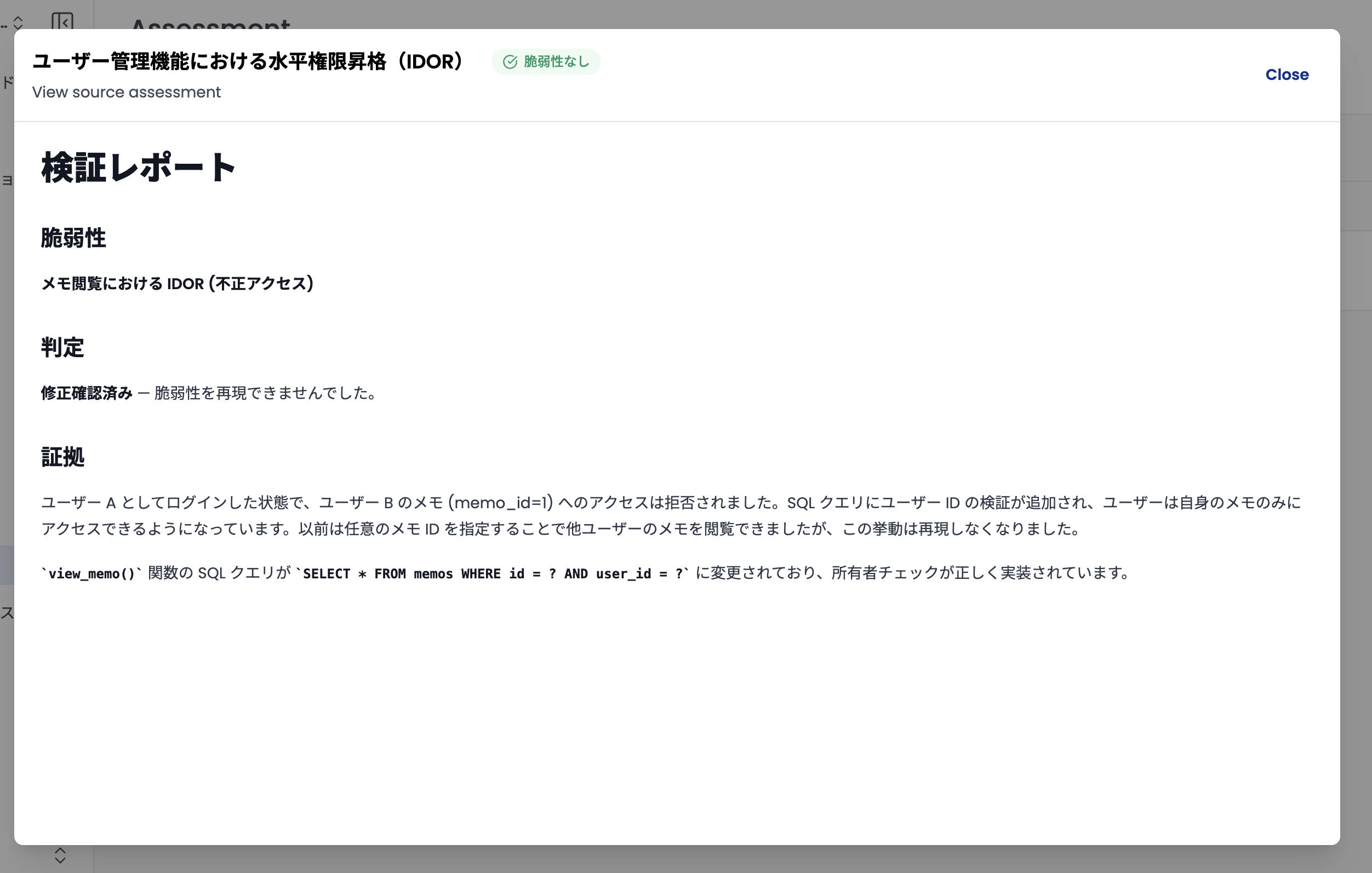
Processing typically takes several minutes. Select the target task from the list to open its detail panel with the verification result.
Task Operations
The following operations are available from each task's action menu:
- Retry: Re-run the verification with the same conditions. Use this after redeploying a fix or to retry after an error.
- Cancel: Stop a running verification.
- Delete: Remove the task from the list.
Statuses and Results
A task has two kinds of state: its progress while running, and its result once verification completes. These states are shown as badges in the task list.
Progress
- Running: Verification is in progress. It usually takes a few minutes to complete.
- Cancelled: Execution was stopped by the user.
Result
Once verification completes, one of the following verdicts is shown:
- Vulnerable: The vulnerability was reproduced. A fix is needed.
- Not Vulnerable: The vulnerability could not be reproduced.
- Waiting Review: An error occurred, or the verification could not automatically determine whether the vulnerability exists. Retry the task or review it manually.
Important Notes
- Verdict accuracy: Verdicts are produced automatically, so results may vary depending on network conditions or application state. For critical issues, review the reasoning and perform a manual final check as needed.
- One finding per task: Each task verifies a single vulnerability. To verify multiple vulnerabilities, create one task per finding.
Credit Consumption
Credits are required to use this feature. Credit consumption varies depending on the vulnerability under verification and the complexity of the operations needed to reproduce it.
As a rough guide, running a single verification task typically consumes approximately 1–10 credits. However, actual consumption also varies depending on factors such as the complexity of the reproduction steps and the number of operations Takumi attempts during verification, so it may fall outside this range.