Start an Assumed-Breach Test
The English user guide is currently in beta preview. Most of the documents have been automatically translated from the Japanese version. Should you find any inaccuracies, please reach out to Flatt Security.
Prerequisites
To start an assumed-breach test, you need the following.
- Access to AI penetration testing.
- A machine that can reach the test targets, with the connection program,
takumigateway, installed. See Installation. - Outbound HTTPS (port 443) from that machine.
Step 1: Register a Gateway
In the Shisho Cloud console, click Assessments in the sidebar, select the Pentest tab, and click Gateway settings. On the Gateways page, click Add gateway, enter a name of your choice, and click Register.
A dialog like the one below then appears with the Start command, which includes the gateway's connection token.
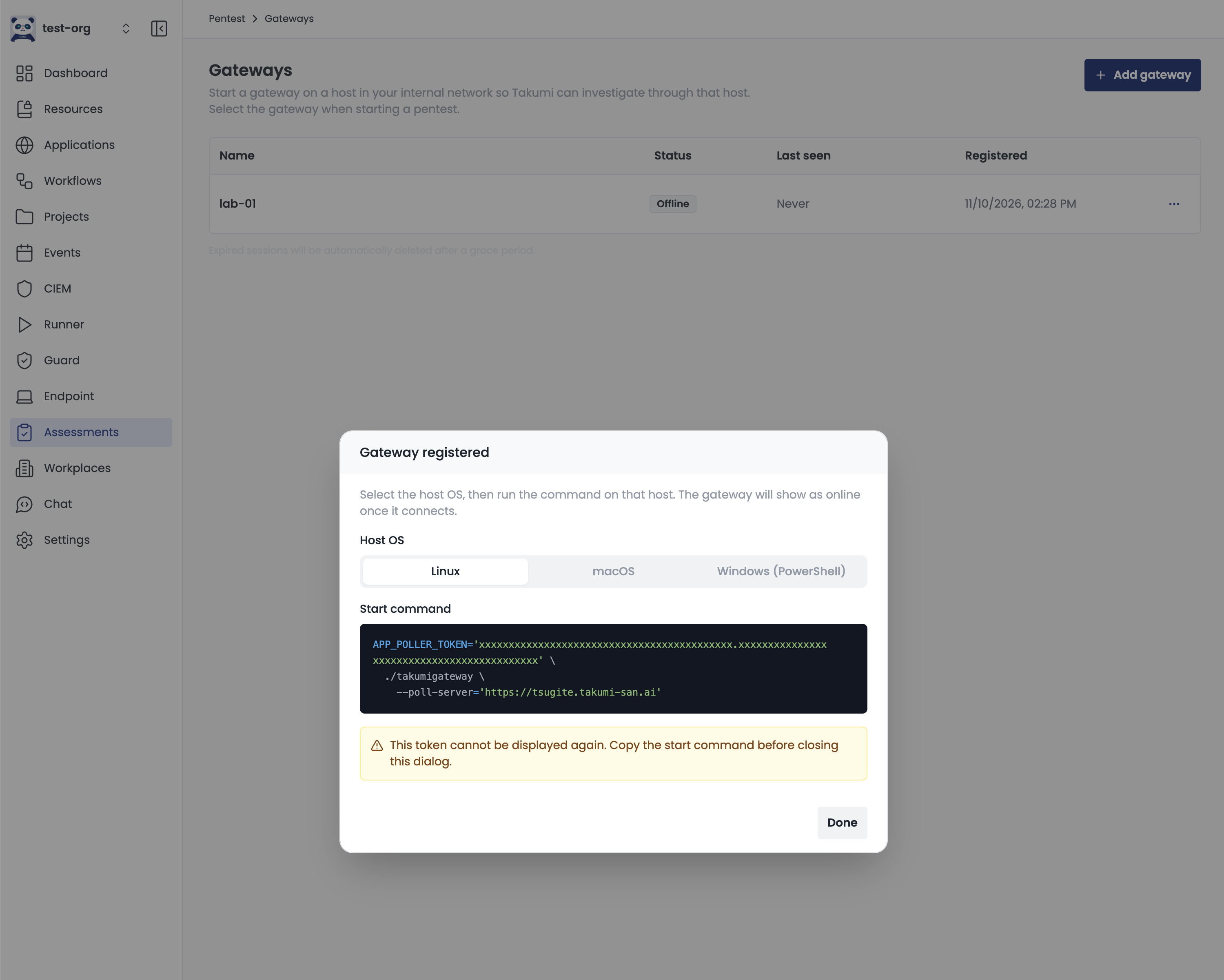
Select the machine's OS under Host OS, then copy the command. To let Takumi use desktop control as well, turn on Enable desktop control too before copying. This option appears only when macOS or Windows is selected.
The connection token is shown only once. Copy the start command before closing the dialog and keep it private.
Step 2: Start the Connection Program
If you enabled desktop control, first complete the OS-specific setup.
Run the start command on the machine you want to use as the gateway. On Linux and macOS, it looks like this:
APP_POLLER_TOKEN=<TOKEN> ./takumigateway --poll-server=<URL>
If an update is available, the connection program may install it and restart before connecting. For details, see Automatic Updates.
The connection program prints a startup banner and waits:
  ┏━┓ TAKUMI GATEWAY   <version>
  ┃▶┃ authorized command execution for your Takumi security assessment
  ┗━┛ (linux/amd64)

  ✓ Command execution   OK - Takumi can run commands on THIS host

  │ 12:34:56  ○ connected — waiting for commands
Once it connects, the gateway appears as Online in the gateway list.
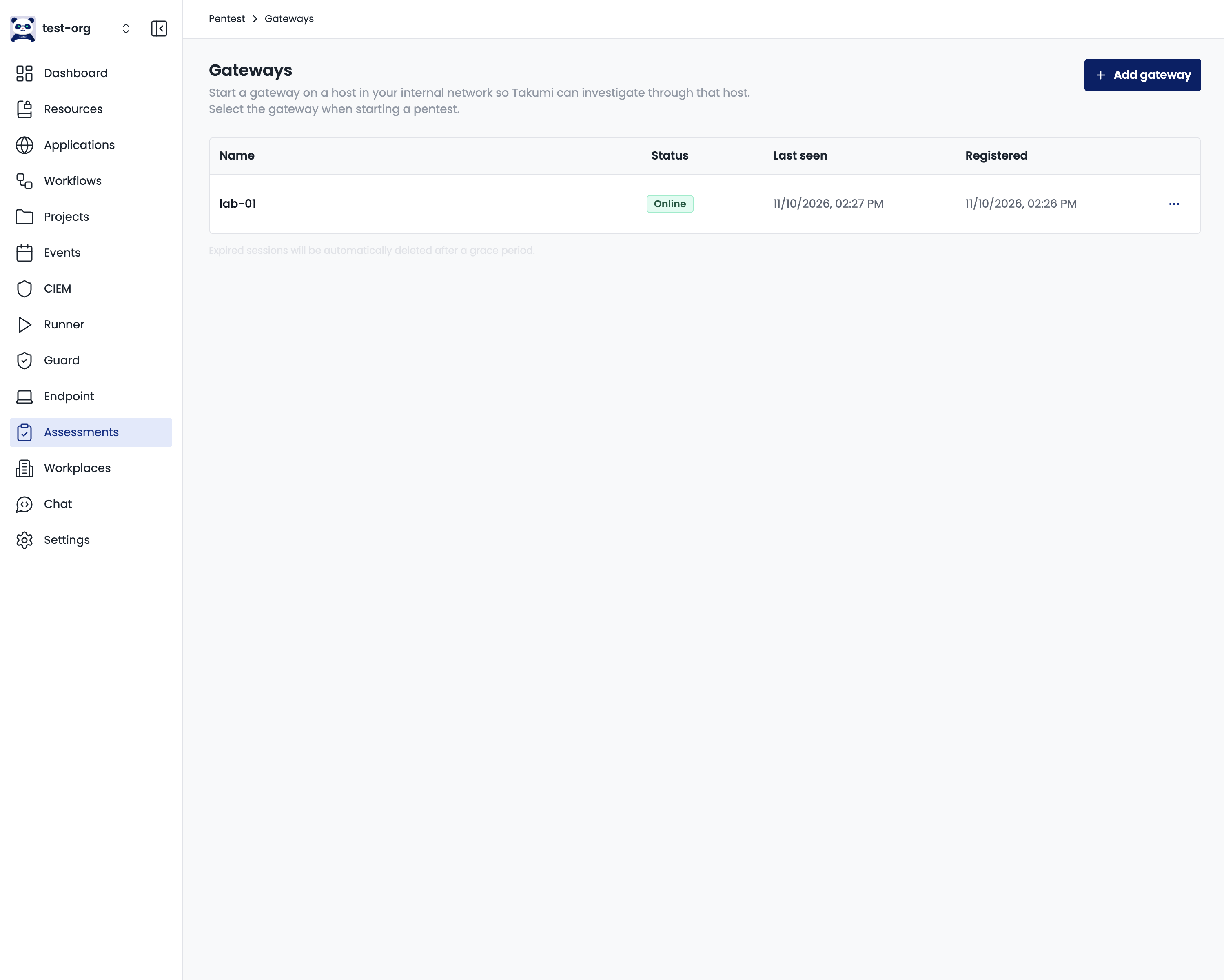
Keep the connection program running for the duration of the test.
Because commands may contain credentials, the connection program writes no command log by default. If you add --log-file, it records the commands it receives, with their exit codes and durations. Command output is not logged.
Step 3: Start a Penetration Test
Once the console shows the gateway as Online, create a penetration test. You create it almost the same way as before: in addition to the target and objective, select the gateway you registered in Step 1 under Internal-network gateway, as in the screenshot below.
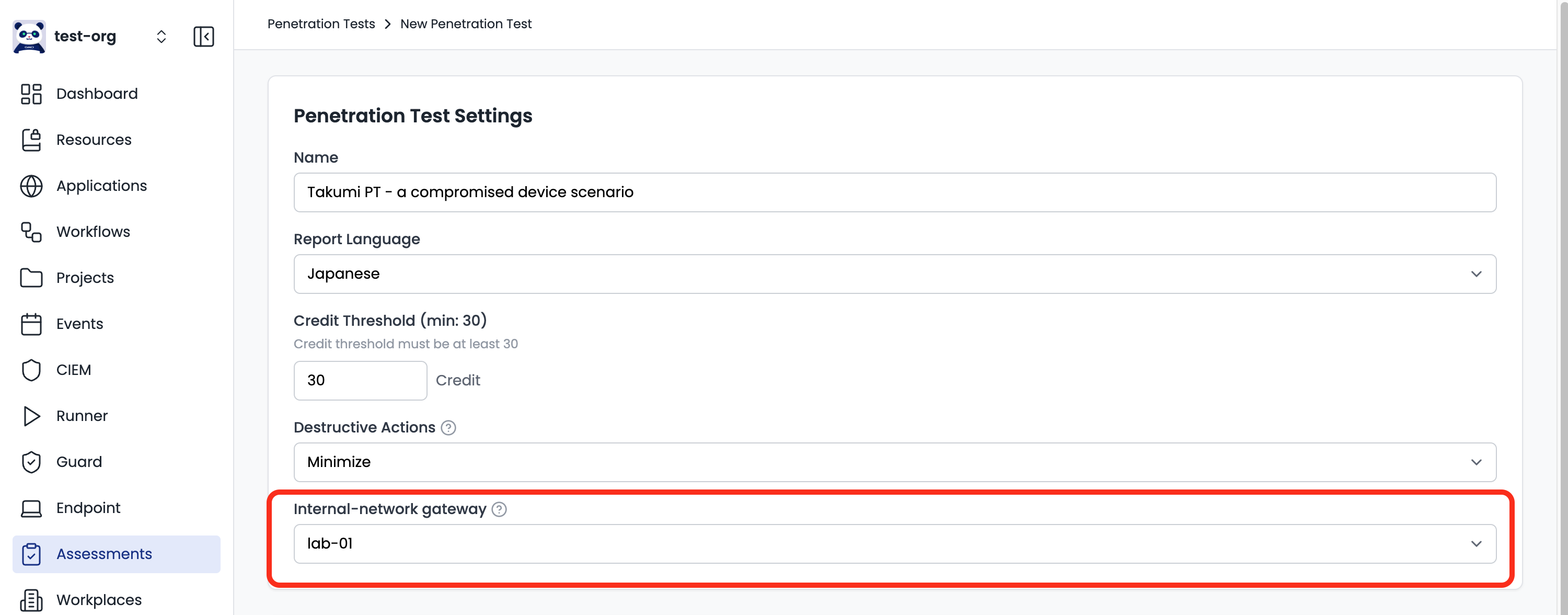
Only gateways that are online and not already in use can be selected.
During the test, Takumi can also reach systems on your internal network through that machine.
When the test finishes, you can stop the connection program or leave it running. A gateway stays registered until you delete it or its connection expires, so you can select it again for later tests.
Enable Desktop Control
If the starting machine runs Windows or macOS, you can enable desktop control in addition to command execution. Takumi then reads the screen and uses the mouse and keyboard to operate applications just as the signed-in user would. This lets it test attack paths through applications that cannot be operated from the command line. Linux supports command execution only.
During the test, keep the machine signed in and unlocked. Desktop control is unavailable while the screen is locked. We recommend disabling automatic locking.
To enable desktop control, turn on Enable desktop control too in Step 1 before copying the start command. Then complete the setup below for the machine's OS.
macOS
The connection program needs the Accessibility and Screen Recording permissions. Without them, it exits without connecting to Takumi. Before running the start command, run the following command to bring up the permission prompts.
./takumigateway --macos-desktop-request-permissions
The command shows the prompts and exits. Then open System Settings > Privacy & Security and grant Accessibility and Screen Recording to the app named in the prompts. Once granted, reopen your terminal and run the start command.
Windows
Start the connection program from a signed-in desktop session. Desktop control is unavailable after a Remote Desktop session is disconnected, or when the program is started as a Windows service or over SSH.
Managing a Gateway
A gateway's connection is valid for 7 days from registration. A penetration test cannot be started with a gateway that has less than 24 hours remaining. Extend it from the console before then.
Extend connection resets the expiry to 7 days from now. The connection token does not change, so a running connection program does not need to be restarted. An expired gateway can still be restored by extending it within 24 hours.
You can Delete a gateway you no longer need. The connection program running on its machine then exits on its own. A gateway in use by a penetration test cannot be deleted.