Blackbox Assessment
The English user guide is currently in beta preview. Most of the documents have been automatically translated from the Japanese version. Should you find any inaccuracies, please reach out to Flatt Security.
Overview
Takumi's blackbox assessment feature receives an application's URL and authentication information, performs simulated attacks on the application, and outputs assessment results as a report on the web. The diagram below shows how an assessment proceeds.
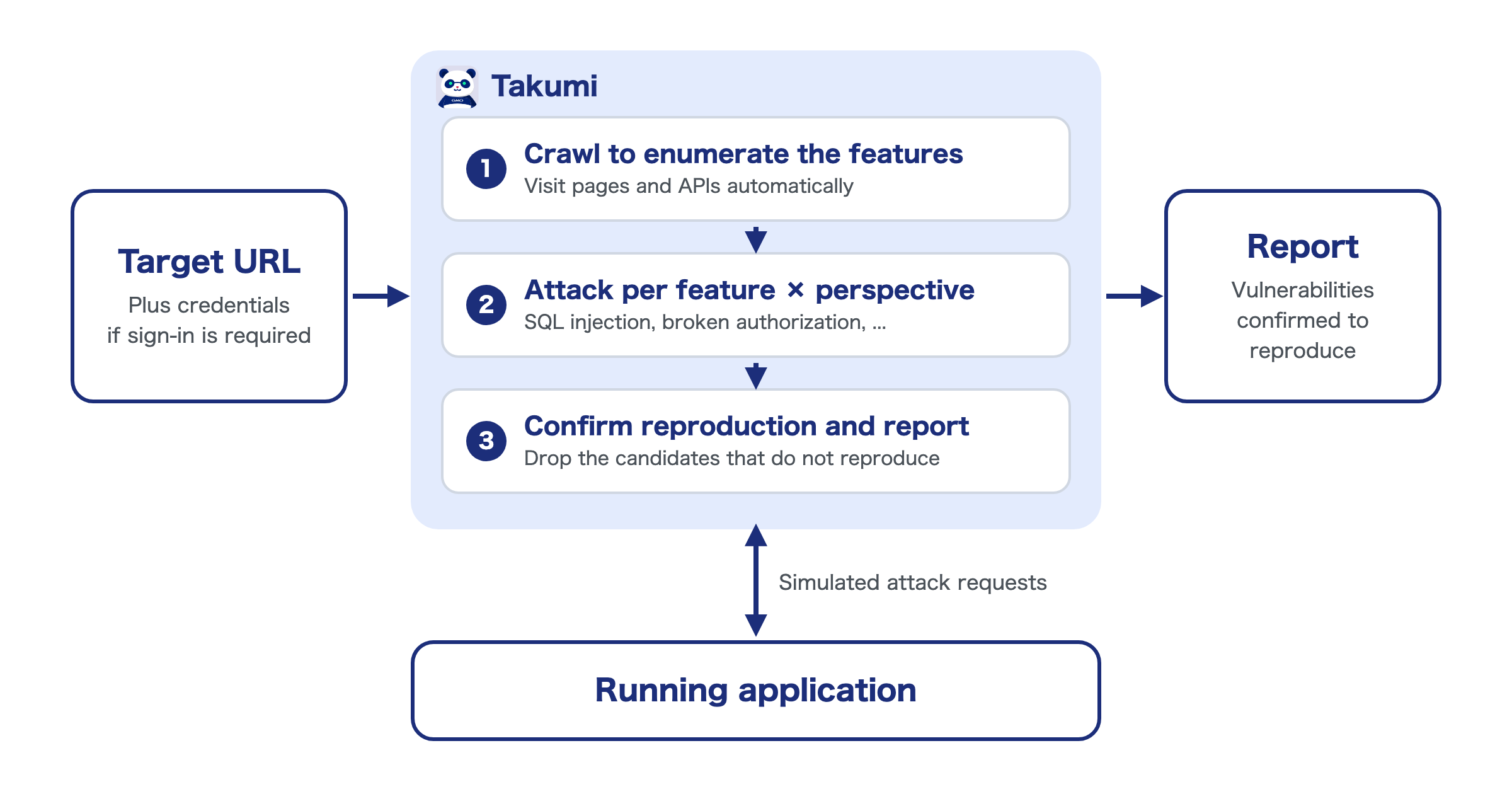
It can be used from the Shisho Cloud byGMO web interface.
Organization or Target Ownership Verification
Before starting an assessment, you need to verify your organization or prove ownership of the target application for blackbox assessment. For details, please refer to "Pre-Assessment Organization Verification or Ownership Verification".
How to Start an Assessment
Click "Assessments" in the sidebar, then click the "Create Assessment" button in the upper right corner of the screen to start an assessment.
Carry Over Settings from an Existing Assessment
When you want to run a new assessment with the same settings as a previous one, you can carry over the configuration of an existing assessment instead of filling in the form from scratch. Follow these steps:
- Click the "Create Assessment" button in the upper right corner of the assessment list.
- Select "Create from existing assessment" in the dialog.
- Choose the assessment whose settings you want to carry over.
The creation form opens pre-filled with the selected assessment's configuration. Review and adjust the settings, then start the assessment.
You can also use this feature to retry an assessment that failed during execution, keeping the same settings.
Assessment Configuration
The main items on the configuration screen are:
- Assessment Name: Enter a name to identify this assessment.
- Report Language: Select the language of the assessment report (English or Japanese).
- Assessment Method: Select "Blackbox Assessment".
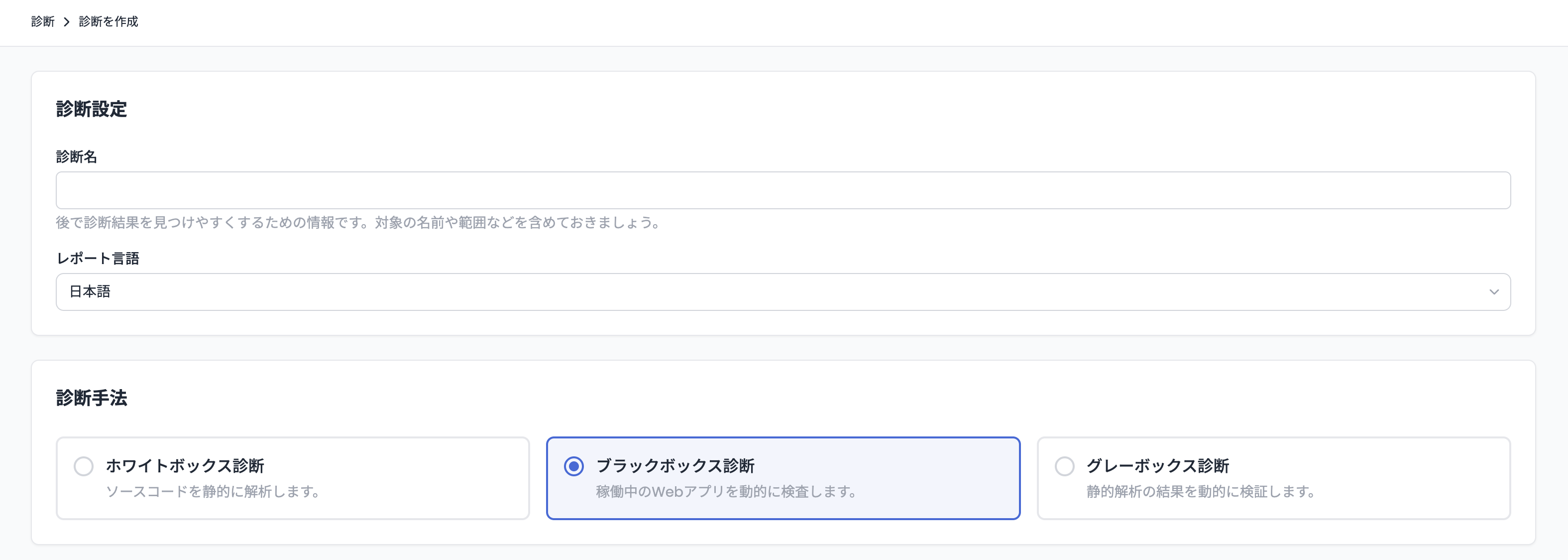
Target Type
Under "Target Type", you can select the form of the target application from the following two options:
- Web application: An application operated through a web browser.
- API: An API without a screen.
When you select "API", Takumi extracts the endpoints to assess from the attached schema files instead of crawling with a web browser. For the differences in the settings, see Assessing an API.
Assessment Type
You can select one of the following two modes:
- Full Assessment: Crawling and the initial scan of the target application are performed in one seamless process. After completion, the assessment pauses in a "Pending" state.
- Scoped Assessment: Takumi stops at the end of crawling. After that, you set priorities for the features and perspectives you want to assess, as well as the credit threshold for the scan, then resume the assessment.
Credit Threshold
Credit thresholds can be set separately for crawling and scanning (for "Scoped Assessment" mode, only crawling). Takumi performs crawling and scanning within the specified credit thresholds.
Web Application Settings
The web application settings are:
- URLs to start crawling from: Enter the URLs of the application where crawling starts.
- Authentication Information: Configure the credentials for logging into the application.
- Client Certificate (mTLS): Upload the TLS client certificate the application requires (PKCS#12 or PEM), and choose the hosts to present it to.
- In-Scope URLs / Out-of-Scope URLs: Narrow down or exclude the crawl range (see Scope Settings for details).
Takumi does not create new accounts during the assessment; it uses only the pre-configured credentials to log in. The following authentication methods are supported:
- ID / password authentication
- TOTP (Time-based One-Time Password) authentication using a pre-shared secret code
- One-time codes delivered by email, using "Takumi-managed email" (see Signing In With an Emailed One-Time Code)
Out-of-band authentication methods that do not go through email, such as SMS code verification, are not currently supported.
Signing In With an Emailed One-Time Code
When the target application sends a one-time code by email at sign-in, Takumi cannot read a code delivered to your own mailbox. In that case, select a Takumi-managed email address from the assessment screen and use it instead.
This is not limited to multi-factor authentication codes — any message the application delivers by email, such as a magic link or a sign-up confirmation, can be read this way.
Configuration Steps
Add a credential under "In-App Authentication", then set "Account Email" to "Takumi-managed email". After that, click "Issue a new address" to obtain an address, or select one that has already been issued. The issued address is set as the credential's ID.
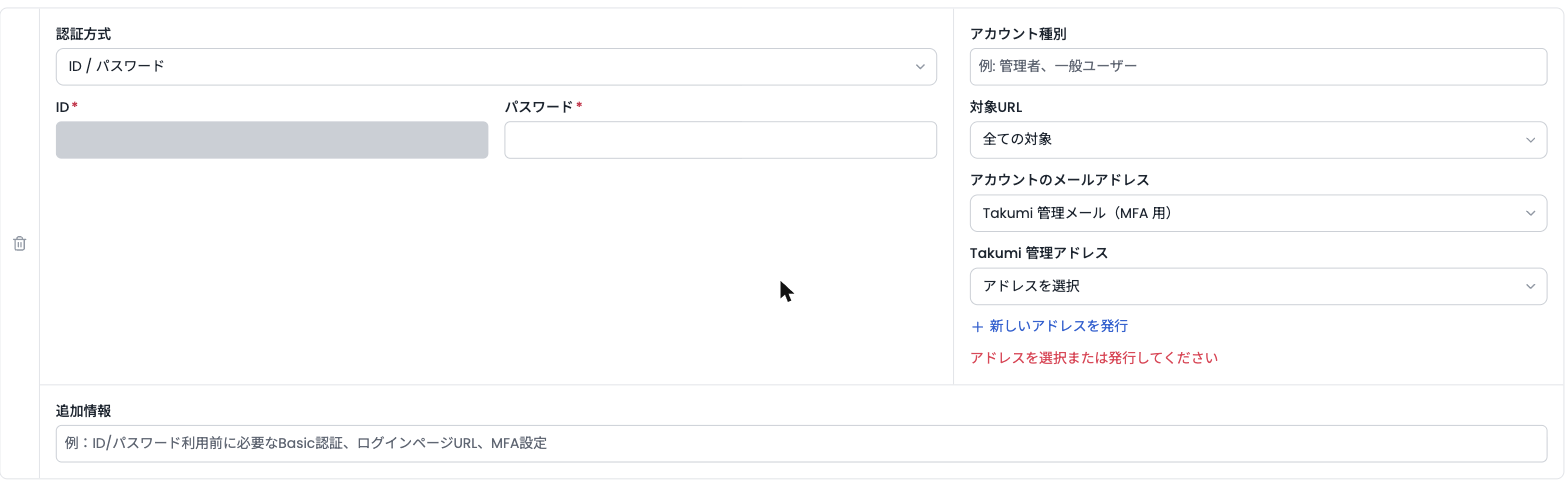
Be sure to create the account on the target application with that address before running a crawl or an assessment.
Once mail has arrived, the same screen shows when it was last received, which lets you confirm that the target application really delivers to the address. Until anything arrives, it shows that no mail has been received yet. When the delivery status cannot be retrieved, it says so rather than reporting that no mail has arrived.
Up to 5 addresses can be issued per organization. An issued address cannot be released, so reuse the addresses you already hold across assessments rather than issuing a new one each time.
Scope Settings
Takumi crawls starting from the URLs you provide and, by default, treats the whole domain of those URLs as in scope. When you want to assess only a part of the application, you can narrow or exclude the crawl range with the following two settings.
In-Scope URLs narrow down the range included in the crawl results. How the range is limited depends on the form of the URL you specify.
- A URL with a path (e.g.
https://app.example/admin): limits the range to that path and below - A URL without a path (e.g.
https://app.example): limits the range to that host only - Left empty: covers the whole domain of the URLs to start crawling from
Out-of-Scope URLs specify URLs to exclude from the crawl results. As with In-Scope URLs, the excluded range depends on the form of the URL you specify.
- A URL with a path (e.g.
https://app.example/admin/logout): excludes that path and below - A URL without a path (e.g.
https://app.example): excludes that entire host
Out-of-Scope URLs always take precedence over In-Scope URLs. Even when a URL is included by the URLs to start crawling from or by In-Scope URLs, any URL that matches an Out-of-Scope URL is excluded from the crawl results.
Scope settings are used to decide whether a URL discovered during crawling is included in the assessment targets (the crawl results). For this reason, even a URL that is out of scope or not included in the crawl results may still be accessed by Takumi during crawling or assessment. Note that scope settings do not completely block such access.
Assessing an API
When you select "API" as the "Target Type", you can assess an API without a screen. Takumi does not crawl with a web browser; instead, it extracts the endpoints to assess from the attached schema files. The assessment flow after endpoint extraction is the same as for a web application.
The settings differ from a web application in the following points:
- API root URL: Enter a single root URL of the API to assess
- API schema files: Attach one or more schema files that define the API specification (OpenAPI Spec, GraphQL schema, etc.)
- Authentication Information: When the API requires authentication, provide the detailed authentication steps (such as how to obtain a token and which headers to set) in the "Authentication Steps" field, along with the ID / password and other credentials
Additional crawls are not available for API assessments. To add endpoints to assess, use Manual Editing of Crawl Results.
Reviewing Crawl Results and Running Additional Crawls
Setting Priorities and Credit Threshold
If you select "Scoped Assessment" mode, the assessment pauses after crawling completes. Opening the assessment page displays a matrix of detected features and assessment perspectives.
On this screen, you can set the credit threshold for scanning and assessment priorities to start the assessment.
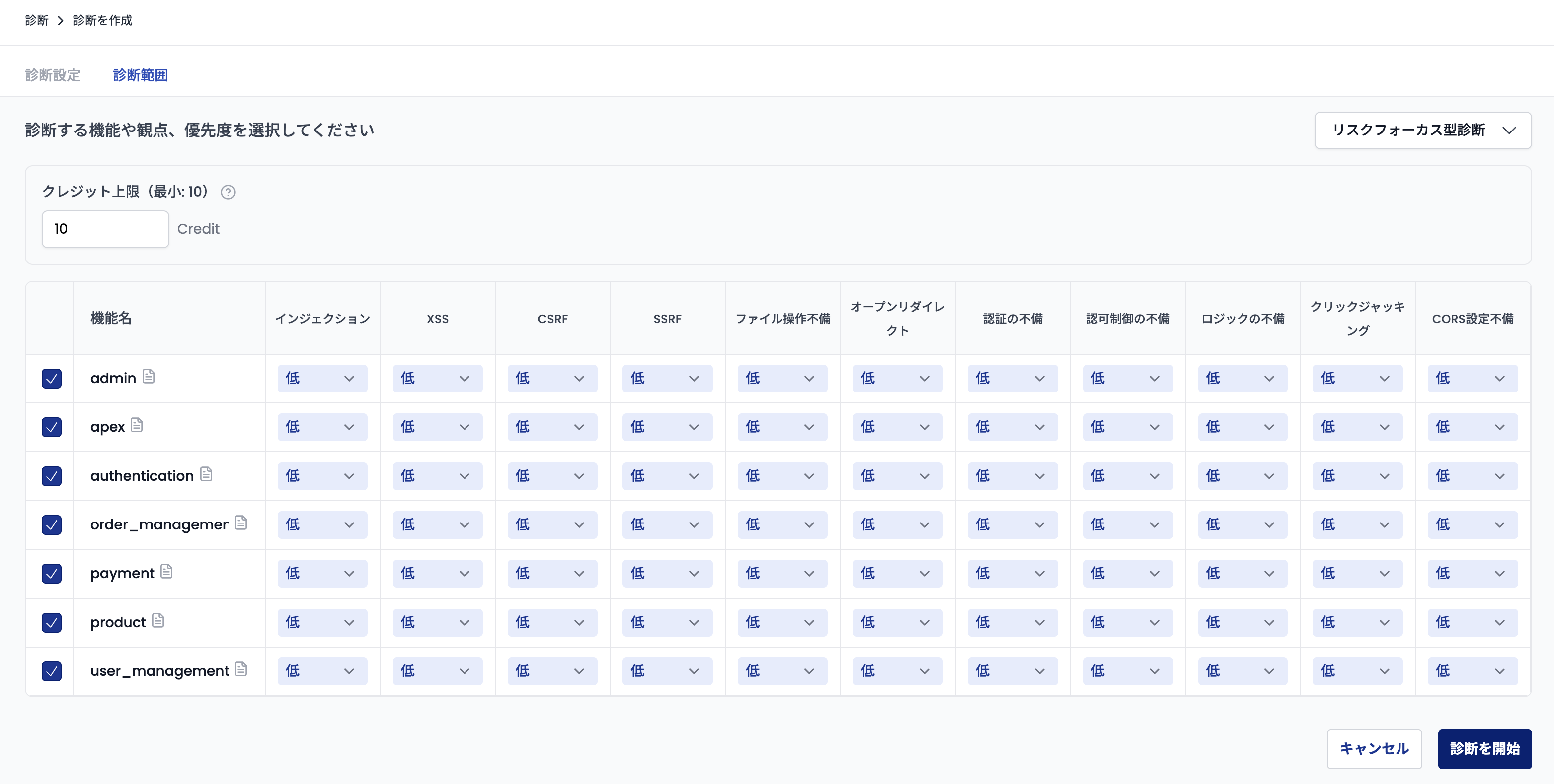
You can set priorities of "Auto, High, Medium, Low, None" for each combination of feature and perspective. Higher-priority items are scanned first. When "Auto" is selected, Takumi automatically determines the priority based on risk analysis.
Combinations that are never assessed are shown as "Skipped" and take no priority. See Assessment Perspectives for which combinations these are.
Once priorities and the credit threshold are configured, click the "Start Pentesting" button to begin the scan.
Additional Crawl
When an assessment is in the "Crawled" state, you can select "Additional Crawl" from the menu to run additional crawling. This is useful when you want to discover endpoints that were not found during the initial crawl.
The following settings are available for additional crawls:
- Credit Threshold: The maximum credit limit for the additional crawl
- Additional Crawl Instructions: Free-form instructions to guide the crawl toward specific areas (e.g., focusing on specific API paths)
When the additional crawl completes, newly discovered endpoints are added to the matrix.
Running an additional crawl does not guarantee that new endpoints will be discovered. Credits are consumed even if no new endpoints are found.
Manual Editing of Crawl Results
When an assessment is in the "Crawled" state, you can manually edit the crawl results by clicking the "Edit Crawl Results" button displayed at the bottom-left of the priority matrix on the assessment page.
On this page, the following operations are available:
- Add endpoints to a detected feature
- Remove endpoints from a detected feature
- Add new features along with their endpoints

Reviewing Results and Running Additional Scans
When the credit threshold is reached during a scan or all selected combinations have been scanned, the assessment pauses in a "Pending" state.
Opening a "Pending" assessment displays the matrix screen again. Each cell shows one of the following states:
| State | Description |
|---|---|
| Scanned | Displayed for combinations where scanning has completed |
| Skipped | Displayed for combinations that were skipped because scanning was deemed unnecessary |
| Priority menu | Displayed for combinations that have not yet been scanned |
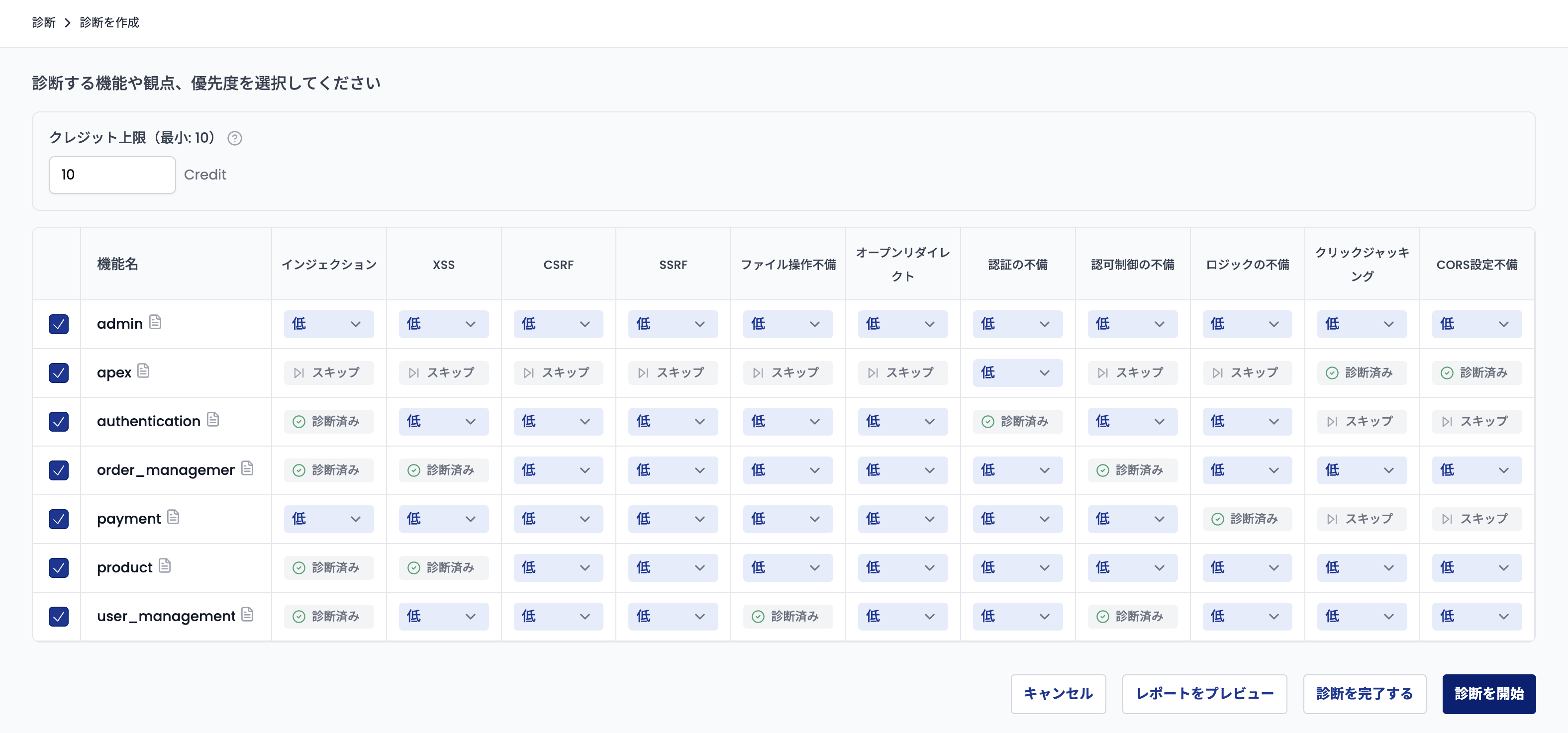
From this screen, you can:
- Preview the interim report: Click "Preview Report" to open the current report in a new tab
- Run additional scans: Set the credit threshold and priorities for unscanned combinations, then click "Start Pentesting" to run additional scans
- Complete the assessment: If no additional scans are needed, click the "Complete Assessment" button to finalize the assessment
Viewing Assessment Logs and Running Follow-up Assessments
Click a "Scanned" cell to view the assessment log for that combination. The log describes what Takumi assessed, and what it could not assess and why.
Based on the log, you can enter an "Instruction for the follow-up assessment" and start the assessment to have that combination assessed again according to your instruction. The follow-up assessment runs first, and unscanned combinations whose priority is not "None" are also scanned in the same run within the credit threshold. Only one combination can be followed up per run.
Checking Assessment Results
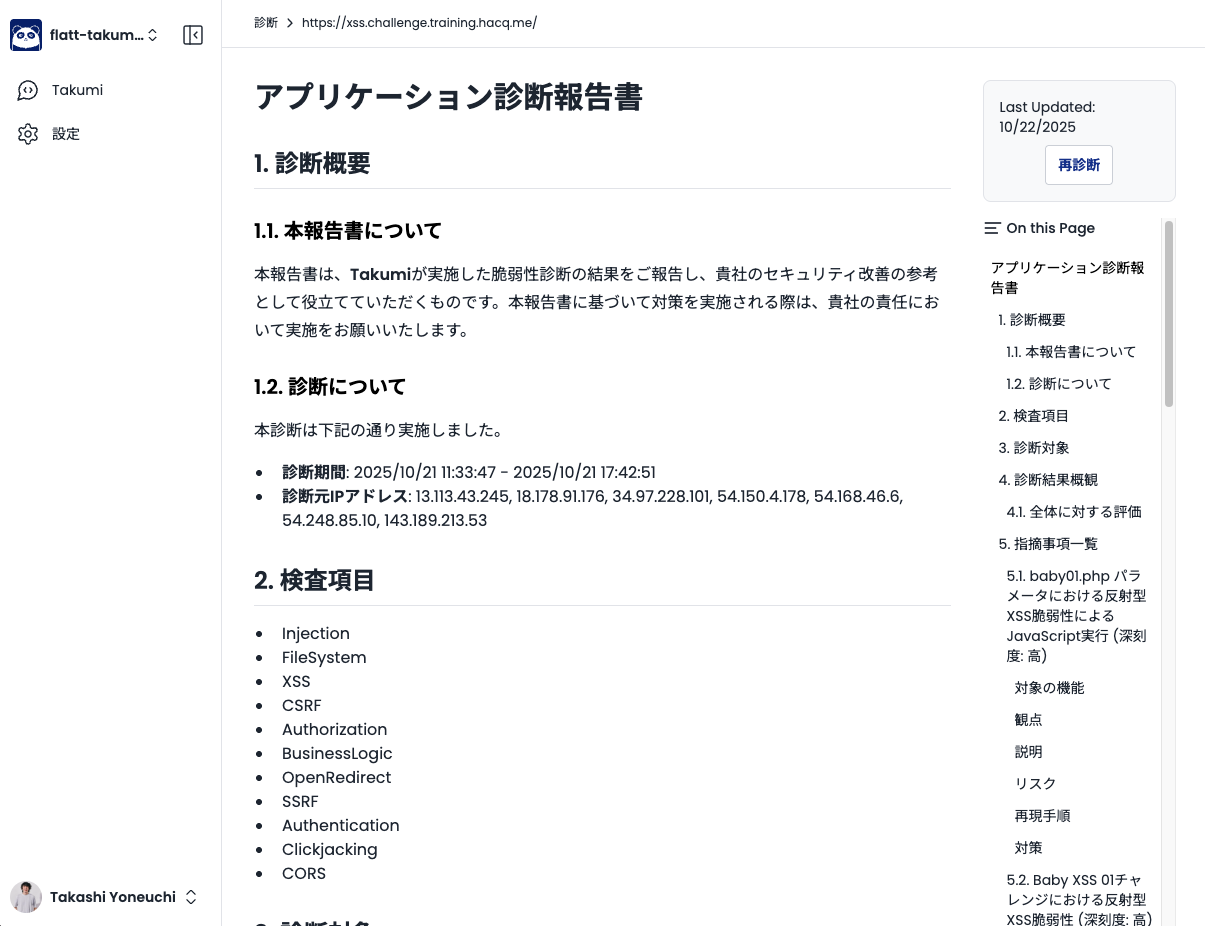
Assessment reports can be viewed on the web, as shown in the following screen. Each item in the assessment results explains which feature was assessed from what perspective, and what severity and risk vulnerabilities were found.
Exporting a PDF Report
You can download the assessment report as a PDF with a branded cover page. Click the "Issue PDF Report" button on the assessment report page and choose a cover page language (English or Japanese). Once the PDF is ready, a download link will be sent to the email address associated with your account.
Download links expire after 15 minutes. If a link expires, click the download button again to get a new one. Note that issued PDFs are deleted after 30 days, so save a local copy if needed.
Checking Assessment Metadata
The Metadata section in the sidebar of the assessment report page lets you check the following.
- Assessment coverage: Whether each combination of feature and perspective was scanned, skipped, or not scanned
- View run history: The start time, end time, and duration of each run of the assessment
How to Start a Re-assessment
From a completed assessment page, click the "Retest" button to choose from the following three modes:
- Retest the entire application: Re-runs a security assessment against the entire application. The assessment creation screen opens pre-filled with the original settings (URL, authentication information, etc.), and you can review and modify them before starting. The new assessment is created only when you start it.
- Retest the entire application (reuse crawl results): Assesses the entire application again, carrying over the original settings and crawl results so the crawl is skipped. A new assessment is created in the crawled state, and you can review and adjust the features and perspectives to assess before starting.
- Retest vulnerable features and perspectives only: Re-assesses only the features and perspectives where vulnerabilities were detected in the previous assessment.
In any mode, a configuration screen is displayed before starting the assessment, allowing you to adjust the target and credit threshold in advance.
Vulnerability Verification lets you confirm, finding by finding, whether a fix landed in even less time — typically a few minutes per finding.

Carrying Over to a Penetration Test
You can start a penetration test that carries over the results of an assessment. It can be used to investigate vulnerabilities the assessment did not detect, or to verify whether the detected ones can be combined into more serious damage. Start it from the "Pentest" button shown in the menu of the assessment report page. For more information, see "Carrying Over Results" on the Penetration Test page.
Impact on the Assessment Target
A blackbox assessment performs real attacks against a running application. Takumi does not test for service outages and caps the rate at which it sends requests, but depending on the target's configuration and state, unexpected load or behavior may still occur — availability is not guaranteed to be unaffected.
During an assessment, accounts and data may also be created on the target application, and existing data may be updated or deleted.
For these reasons, we recommend assessing a staging environment isolated from production wherever possible.
Handling of Assessment Data and Authentication Credentials
Assessment data — the assessment settings (including the configured authentication credentials) and execution results such as crawl results, execution messages, and reports — can be viewed only by users who belong to the organization that created the assessment and hold one of the following roles.
- Owner (
organization/owner) - Takumi manager (
organization/takumi_manager) - Takumi user (
organization/takumi_user)
Creating and running an assessment is likewise available to users holding one of these roles.
Of these roles, only users with the "Owner" or "Takumi manager" role can delete an assessment.
The configured credentials are retained as part of the assessment settings so that Takumi can log into the target application during crawling and scanning, and so that the settings can be carried over to re-assessments. The retained credentials can be viewed on the assessment settings screen, and may also appear unmasked in messages that describe the progress of crawling and scanning.
For logging into the target application, we recommend using accounts prepared specifically for the assessment.
Deleting an Assessment
To delete an assessment, click "Assessments" in the sidebar to open the assessment list, click the menu icon on the right side of the target assessment's row, and select "Delete". In the confirmation dialog, type delete and click the "Delete" button.
Note that deleting an assessment also deletes its associated data, including the assessment settings (with the configured credentials), crawl results, and reports. Deletion cannot be undone — once deleted, an assessment and its data cannot be restored.
Assessment Perspectives
Takumi reviews each feature detected through crawling from the following perspectives:
- Injection
- XSS
- CSRF
- SSRF
- File System Vulnerabilities
- Open Redirect
- Broken Authentication
- Broken Authorization
- Business Logic Flaws
- Clickjacking
- CORS Misconfiguration
In addition, each perspective is tested only on the features it applies to.
- Clickjacking and CORS Misconfiguration are tested only on the one feature Takumi identifies as the entry point of the application (such as the home page or dashboard), because they usually stem from settings shared across the whole application
- Broken Authentication is tested only on features that provide a way to authenticate, such as sign-in or sign-up forms
- The other perspectives are tested on every feature except the entry point
- In an API assessment, XSS, CSRF, Clickjacking, and CORS Misconfiguration are not tested on any feature, because they depend on how a web browser behaves
These combinations that are not tested are shown as "Skipped" in the matrix.
Each perspective is further broken down into specific test items. For example, "Injection" covers SQL injection and OS command injection, "Broken Authorization" covers unauthorized access to other users' data and privilege escalation, and "Business Logic Flaws" covers race conditions and mass assignment — each attack technique is tested individually (these are just a few examples; many more test items are included).
These perspectives are designed to cover nearly all the assessment items offered in GMO Flatt Security's manual Web Application Assessment service. Takumi automatically tests the same perspectives that professional security engineers would examine.
What makes this particularly distinctive is that (business) logic vulnerabilities are included in the assessment scope. The AI agent understands the application's specifications before performing the assessment, enabling it to detect vulnerabilities that simple pattern matching cannot find.
If you want to know more details, meetings with developers are also available. Please feel free to contact us.
Regarding Credit Consumption
Credits are required to use this feature. Credit consumption varies depending on the characteristics and size of the assessment target.
You can set credit thresholds for the crawling phase and the scanning phase separately when starting and when resuming an assessment. Each phase's consumption will not exceed its specified threshold. When the credit threshold is reached during a scan, the scan stops after the currently running test completes.
As a rough guide, each combination of a "feature" and a "perspective" (corresponding to a specific cell on the configuration screen) typically consumes approximately 3–8 credits. However, actual consumption also varies depending on factors such as the scale of the target feature and the number of clues Takumi discovers during the assessment, so it may fall outside this range.
Note that while an assessment is running, the credit limit you specified is reserved from your balance in advance, so the displayed credit balance is the value after deducting the reserved amount. See Credit Reservation While a Run Is in Progress for details.
Even if actual credit consumption exceeds the configured threshold, the excess credits will not be charged.
For example, if the credit threshold is set to 10 and the actual consumption is 11, the final billed credit consumption will be 10.