Admin Deployment
The English user guide is currently in beta preview. Most of the documents have been automatically translated from the Japanese version. Should you find any inaccuracies, please reach out to Flatt Security.
We provide deployment scripts for setting up Takumi Guard across your organization's developer machines using management tools. Customize them to suit your management tool.
This feature requires an active base subscription with Guard enabled. See Pricing & Billing for details.
Overview
The setup consists of two phases:
- Preparation — Create a bot in Shisho Cloud console and download the setup script
- Deployment — Create a wrapper script for your management tool and push it along with the setup script to target machines
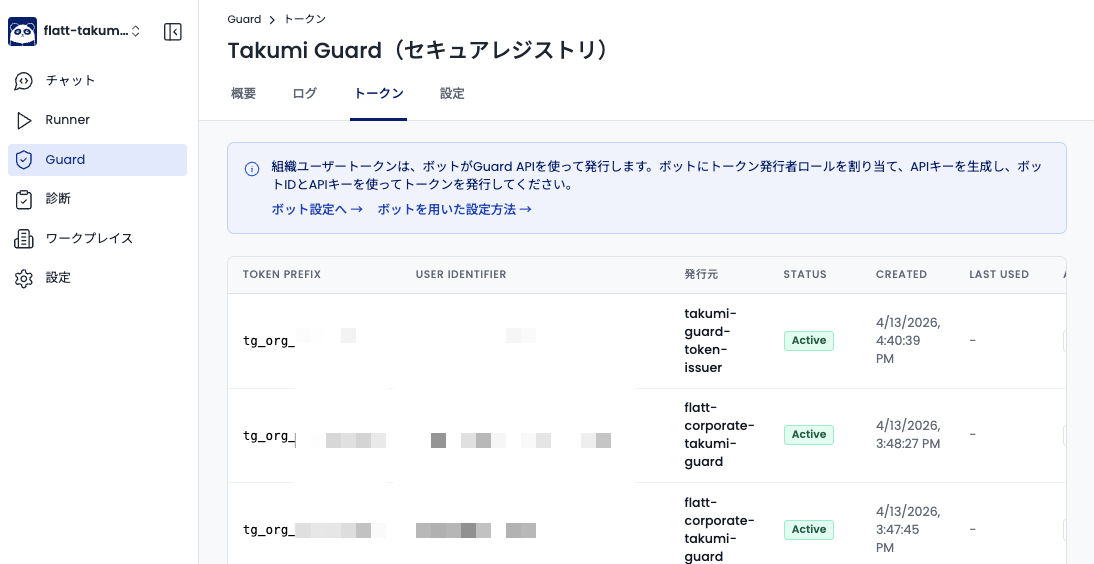
Tokens issued by the setup script can be viewed and managed in the Shisho Cloud console under Guard > Tokens.
Prerequisites
Before deploying, complete the following steps in Shisho Cloud console:
- Create a bot — Click the "Add Bot" button on the Settings > Bots page
- Assign the role — Select the "Takumi Guard Token Issuer" role for the bot
- Get the API key — On the bot's detail page, click "Create API Key" and save it securely
For detailed instructions on creating bots and API keys, see this guide.
Setup Script
We provide a setup script that handles token minting and package manager configuration. Download the script for your platform:
- macOS / Linux: https://shisho.dev/releases/takumi-guard-setup-0.10.3.sh
- Windows: https://shisho.dev/releases/takumi-guard-setup-0.10.3.ps1
Target machines must have curl installed (macOS and Linux).
Usage
The setup script only modifies config files for the user who runs it. To deploy across all users in your organization, use the wrapper scripts described in the Deployment Examples section.
Run the setup script as follows. Pass the API key via the TG_BOT_API_KEY environment variable:
TG_BOT_API_KEY="shisho_apikey_..." ./setup.sh <BOT_ID> <USER_IDENTIFIER>
| Parameter | Description |
|---|---|
TG_BOT_API_KEY | (environment variable) Bot API key |
BOT_ID | Bot ID from Shisho Cloud console |
USER_IDENTIFIER | A unique identifier for the device/user |
TG_DIRECT_WRITE | (Optional environment variable) Skips the package-manager pre-check and writes config files directly. See here for details. |
To limit which package managers are configured, pass the scope as the third argument.
TG_BOT_API_KEY="..." ./setup.sh BOT_ID USER_IDENTIFIER npm,rubygems
| Scope | Package managers configured |
|---|---|
npm | npm, pnpm, yarn (v2+), bun |
pypi | pip, uv, poetry |
rubygems | Bundler |
golang | Go modules |
packagist | Composer |
For Poetry, the user-level configuration written by the script is not enough to enable protection. A per-repository setup is required separately. See When using the Python package manager Poetry for details.
Choosing a USER_IDENTIFIER
The USER_IDENTIFIER is an opaque string that identifies a device or user. Choose a consistent naming convention for your organization.
Constraints:
- Allowed characters:
a-z,A-Z,0-9,-,_,.,@,+ - Length: 4 to 255 characters
Here are some examples of identifiers you can use.
| Example | Value | Description |
|---|---|---|
| Device serial number + OS username | C02X1234_jdoe | Hardware serial number from the device BIOS |
| Asset management ID + employee ID | ASSET0042_EMP12345 | IDs managed by your organization |
| MDM device ID + OS username | a401c7d0_jdoe | Device ID assigned by your MDM tool |
Verify that your chosen identifier is unique within your organization. Some identifiers (e.g., serial numbers) may be empty or not unique on certain environments such as custom-built PCs or virtual machines. Use a value that reliably distinguishes each device and user.
Behavior
First run
The setup script mints a token, creates a timestamped backup of each existing config file (e.g. ~/.npmrc-backup-20260408-162351), and appends Guard settings. Existing non-Guard settings are not modified.
Cases where the token is overwritten
The setup script inspects every Guard-managed config file and validates any existing token it detects. If different tokens are present across multiple config files, every one of them is validated.
If every detected token matches one of the following conditions, the script mints a fresh organization user token and overwrites the existing tokens with the new one. On the other hand, if at least one valid organization user token bound to the specified organization is found, that token is reused.
- An email-verified token
- A token that does not exist
- A token that has been revoked
- A token issued for a different organization
A timestamped backup of each config file is created before the overwrite.
Subsequent runs
The setup script detects the valid organization user token and reuses it, so a new token is not minted except in the cases above. Config files that already have Guard settings are also skipped (no changes, no backups). You can add new scopes incrementally — for example, run with npm first, then pypi later.
Package-manager pre-check
Before configuring Guard, the setup script checks every target package manager one by one. For each one that matches either of the following, it configures Guard:
- a config file for the package manager exists
- the package manager's CLI is available
It mints an organization user token (when needed) only if at least one configurable package manager is found. If none is found, the script exits without minting a token or changing any settings.
This prevents token issuance on a machine that does not use any package manager protected by Guard, and curbs the unnecessary billing that would result.
Guard can also be configured without this pre-check. For details, see Configure without the pre-check.
Manual rollback
The setup script creates a timestamped backup before modifying each config file (e.g. ~/.npmrc-backup-20260408-162351). To undo Guard settings, copy the backup file back to its original name (e.g. cp ~/.npmrc-backup-20260408-162351 ~/.npmrc).
Revoke tokens that are no longer needed (e.g., after device replacement or employee departure) from the Shisho Cloud console. See Revoking an Org User Token for the procedure.
If a package manager already has a different registry configured (e.g., a private npm registry), the setup script overwrites the existing registry with the Guard registry. A timestamped backup is created before each overwrite, but we recommend reviewing registry settings on target machines before deployment.
Deployment Examples
The deployment method varies depending on your management tool and target OS. This section introduces typical deployment examples by OS and token-issuing policy. The wrapper scripts below are samples — adjust them to fit your environment and operations.
- Issue one token per device: Issues a token per device. The wrapper checks whether any account on the device already has an active token and reuses it if so. Only when none exists does it mint a single new token, and it then configures every developer account on the device with the same token.
- Issue one token per user: Issues a token for each (device, user) pair. On a device with multiple developer accounts (shared workstations, devices where an MDM-created administrator account coexists with the user's account, devices where IdP-provisioned accounts coexist with built-in local accounts, and so on), each account on the device consumes a license.
Either wrapper reuses an active token when it finds one, so periodic execution is safe under both models.
In practice, you may want to exclude administrative service accounts or users that should not be configured with Takumi Guard. You can handle this by narrowing the target users in the wrapper script.
Example for macOS / Linux:
# Skip specific user names
case "$USER_NAME" in
  corp-admin|service-account|Guest) continue ;;
esac
Example for Windows:
# Skip specific user names
$Skip = @('corp-admin', 'Guest', 'defaultuser0')
if ($Skip -contains $UserName) { continue }
In the same way, you can filter by target directory or by group membership. For example, on macOS / Linux you can target only users under /Users/dev-* or /home/dev-*, or use id -Gn "$USER_NAME" | grep -q developers to target only members of a specific group. On Windows, Get-CimInstance Win32_GroupUser enables similar control.
macOS
Management tools usually run scripts as root, so the wrapper script below switches to each user in turn and applies the setup to each developer's environment. For delivery, follow your management tool's procedure, such as Jamf Pro's Running Scripts guide.
- Issue one token per device
- Issue one token per user
#!/bin/bash
# Admin deployment wrapper (one token per device)

# TODO: Replace with your Bot ID and API key from Shisho Cloud console
BOT_ID="BTXXXXXXXXXXXXXXXXXXXXXXXXXX"
export TG_BOT_API_KEY="shisho_apikey_XXXXX"

# TODO: Update VERSION when a newer setup script becomes available
VERSION="0.10.3"

# Set to true to pre-provision package managers that are not installed yet
# (writes config directly and skips the pre-check).
TG_DIRECT_WRITE=false

# Download the setup script
SCRIPT_PATH=$(mktemp /tmp/takumi-guard-setup.XXXXXX)
curl -sL -o "$SCRIPT_PATH" "https://shisho.dev/releases/takumi-guard-setup-${VERSION}.sh"
chmod 755 "$SCRIPT_PATH"
trap 'rm -f "$SCRIPT_PATH"' EXIT

# Device-level USER_IDENTIFIER: serial number only -- the token is shared
# across every user on this device, so the identifier does not embed a user.
# Fall back to the hostname if empty or a placeholder, and strip disallowed characters.
SERIAL=$(ioreg -l | grep IOPlatformSerialNumber | awk -F'"' '{print $4}')
SERIAL=$(printf '%s' "$SERIAL" | sed 's/^[[:space:]]*//; s/[[:space:]]*$//')
case "$SERIAL" in ''|None|0|'System Serial Number'|'To Be Filled By O.E.M.'|'Default string'|'Default System Serial Number'|'Not Specified'|'Not Applicable'|'Not Available') SERIAL=$(hostname) ;; esac
SERIAL=$(printf '%s' "$SERIAL" | LC_ALL=C tr -cs '0-9A-Za-z._@+-' '-' | sed 's/^-*//; s/-*$//')
[ "${#SERIAL}" -ge 4 ] || SERIAL="unknown-device"
USER_IDENTIFIER="$SERIAL"

# Phase 1 -- discover an existing active token on this device.
DEVICE_TOKEN=""
for USER_HOME in /Users/*; do
  USER_NAME=$(basename "$USER_HOME")
  [ "$USER_NAME" = "Shared" ] && continue
  [ "$USER_NAME" = "root" ] && continue
  [ ! -d "$USER_HOME" ] && continue
  id "$USER_NAME" >/dev/null 2>&1 || continue

  CANDIDATES=$(sudo -u "$USER_NAME" -H "$SCRIPT_PATH" discover 2>/dev/null) || continue

  while IFS= read -r CAND; do
    [ -n "$CAND" ] || continue
    STATUS=$(HOME="$USER_HOME" USER_HOME="$USER_HOME" TG_BOT_ID="$BOT_ID" "$SCRIPT_PATH" verify "$CAND" 2>/dev/null)
    case "$STATUS" in
      active)
        DEVICE_TOKEN="$CAND"
        break 2
        ;;
      unknown)
        # Network down / API unreachable: abort instead of burning a
        # fresh license under uncertainty.
        echo "[Error] Could not verify token status against the Shisho Cloud API. Re-run after the API is reachable." >&2
        exit 1
        ;;
    esac
  done <<EOF
$CANDIDATES
EOF
done

# Phase 2 -- if no active token exists yet, mint exactly one for the device.
if [ -z "$DEVICE_TOKEN" ]; then
  # If no profile on this device has anything to configure, skip the
  # mint -- otherwise every no-op deploy would still consume a license.
  # precheck exit codes: 0 = configurable and writable (mint-able); 1 = nothing
  # configurable here (benign); 3 = configurable but the config file is NOT
  # writable. Mint ONLY when a profile returns 0. If no profile is mint-able but
  # some returned 3, report which and exit non-zero so the config permissions
  # are fixed and the run repeated (rather than a silent skip).
  HAS_ANY_TARGET=false
  UNWRITABLE_REPORT=""
  for USER_HOME in /Users/*; do
    USER_NAME=$(basename "$USER_HOME")
    [ "$USER_NAME" = "Shared" ] && continue
    [ "$USER_NAME" = "root" ] && continue
    [ ! -d "$USER_HOME" ] && continue
    id "$USER_NAME" >/dev/null 2>&1 || continue
    PC_OUT=$(sudo -u "$USER_NAME" -H TG_DIRECT_WRITE="${TG_DIRECT_WRITE:-}" "$SCRIPT_PATH" precheck 2>&1) && PC_RC=0 || PC_RC=$?
    if [ "$PC_RC" -eq 0 ]; then
      HAS_ANY_TARGET=true
      break
    elif [ "$PC_RC" -eq 3 ]; then
      UNWRITABLE_REPORT="${UNWRITABLE_REPORT}  ${USER_NAME}: ${PC_OUT}
"
    fi
  done
  if [ "$HAS_ANY_TARGET" = false ]; then
    if [ -n "$UNWRITABLE_REPORT" ]; then
      echo "[Failed] Config files are not writable; fix permissions and re-run:" >&2
      printf '%s' "$UNWRITABLE_REPORT" >&2
      exit 1
    fi
    echo "[Done] No configurable tools found on this device. Skipping token mint."
    exit 0
  fi

  DEVICE_TOKEN=$(HOME=/var/root USER_HOME=/var/root TG_BOT_ID="$BOT_ID" "$SCRIPT_PATH" issue "$USER_IDENTIFIER")
  if [ -z "$DEVICE_TOKEN" ]; then
    echo "[Error] Failed to obtain device token" >&2
    exit 1
  fi
fi

# Phase 3 -- install the same token for every developer account. Each install
# is its own process; check its exit code, report a per-account verdict, and
# exit non-zero at the end if any account failed (e.g. config not writable).
ANY_FAILED=false
for USER_HOME in /Users/*; do
  USER_NAME=$(basename "$USER_HOME")
  [ "$USER_NAME" = "Shared" ] && continue
  [ "$USER_NAME" = "root" ] && continue
  [ ! -d "$USER_HOME" ] && continue
  id "$USER_NAME" >/dev/null 2>&1 || continue

  if sudo -u "$USER_NAME" -H zsh -lic "
    TG_DIRECT_WRITE='${TG_DIRECT_WRITE:-}' $SCRIPT_PATH install '$DEVICE_TOKEN'
  "; then
    echo "[Done] $USER_NAME configured"
  else
    echo "[Failed] $USER_NAME was not configured -- fix the reported permissions and re-run" >&2
    ANY_FAILED=true
  fi
done

# Clean up credentials
unset TG_BOT_API_KEY
[ "$ANY_FAILED" = true ] && exit 1
exit 0
#!/bin/bash
# Admin deployment wrapper

# TODO: Replace with your Bot ID and API key from Shisho Cloud console
BOT_ID="BTXXXXXXXXXXXXXXXXXXXXXXXXXX"
export TG_BOT_API_KEY="shisho_apikey_XXXXX"

# TODO: Update VERSION when a newer setup script becomes available
VERSION="0.10.3"

# Set to true to pre-provision package managers that are not installed yet
# (writes config directly and skips the pre-check).
TG_DIRECT_WRITE=false

# Download the setup script
SCRIPT_PATH=$(mktemp /tmp/takumi-guard-setup.XXXXXX)
curl -sL -o "$SCRIPT_PATH" https://shisho.dev/releases/takumi-guard-setup-${VERSION}.sh
chmod 755 "$SCRIPT_PATH"
trap 'rm -f "$SCRIPT_PATH"' EXIT

# Get the device serial number for USER_IDENTIFIER generation, falling back to
# the hostname and stripping characters the identifier does not allow.
SERIAL=$(ioreg -l | grep IOPlatformSerialNumber | awk -F'"' '{print $4}')
SERIAL=$(printf '%s' "$SERIAL" | sed 's/^[[:space:]]*//; s/[[:space:]]*$//')
case "$SERIAL" in ''|None|0|'System Serial Number'|'To Be Filled By O.E.M.'|'Default string'|'Default System Serial Number'|'Not Specified'|'Not Applicable'|'Not Available') SERIAL=$(hostname) ;; esac
SERIAL=$(printf '%s' "$SERIAL" | LC_ALL=C tr -cs '0-9A-Za-z._@+-' '-' | sed 's/^-*//; s/-*$//')
[ "${#SERIAL}" -ge 4 ] || SERIAL="unknown-device"

# Run the setup script for each user on this machine
for USER_HOME in /Users/*; do
  USER_NAME=$(basename "$USER_HOME")

  # Skip system directories and non-existent paths
  [ "$USER_NAME" = "Shared" ] && continue
  [ "$USER_NAME" = "root" ] && continue
  [ ! -d "$USER_HOME" ] && continue

  # Skip if the user account does not exist
  id "$USER_NAME" >/dev/null 2>&1 || continue

  # Build a unique identifier for this device + user combination
  SAFE_USER_NAME=$(printf '%s' "$USER_NAME" | LC_ALL=C tr -cs '0-9A-Za-z._@+-' '-' | sed 's/^-*//; s/-*$//')
  [ -n "$SAFE_USER_NAME" ] || SAFE_USER_NAME="uid-$(id -u "$USER_NAME" 2>/dev/null)"
  USER_IDENTIFIER="${SERIAL}_${SAFE_USER_NAME}"

  # Run the setup script as this user.
  # Use zsh -lic (login + interactive) so that ~/.zshrc is loaded and
  # package managers installed outside the default PATH are found.
  # setup.sh exits non-zero -- and never mints -- when a config file is not
  # writable. Check the exit code, report a per-user verdict, and exit non-zero
  # at the end if any user failed so the permissions are fixed and re-run.
  if sudo -u "$USER_NAME" -H zsh -lic '
    TG_BOT_API_KEY="'"$TG_BOT_API_KEY"'" TG_DIRECT_WRITE="'"${TG_DIRECT_WRITE:-}"'" \
      "'"$SCRIPT_PATH"'" "'"$BOT_ID"'" "'"$USER_IDENTIFIER"'"
  '; then
    echo "[Done] $USER_NAME (USER_IDENTIFIER: $USER_IDENTIFIER)"
  else
    echo "[Failed] $USER_NAME was not configured -- fix the reported permissions and re-run" >&2
    ANY_FAILED=true
  fi
done

# Clean up credentials
unset TG_BOT_API_KEY
[ "${ANY_FAILED:-false}" = true ] && exit 1
exit 0
Linux
Management tools usually run scripts as root, so the wrapper script below switches to each user in turn and applies the setup to each developer's environment.
- Issue one token per device
- Issue one token per user
#!/bin/bash
# Admin deployment wrapper (one token per device)

# TODO: Replace with your Bot ID and API key from Shisho Cloud console
BOT_ID="BTXXXXXXXXXXXXXXXXXXXXXXXXXX"
export TG_BOT_API_KEY="shisho_apikey_XXXXX"

# TODO: Update VERSION when a newer setup script becomes available
VERSION="0.10.3"

# Set to true to pre-provision package managers that are not installed yet
# (writes config directly and skips the pre-check).
TG_DIRECT_WRITE=false

# Download the setup script
SCRIPT_PATH=$(mktemp /tmp/takumi-guard-setup.XXXXXX)
curl -sL -o "$SCRIPT_PATH" "https://shisho.dev/releases/takumi-guard-setup-${VERSION}.sh"
chmod 755 "$SCRIPT_PATH"
trap 'rm -f "$SCRIPT_PATH"' EXIT

# Device-level USER_IDENTIFIER: serial number only, falling back to the hostname
# and stripping characters the identifier does not allow.
SERIAL=$(dmidecode -s system-serial-number 2>/dev/null)
SERIAL=$(printf '%s' "$SERIAL" | sed 's/^[[:space:]]*//; s/[[:space:]]*$//')
case "$SERIAL" in ''|None|0|'System Serial Number'|'To Be Filled By O.E.M.'|'Default string'|'Default System Serial Number'|'Not Specified'|'Not Applicable'|'Not Available') SERIAL=$(hostname) ;; esac
SERIAL=$(printf '%s' "$SERIAL" | LC_ALL=C tr -cs '0-9A-Za-z._@+-' '-' | sed 's/^-*//; s/-*$//')
[ "${#SERIAL}" -ge 4 ] || SERIAL="unknown-device"
USER_IDENTIFIER="$SERIAL"

# Phase 1 -- discover an existing active token on this device.
DEVICE_TOKEN=""
for USER_HOME in /home/*; do
  USER_NAME=$(basename "$USER_HOME")
  [ "$USER_NAME" = "root" ] && continue
  [ ! -d "$USER_HOME" ] && continue
  id "$USER_NAME" >/dev/null 2>&1 || continue

  CANDIDATES=$(sudo -u "$USER_NAME" -H "$SCRIPT_PATH" discover 2>/dev/null) || continue

  while IFS= read -r CAND; do
    [ -n "$CAND" ] || continue
    STATUS=$(HOME="$USER_HOME" USER_HOME="$USER_HOME" TG_BOT_ID="$BOT_ID" "$SCRIPT_PATH" verify "$CAND" 2>/dev/null)
    case "$STATUS" in
      active)
        DEVICE_TOKEN="$CAND"
        break 2
        ;;
      unknown)
        echo "[Error] Could not verify token status against the Shisho Cloud API. Re-run after the API is reachable." >&2
        exit 1
        ;;
    esac
  done <<EOF
$CANDIDATES
EOF
done

# Phase 2 -- if no active token exists yet, mint exactly one for the device.
if [ -z "$DEVICE_TOKEN" ]; then
  # If no profile on this device has anything to configure, skip the
  # mint -- otherwise every no-op deploy would still consume a license.
  # precheck exit codes: 0 = configurable and writable (mint-able); 1 = nothing
  # configurable here (benign); 3 = configurable but the config file is NOT
  # writable. Mint ONLY when a profile returns 0. If no profile is mint-able but
  # some returned 3, report which and exit non-zero so the config permissions
  # are fixed and the run repeated (rather than a silent skip).
  HAS_ANY_TARGET=false
  UNWRITABLE_REPORT=""
  for USER_HOME in /home/*; do
    USER_NAME=$(basename "$USER_HOME")
    [ "$USER_NAME" = "root" ] && continue
    [ ! -d "$USER_HOME" ] && continue
    id "$USER_NAME" >/dev/null 2>&1 || continue
    PC_OUT=$(sudo -u "$USER_NAME" -H TG_DIRECT_WRITE="${TG_DIRECT_WRITE:-}" "$SCRIPT_PATH" precheck 2>&1) && PC_RC=0 || PC_RC=$?
    if [ "$PC_RC" -eq 0 ]; then
      HAS_ANY_TARGET=true
      break
    elif [ "$PC_RC" -eq 3 ]; then
      UNWRITABLE_REPORT="${UNWRITABLE_REPORT}  ${USER_NAME}: ${PC_OUT}
"
    fi
  done
  if [ "$HAS_ANY_TARGET" = false ]; then
    if [ -n "$UNWRITABLE_REPORT" ]; then
      echo "[Failed] Config files are not writable; fix permissions and re-run:" >&2
      printf '%s' "$UNWRITABLE_REPORT" >&2
      exit 1
    fi
    echo "[Done] No configurable tools found on this device. Skipping token mint."
    exit 0
  fi

  DEVICE_TOKEN=$(HOME=/root USER_HOME=/root TG_BOT_ID="$BOT_ID" "$SCRIPT_PATH" issue "$USER_IDENTIFIER")
  if [ -z "$DEVICE_TOKEN" ]; then
    echo "[Error] Failed to obtain device token" >&2
    exit 1
  fi
fi

# Phase 3 -- install the same token for every developer account. Each install
# is its own process; check its exit code, report a per-account verdict, and
# exit non-zero at the end if any account failed (e.g. config not writable).
ANY_FAILED=false
for USER_HOME in /home/*; do
  USER_NAME=$(basename "$USER_HOME")
  [ "$USER_NAME" = "root" ] && continue
  [ ! -d "$USER_HOME" ] && continue
  id "$USER_NAME" >/dev/null 2>&1 || continue

  USER_SHELL=$(getent passwd "$USER_NAME" | cut -d: -f7)
  if sudo -u "$USER_NAME" -H "$USER_SHELL" -lic "
    [ -f \"\$HOME/.bashrc\" ] && . \"\$HOME/.bashrc\" 2>/dev/null
    TG_DIRECT_WRITE='${TG_DIRECT_WRITE:-}' $SCRIPT_PATH install '$DEVICE_TOKEN'
  "; then
    echo "[Done] $USER_NAME configured"
  else
    echo "[Failed] $USER_NAME was not configured -- fix the reported permissions and re-run" >&2
    ANY_FAILED=true
  fi
done

# Clean up credentials
unset TG_BOT_API_KEY
[ "$ANY_FAILED" = true ] && exit 1
exit 0
#!/bin/bash
# Admin deployment wrapper

# TODO: Replace with your Bot ID and API key from Shisho Cloud console
BOT_ID="BTXXXXXXXXXXXXXXXXXXXXXXXXXX"
export TG_BOT_API_KEY="shisho_apikey_XXXXX"

# TODO: Update VERSION when a newer setup script becomes available
VERSION="0.10.3"

# Set to true to pre-provision package managers that are not installed yet
# (writes config directly and skips the pre-check).
TG_DIRECT_WRITE=false

# Download the setup script
SCRIPT_PATH=$(mktemp /tmp/takumi-guard-setup.XXXXXX)
curl -sL -o "$SCRIPT_PATH" https://shisho.dev/releases/takumi-guard-setup-${VERSION}.sh
chmod 755 "$SCRIPT_PATH"
trap 'rm -f "$SCRIPT_PATH"' EXIT

# Get the device serial number for USER_IDENTIFIER generation, falling back to
# the hostname and stripping characters the identifier does not allow.
SERIAL=$(dmidecode -s system-serial-number 2>/dev/null)
SERIAL=$(printf '%s' "$SERIAL" | sed 's/^[[:space:]]*//; s/[[:space:]]*$//')
case "$SERIAL" in ''|None|0|'System Serial Number'|'To Be Filled By O.E.M.'|'Default string'|'Default System Serial Number'|'Not Specified'|'Not Applicable'|'Not Available') SERIAL=$(hostname) ;; esac
SERIAL=$(printf '%s' "$SERIAL" | LC_ALL=C tr -cs '0-9A-Za-z._@+-' '-' | sed 's/^-*//; s/-*$//')
[ "${#SERIAL}" -ge 4 ] || SERIAL="unknown-device"

# Run the setup script for each user on this machine
for USER_HOME in /home/*; do
  USER_NAME=$(basename "$USER_HOME")

  # Skip the root account and non-existent paths
  [ "$USER_NAME" = "root" ] && continue
  [ ! -d "$USER_HOME" ] && continue

  # Skip if the user account does not exist
  id "$USER_NAME" >/dev/null 2>&1 || continue

  # Build a unique identifier for this device + user combination
  SAFE_USER_NAME=$(printf '%s' "$USER_NAME" | LC_ALL=C tr -cs '0-9A-Za-z._@+-' '-' | sed 's/^-*//; s/-*$//')
  [ -n "$SAFE_USER_NAME" ] || SAFE_USER_NAME="uid-$(id -u "$USER_NAME" 2>/dev/null)"
  USER_IDENTIFIER="${SERIAL}_${SAFE_USER_NAME}"

  # Run the setup script as this user.
  # Detect the user's login shell and run it in login + interactive mode
  # so that ~/.bashrc (or ~/.zshrc) is loaded and package managers
  # installed outside the default PATH are found.
  # Explicitly source .bashrc as a fallback for environments where
  # .bash_profile does not source it (e.g. CentOS).
  USER_SHELL=$(getent passwd "$USER_NAME" | cut -d: -f7)
  # setup.sh exits non-zero -- and never mints -- when a config file is not
  # writable. Check the exit code, report a per-user verdict, and exit non-zero
  # at the end if any user failed so the permissions are fixed and re-run.
  if sudo -u "$USER_NAME" -H "$USER_SHELL" -lic '
    [ -f "$HOME/.bashrc" ] && . "$HOME/.bashrc" 2>/dev/null
    TG_BOT_API_KEY="'"$TG_BOT_API_KEY"'" TG_DIRECT_WRITE="'"${TG_DIRECT_WRITE:-}"'" \
      "'"$SCRIPT_PATH"'" "'"$BOT_ID"'" "'"$USER_IDENTIFIER"'"
  '; then
    echo "[Done] $USER_NAME (USER_IDENTIFIER: $USER_IDENTIFIER)"
  else
    echo "[Failed] $USER_NAME was not configured -- fix the reported permissions and re-run" >&2
    ANY_FAILED=true
  fi
done

# Clean up credentials
unset TG_BOT_API_KEY
[ "${ANY_FAILED:-false}" = true ] && exit 1
exit 0
To configure Guard for the root user as well on macOS / Linux, run the setup script once inside the wrapper script without switching users.
Windows
On Windows, there are multiple deployment patterns depending on how your management tool runs scripts. This section covers configuring Guard only for the logged-on user and configuring all users on the device at once.
- Configure only the logged-on user: Your management tool runs the script with the user's own credentials. Microsoft Intune's "Run this script using the logged on credentials" option and Group Policy logon scripts work this way. This mode can also configure the user's WSL (Windows Subsystem for Linux) distributions.
- Configure all users on the device: Your management tool runs the script with
SYSTEMprivileges. Microsoft Configuration Manager (formerly SCCM), Group Policy startup scripts, PDQ Deploy, and many other MDM tools do this by default. Because the script must run asSYSTEM, delivery is generally through a management tool.
The default Windows execution policy restricts running unsigned PowerShell scripts (.ps1). The wrapper scripts in this section therefore need to run with ExecutionPolicy Bypass.
Major management tools such as Microsoft Intune, Microsoft Configuration Manager, and Group Policy startup scripts automatically run PowerShell scripts this way, so no additional setup is needed.
If you run the script manually, for example via PsExec, start it as follows.
powershell.exe -ExecutionPolicy Bypass -File <wrapper-script>.ps1
Configure only the logged-on user
This wrapper script runs in the logged-on user's own session, issues an individual token for the user, and applies the setup. Save the script, then either deliver it to each device with your management tool or distribute it through another channel such as shared storage and ask each user to run it.
In addition to the Windows host, it configures the user's registered WSL distributions with the same token. The wrapper script detects WSL distributions used for development and skips internal-use distributions such as Docker Desktop's.
WSL configuration is toggled by $ConfigureWsl at the top of the script. The default is $true; set it to $false to configure only the Windows host. See here for more on configuring WSL.
This wrapper script configures Guard for the Windows host and each WSL environment independently. If configuration fails in one environment, the script does not stop; it continues configuring the remaining environments. Changes made in the failed environment are rolled back automatically, returning it to its previous state. Environments that were already configured are not affected.
The result for each environment is written to the log. Environments configured successfully are reported by lines starting with [Done] <env> configured, and failed ones by lines starting with [Failed] <env> was not configured.
If any environment fails, the exit code is non-zero, so MDM tools can detect the failure. For failed environments, resolve the cause and run the script again.
By default, the wrapper script excludes the following from configuration. Adjust it to fit your environment if needed.
- Distributions used internally by Docker Desktop, Rancher Desktop, and Podman
- Accounts other than developer users inside each distribution (outside UID 1000-59999, such as the root user and system accounts)
# Admin deployment wrapper (logged-in user mode, with WSL coverage)
# Run as the logged-in user (user context). Requires PowerShell 5.1 or later.

# Relaunch in 64-bit PowerShell when started from a 32-bit host (e.g. Intune's
# default script host), where wsl.exe is not visible.
if (-not [Environment]::Is64BitProcess -and [Environment]::Is64BitOperatingSystem) {
    & "$env:windir\Sysnative\WindowsPowerShell\v1.0\powershell.exe" -NoProfile -ExecutionPolicy Bypass -File $MyInvocation.MyCommand.Path
    exit $LASTEXITCODE
}

# TODO: Replace with your Bot ID and API key from Shisho Cloud console
$BotId = 'BTXXXXXXXXXXXXXXXXXXXXXXXXXX'
$env:TG_BOT_API_KEY = 'shisho_apikey_XXXXX'

# Set to 'true' to pre-provision package managers that are not installed yet
# (writes config directly and skips the pre-check). The child powershell.exe
# inherits this value.
$env:TG_DIRECT_WRITE = 'false'

# Whether to also configure the user's WSL distributions ($false to skip WSL).
$ConfigureWsl = $true

# TODO: Update VERSION when a newer setup script becomes available
$Version = '0.10.3'

# Download both setup scripts: setup.ps1 for the Windows host, setup.sh to run
# inside each WSL distribution.
$ScriptPath = Join-Path ([System.IO.Path]::GetTempPath()) ("takumi-guard-setup-{0}.ps1" -f [guid]::NewGuid())
$ShPath     = Join-Path ([System.IO.Path]::GetTempPath()) ("takumi-guard-setup-{0}.sh"  -f [guid]::NewGuid())
$ListUsers  = Join-Path ([System.IO.Path]::GetTempPath()) ("guard-listusers-{0}.sh"     -f [guid]::NewGuid())
try {
    Invoke-WebRequest -Uri "https://shisho.dev/releases/takumi-guard-setup-$Version.ps1" -OutFile $ScriptPath -UseBasicParsing
    Invoke-WebRequest -Uri "https://shisho.dev/releases/takumi-guard-setup-$Version.sh"  -OutFile $ShPath     -UseBasicParsing

    # Build a unique identifier for this device + user combination. Fall
    # back to COMPUTERNAME when the BIOS serial is empty or a placeholder
    # value (common on VMs).
    $Serial = (Get-CimInstance -ClassName Win32_BIOS).SerialNumber
    if (-not $Serial -or ($Serial.Trim() -in @('', 'None', '0', 'System Serial Number', 'To Be Filled By O.E.M.', 'Default string', 'Default System Serial Number', 'Not Specified', 'Not Applicable', 'Not Available'))) {
        $Serial = $env:COMPUTERNAME
    }
    # Strip characters the identifier does not allow (spaces, etc.).
    $Serial = ($Serial -replace '[^0-9A-Za-z._@+\-]+', '-').Trim('-')
    if ($Serial.Length -lt 4) { $Serial = 'unknown-device' }
    $SafeUserName = ($env:USERNAME -replace '[^0-9A-Za-z._@+\-]+', '-').Trim('-')
    if (-not $SafeUserName) { $SafeUserName = ([System.Security.Principal.WindowsIdentity]::GetCurrent()).User.Value }
    $UserIdentifier = "${Serial}_${SafeUserName}"

    # Forward TG_DIRECT_WRITE into WSL (wsl.exe does not pass Windows
    # environment variables through without WSLENV).
    if ($env:WSLENV) { $env:WSLENV = "${env:WSLENV}:TG_DIRECT_WRITE/u" } else { $env:WSLENV = 'TG_DIRECT_WRITE/u' }

    # --- WSL helpers -------------------------------------------------------
    # wsl.exe's own stdout is UTF-16LE, so strip null bytes before splitting.
    # Distributions used internally by Docker Desktop, Rancher Desktop, and
    # Podman are not development environments, so they are excluded.
    function Get-WslDistros {
        if (-not (Get-Command wsl.exe -ErrorAction SilentlyContinue)) { return @() }
        wsl.exe --status *> $null
        if ($LASTEXITCODE -ne 0) { return @() }   # e.g. SYSTEM context: WSL not visible
        $raw = (wsl.exe -l -q | Out-String) -replace "`0", ""
        @($raw -split "`r?`n" | ForEach-Object { $_.Trim() } |
            Where-Object { $_ -and $_ -notmatch '^(docker-desktop|rancher-desktop|podman-)' })
    }
    # The user-list script is written to a file and invoked via its
    # /mnt/<drive>/... path to avoid shell-quoting issues.
    function ConvertTo-WslPath([string]$WinPath) {
        '/mnt/' + $WinPath.Substring(0, 1).ToLower() + ($WinPath.Substring(2) -replace '\\', '/')
    }
    [IO.File]::WriteAllText($ListUsers, "awk -F: '`$3>=1000 && `$3<60000 {print `$1}' /etc/passwd`n", [Text.UTF8Encoding]::new($false))
    $ShWsl        = ConvertTo-WslPath $ShPath
    $ListUsersWsl = ConvertTo-WslPath $ListUsers
    # Real Linux users (UID 1000..59999) in a distro. A non-zero exit means
    # the enumeration itself failed: warn and skip the distribution.
    function Get-WslUsers([string]$Distro) {
        $raw = wsl.exe -d $Distro -u root --cd / -- bash $ListUsersWsl 2>$null
        if ($LASTEXITCODE -ne 0) {
            # Write-Host keeps the warning out of the function's return value.
            Write-Host "[Warn] WSL ${Distro}: could not enumerate Linux users (exit $LASTEXITCODE); skipping this distribution."
            return $null
        }
        @($raw -split "`r?`n" | ForEach-Object { ($_ -replace "`0", "").Trim() } | Where-Object { $_ })
    }
    # Run a setup.sh subcommand inside a WSL (distro, user). `--cd "~"` keeps
    # the Linux home as CWD so npm does not pick up Windows-side config.
    function Invoke-WslSh([string]$Distro, [string]$User, [string[]]$ShArgs) {
        wsl.exe -d $Distro -u $User --cd "~" -- bash $ShWsl @ShArgs
    }
    # Collect the WSL (distro, user) targets once. With $ConfigureWsl = $false
    # the list stays empty and only the Windows host is configured.
    $WslTargets = @()
    if ($ConfigureWsl) {
        foreach ($d in Get-WslDistros) {
            $users = Get-WslUsers $d
            if ($null -eq $users) { continue }   # enumeration failed; already warned
            foreach ($u in $users) {
                $WslTargets += [pscustomobject]@{ Distro = $d; User = $u }
            }
        }
    }

    # --- Phase 1: discover an existing active token (Windows + WSL) ---------
    $Token = $null
    $candidates = @()
    $candidates += @(& powershell.exe -NoProfile -ExecutionPolicy Bypass -File $ScriptPath discover 2>$null)
    if ($LASTEXITCODE -ne 0) {
        Write-Output "[Warn] Windows host: discover failed (exit $LASTEXITCODE); an existing token here may be missed."
    }
    foreach ($t in $WslTargets) {
        $candidates += @(Invoke-WslSh $t.Distro $t.User @('discover'))
        if ($LASTEXITCODE -ne 0) {
            Write-Output "[Warn] WSL $($t.Distro):$($t.User): discover failed (exit $LASTEXITCODE); an existing token here may be missed."
        }
    }
    foreach ($c in ($candidates | Where-Object { $_ })) {
        $env:TG_BOT_ID = $BotId
        $status = & powershell.exe -NoProfile -ExecutionPolicy Bypass -File $ScriptPath verify $c 2>$null
        Remove-Item Env:TG_BOT_ID -ErrorAction SilentlyContinue
        if ($status -eq 'active') { $Token = $c; break }
        if ($status -eq 'unknown') {
            Write-Output "[Error] Could not verify token status against the Shisho Cloud API. Re-run after the API is reachable."
            exit 1
        }
    }

    # --- Phase 2: mint exactly one token if none is active (Windows + WSL) --
    if (-not $Token) {
        # precheck exit: 0 = mint-able; 1 = nothing configurable (benign);
        # 3 = configurable but not writable. Mint only on 0.
        # If nothing is mint-able but some env returned 3, report + exit non-zero.
        $HasTarget = $false
        $unwritable = @()
        $pcOut = & powershell.exe -NoProfile -ExecutionPolicy Bypass -File $ScriptPath precheck 2>&1
        $rc = $LASTEXITCODE
        if ($rc -eq 0) { $HasTarget = $true }
        elseif ($rc -eq 3) { $unwritable += "Windows host: $(($pcOut | Out-String).Trim())" }
        if (-not $HasTarget) {
            foreach ($t in $WslTargets) {
                $wpcOut = Invoke-WslSh $t.Distro $t.User @('precheck') 2>&1
                if ($LASTEXITCODE -eq 0) { $HasTarget = $true; break }
                elseif ($LASTEXITCODE -eq 3) { $unwritable += "WSL $($t.Distro):$($t.User): $(($wpcOut | Out-String).Trim())" }
            }
        }
        if (-not $HasTarget) {
            if ($unwritable.Count -gt 0) {
                Write-Output "[Failed] Config files are not writable; fix permissions and re-run:"
                $unwritable | ForEach-Object { Write-Output "  $_" }
                exit 1
            }
            Write-Output "[Done] No configurable tools found on this device. Skipping token mint."
            exit 0
        }
        $env:TG_BOT_ID = $BotId
        $Token = & powershell.exe -NoProfile -ExecutionPolicy Bypass -File $ScriptPath issue $UserIdentifier
        Remove-Item Env:TG_BOT_ID -ErrorAction SilentlyContinue
        if (-not $Token) { throw "Failed to obtain device token" }
    }

    # --- Phase 3: install the same token (Windows + WSL) -------------------
    # Each environment is configured by its own process; a failure rolls back
    # only that environment. Keep configuring the rest, print a per-environment
    # verdict, and exit non-zero at the end if anything failed.
    $AnyFailed = $false

    Write-Output "----- Windows host -----"
    & powershell.exe -NoProfile -ExecutionPolicy Bypass -File $ScriptPath install $Token 2>&1 | ForEach-Object { "$_" }
    if ($LASTEXITCODE -eq 0) { Write-Output "[Done] Windows host configured" }
    else { Write-Output "[Failed] Windows host was not configured (setup exited $LASTEXITCODE)"; $AnyFailed = $true }

    foreach ($t in $WslTargets) {
        $label = "WSL $($t.Distro):$($t.User)"
        Write-Output "----- $label -----"
        Invoke-WslSh $t.Distro $t.User @('install', $Token) 2>&1 | ForEach-Object { "$_" }
        if ($LASTEXITCODE -eq 0) { Write-Output "[Done] $label configured" }
        else { Write-Output "[Failed] $label was not configured (setup exited $LASTEXITCODE)"; $AnyFailed = $true }
    }

    if ($AnyFailed) { exit 1 }

} finally {
    Remove-Item Env:TG_BOT_API_KEY -ErrorAction SilentlyContinue
    Remove-Item Env:TG_BOT_ID -ErrorAction SilentlyContinue
    Remove-Item $ScriptPath, $ShPath, $ListUsers -Force -ErrorAction SilentlyContinue
}
Configure all users on the device
This wrapper script runs with SYSTEM privileges. It downloads the setup script and then walks through each user profile on the device via Win32_UserProfile, applying the setup profile by profile.
Note that, by Windows design, WSL distributions are not visible to SYSTEM processes, so this wrapper script cannot configure Guard for WSL. See Configuring Windows Subsystem for Linux (WSL) for details.
- Issue one token per device
- Issue one token per user
# Admin deployment wrapper (all-users, one token per device)
# Run as SYSTEM (or any administrator). Requires PowerShell 5.1 or later.

# TODO: Replace with your Bot ID and API key from Shisho Cloud console
$BotId = 'BTXXXXXXXXXXXXXXXXXXXXXXXXXX'
$env:TG_BOT_API_KEY = 'shisho_apikey_XXXXX'

# Set to 'true' to pre-provision package managers that are not installed yet
# (writes config directly and skips the pre-check). The child powershell.exe
# inherits this value.
$env:TG_DIRECT_WRITE = 'false'

# TODO: Update VERSION when a newer setup script becomes available
$Version = '0.10.3'

# Download the setup script
$ScriptPath = Join-Path ([System.IO.Path]::GetTempPath()) ("takumi-guard-setup-{0}.ps1" -f [guid]::NewGuid())
try {
    Invoke-WebRequest -Uri "https://shisho.dev/releases/takumi-guard-setup-$Version.ps1" `
        -OutFile $ScriptPath -UseBasicParsing

    # Device-level USER_IDENTIFIER: serial number only. Fall back to
    # COMPUTERNAME when the BIOS serial is empty or a placeholder value
    # (common on VMs).
    $Serial = (Get-CimInstance -ClassName Win32_BIOS).SerialNumber
    if (-not $Serial -or ($Serial.Trim() -in @('', 'None', '0', 'System Serial Number', 'To Be Filled By O.E.M.', 'Default string', 'Default System Serial Number', 'Not Specified', 'Not Applicable', 'Not Available'))) {
        $Serial = $env:COMPUTERNAME
    }
    # Strip characters the identifier does not allow (spaces, etc.).
    $Serial = ($Serial -replace '[^0-9A-Za-z._@+\-]+', '-').Trim('-')
    if ($Serial.Length -lt 4) { $Serial = 'unknown-device' }
    $UserIdentifier = $Serial

    # Win32_UserProfile excludes built-in service profiles (SYSTEM, LocalService,
    # NetworkService) via `Special = false`. Profiles whose directories no longer
    # exist (deleted users with leftover registry entries) are also filtered out.
    $Profiles = Get-CimInstance -ClassName Win32_UserProfile -Filter "Special = false" |
        Where-Object { $_.LocalPath -and (Test-Path $_.LocalPath) }

    # Phase 1 -- discover an existing active token on this device.
    $DeviceToken = $null
    :OuterDiscover foreach ($profile in $Profiles) {
        $env:USER_HOME = $profile.LocalPath
        $candidates = & powershell.exe -NoProfile -ExecutionPolicy Bypass -File $ScriptPath discover 2>$null
        Remove-Item Env:USER_HOME -ErrorAction SilentlyContinue
        if (-not $candidates) { continue }
        foreach ($c in @($candidates)) {
            if (-not $c) { continue }
            $env:TG_BOT_ID = $BotId
            $status = & powershell.exe -NoProfile -ExecutionPolicy Bypass -File $ScriptPath verify $c 2>$null
            Remove-Item Env:TG_BOT_ID -ErrorAction SilentlyContinue
            switch ($status) {
                'active' {
                    $DeviceToken = $c
                    break OuterDiscover
                }
                'unknown' {
                    Write-Output "[Error] Could not verify token status against the Shisho Cloud API. Re-run after the API is reachable."
                    exit 1
                }
            }
        }
    }

    # Phase 2 -- if no active token exists yet, mint exactly one for the device.
    if (-not $DeviceToken) {
        # If no profile on this device has anything to configure, skip the
        # mint -- otherwise every no-op deploy would still consume a license.
        # precheck exit codes: 0 = configurable + writable (mint-able); 1 =
        # nothing configurable (benign); 3 = configurable but the config file is
        # NOT writable. Mint ONLY when a profile returns 0. If
        # no profile is mint-able but some returned 3, report it and exit
        # non-zero so the admin fixes permissions and re-runs.
        $HasAnyTarget = $false
        $unwritable = @()
        foreach ($profile in $Profiles) {
            $env:USER_HOME = $profile.LocalPath
            $pcOut = & powershell.exe -NoProfile -ExecutionPolicy Bypass -File $ScriptPath precheck 2>&1
            $rc = $LASTEXITCODE
            Remove-Item Env:USER_HOME -ErrorAction SilentlyContinue
            if ($rc -eq 0) { $HasAnyTarget = $true; break }
            elseif ($rc -eq 3) { $unwritable += "$($profile.LocalPath): $(($pcOut | Out-String).Trim())" }
        }
        if (-not $HasAnyTarget) {
            if ($unwritable.Count -gt 0) {
                Write-Output "[Failed] Config files are not writable; fix permissions and re-run:"
                $unwritable | ForEach-Object { Write-Output "  $_" }
                exit 1
            }
            Write-Output "[Done] No configurable tools found on this device. Skipping token mint."
            exit 0
        }

        $env:TG_BOT_ID = $BotId
        $DeviceToken = & powershell.exe -NoProfile -ExecutionPolicy Bypass -File $ScriptPath issue $UserIdentifier
        Remove-Item Env:TG_BOT_ID -ErrorAction SilentlyContinue
        if (-not $DeviceToken) {
            throw "Failed to obtain device token"
        }
    }

    # Phase 3 -- install the same token for every user profile. Each install is
    # its own process; a failure rolls back only that profile. Check its exit
    # code, report a per-profile verdict, and exit non-zero at the end if any
    # profile failed (e.g. a config file was not writable).
    $AnyFailed = $false
    foreach ($profile in $Profiles) {
        $UserHome = $profile.LocalPath
        $UserName = Split-Path $UserHome -Leaf
        $env:USER_HOME = $UserHome
        & powershell.exe -NoProfile -ExecutionPolicy Bypass -File $ScriptPath install $DeviceToken 2>&1 |
            ForEach-Object { "$_" }
        $rc = $LASTEXITCODE
        Remove-Item Env:USER_HOME -ErrorAction SilentlyContinue
        if ($rc -eq 0) {
            Write-Output "[Done] $UserName configured"
        } else {
            Write-Output "[Failed] $UserName was not configured -- fix the reported permissions and re-run"
            $AnyFailed = $true
        }
    }
    if ($AnyFailed) { exit 1 }

} finally {
    Remove-Item Env:TG_BOT_API_KEY -ErrorAction SilentlyContinue
    Remove-Item $ScriptPath -Force -ErrorAction SilentlyContinue
}
# Admin deployment wrapper (all-users mode)
# Run as SYSTEM (or any administrator). Requires PowerShell 5.1 or later.

# TODO: Replace with your Bot ID and API key from Shisho Cloud console
$BotId = 'BTXXXXXXXXXXXXXXXXXXXXXXXXXX'
$env:TG_BOT_API_KEY = 'shisho_apikey_XXXXX'

# Set to 'true' to pre-provision package managers that are not installed yet
# (writes config directly and skips the pre-check). The child powershell.exe
# inherits this value.
$env:TG_DIRECT_WRITE = 'false'

# TODO: Update VERSION when a newer setup script becomes available
$Version = '0.10.3'

# Download the setup script
$ScriptPath = Join-Path ([System.IO.Path]::GetTempPath()) ("takumi-guard-setup-{0}.ps1" -f [guid]::NewGuid())
try {
    Invoke-WebRequest -Uri "https://shisho.dev/releases/takumi-guard-setup-$Version.ps1" `
        -OutFile $ScriptPath -UseBasicParsing

    # Get the device serial number for USER_IDENTIFIER generation. Fall
    # back to COMPUTERNAME when the BIOS serial is empty or a placeholder
    # value (common on VMs).
    $Serial = (Get-CimInstance -ClassName Win32_BIOS).SerialNumber
    if (-not $Serial -or ($Serial.Trim() -in @('', 'None', '0', 'System Serial Number', 'To Be Filled By O.E.M.', 'Default string', 'Default System Serial Number', 'Not Specified', 'Not Applicable', 'Not Available'))) {
        $Serial = $env:COMPUTERNAME
    }
    # Strip characters the identifier does not allow (spaces, etc.).
    $Serial = ($Serial -replace '[^0-9A-Za-z._@+\-]+', '-').Trim('-')
    if ($Serial.Length -lt 4) { $Serial = 'unknown-device' }

    # Run the setup script for each user profile on this machine.
    # Win32_UserProfile excludes built-in service profiles (SYSTEM, LocalService,
    # NetworkService) via `Special = false`. Profiles whose directories no longer
    # exist (deleted users with leftover registry entries) are also filtered out.
    # setup.ps1 exits non-zero -- and never mints -- when a config file is not
    # writable. Check the exit code, report a per-user verdict, and exit non-zero
    # at the end if any user failed so the permissions are fixed and re-run.
    $AnyFailed = $false
    foreach ($profile in (Get-CimInstance -ClassName Win32_UserProfile -Filter "Special = false" |
            Where-Object { $_.LocalPath -and (Test-Path $_.LocalPath) })) {
        $UserHome = $profile.LocalPath
        $UserName = Split-Path $UserHome -Leaf

        # Build a unique identifier for this device + user combination
        $SafeUserName = ($UserName -replace '[^0-9A-Za-z._@+\-]+', '-').Trim('-')
        if (-not $SafeUserName) { $SafeUserName = $profile.SID }
        $UserIdentifier = "${Serial}_${SafeUserName}"

        # Invoke setup.ps1 with USER_HOME pointing at this profile. The script
        # resolves the profile owner from USER_HOME so that the resulting config
        # files grant access to the target developer, not just SYSTEM.
        $env:USER_HOME = $UserHome
        & powershell.exe -ExecutionPolicy Bypass -File $ScriptPath $BotId $UserIdentifier
        $rc = $LASTEXITCODE
        Remove-Item Env:USER_HOME -ErrorAction SilentlyContinue

        if ($rc -eq 0) {
            Write-Output "[Done] $UserName (USER_IDENTIFIER: $UserIdentifier)"
        } else {
            Write-Output "[Failed] $UserName was not configured -- fix the reported permissions and re-run"
            $AnyFailed = $true
        }
    }
    if ($AnyFailed) { exit 1 }

} finally {
    Remove-Item Env:TG_BOT_API_KEY -ErrorAction SilentlyContinue
    Remove-Item $ScriptPath -Force -ErrorAction SilentlyContinue
}
Tips
This section introduces settings that make admin deployment more flexible, along with supplementary information useful for operations.
Configure without the pre-check
Before configuring Guard, the setup script detects the target package managers, and by default configures Guard only when a configurable target exists.
This avoids issuing an unnecessary organization user token to a machine that does not use any package manager protected by Guard. It also keeps changes to the machine to a minimum by not creating or modifying config files for package managers that are not in use.
This behavior has a downside, however. On a machine where no package manager is installed at the time setup runs, Guard is not configured, so if a package manager is installed later it reaches the public registry directly and bypasses Guard.
To address this, the TG_DIRECT_WRITE environment variable is provided.
When TG_DIRECT_WRITE=true is set, the setup script skips the pre-check and writes Guard settings directly into the config files of the target package managers, creating the config file if it does not exist.
# Issue an org user token and configure Guard together
TG_DIRECT_WRITE=true TG_BOT_API_KEY="..." ./setup.sh <BOT_ID> <USER_IDENTIFIER>

# Configure Guard only, using an already-issued org user token
TG_DIRECT_WRITE=true ./setup.sh install <TOKEN>
As a result, even if no package manager is installed when setup runs, a package manager installed later goes through Guard from its very first use.
In this mode the script also writes config files directly instead of running a package-manager CLI (npm config set, poetry config, go env -w, and so on), so the configuration can be written even before the target package manager is installed.
However, because this mode proceeds without checking whether a configurable target exists, an organization user token is issued even for a user or machine that does not actually use any package manager protected by Guard. Depending on usage, this can affect cost.
Weigh the trade-off between suppressing unnecessary token issuance and preparing for future package-manager use, and choose as appropriate.
For details on this pre-check, see Package-manager pre-check.
Consider Running on a Schedule
The setup script is designed so that subsequent runs skip already-configured tools and reuse the existing valid token. That makes it well-suited for periodic execution from your management tool.
Running on a schedule lets you transparently handle cases like:
- A new developer joining the organization — setup propagates automatically once they log in to their machine
- A machine being reimaged or re-set-up — Guard configuration is restored without re-distributing manually
- A user accidentally deleting or overwriting the Guard configuration — the next run restores it
Daily to weekly cadence is reasonable in practice.
Configuring Windows Subsystem for Linux (WSL)
Configuring Guard for WSL is supported only by the wrapper script for the logged-on user. This is due to a Windows design constraint: WSL distributions are registered per user (HKCU\Lxss) and cannot be seen by SYSTEM processes. Use a method that runs the script with user privileges, such as Microsoft Intune's "Run this script using the logged on credentials" option.
If your management tool does not support this, consider distributing the wrapper script through shared storage or a similar channel and having each user run it themselves.
In that case, you need to share the bot ID and the API key used to issue organization user tokens with your users, and you may be concerned about handing out sensitive credentials.
Organization user tokens already issued with an API key remain valid even after the API key is deactivated. You can therefore minimize the risk by sharing the API key temporarily with only the users who need it and deactivating it promptly once setup is complete. There is no perfect solution that combines convenience with strict credential management, but consider this kind of operation as well.
If you don't need Guard on WSL, set $ConfigureWsl to $false at the top of the wrapper script for the logged-on user. Guard will then be applied only to the Windows host.
When using the Python package manager Poetry
Unlike pip and uv, Poetry has no user-level setting for package sources — sources are managed per project in pyproject.toml. For this reason, what the setup script configures for Poetry is only the credential (the user-level auth.toml). It does not configure the source, so running the script alone does not route Poetry's package downloads through Guard.
To use Guard, you need to add Guard's package source to pyproject.toml in each project that uses Poetry. Run the following command once, then commit and push the change.
poetry source add --priority=primary takumi-guard https://pypi.flatt.tech/simple/
The change applies to every developer and CI using the repository. The credential configured by the setup script is used automatically for this source name (takumi-guard), so no additional authentication setup is needed.
Healthcheck
After deploying the setup script, you can verify that Guard is correctly configured and actively blocking malicious packages using the healthcheck subcommand. This subcommand is completely read-only — it does not modify any config files and does not require API credentials (TG_BOT_API_KEY / TG_BOT_ID are not needed).
The healthcheck never installs or executes any package code. It only checks whether the package manager rejects the test package (e.g. via --dry-run or metadata-only fetch), so even if the test package were compromised, no code from it would run on the machine.
Usage
Run the healthcheck after completing setup.sh install:
./setup.sh healthcheck
To check a specific ecosystem only:
./setup.sh healthcheck npm
The supported scope arguments are the same as for the install subcommand: npm, rubygems, golang, and pypi.
What It Checks
The healthcheck runs three phases for each ecosystem:
- Config check — verifies the package manager is pointing to the Guard proxy
- Connectivity check — confirms the Guard proxy is reachable
- Block test — attempts to install a known-blocked test package and verifies it is rejected
| Ecosystem | Test package |
|---|---|
| npm | @panda-guard/test-malicious |
| RubyGems | hola-takumi v0.1.0 |
| Go | github.com/flatt-security/hola-takumi-go v0.1.0 |
| PyPI | (coming soon) |
Exit Codes
| Exit code | Meaning |
|---|---|
0 | All checks passed |
1 | One or more checks failed |
2 | Inconclusive (e.g. none of the target package managers are installed on the machine) |
Example Output
$ ./setup.sh healthcheck
[OK] npm: registry → https://npm.flatt.tech/
[OK] npm: Guard proxy reachable at https://npm.flatt.tech/-/health
[OK] npm: sentinel package @panda-guard/test-malicious correctly blocked (authenticated)
[OK] bundler: mirror → https://rubygems.flatt.tech/
[OK] bundler: Guard proxy reachable
[OK] bundler: sentinel gem hola-takumi@0.1.0 correctly blocked (HTTP 403, authenticated)
[SKIP] go: CLI not found
[OK] go: Guard proxy reachable
[SKIP] go: CLI not found, cannot run block test
[SKIP] pypi healthcheck not yet supported (no sentinel package)

[OK] All healthchecks passed
Security Considerations
- Bot API key handling: if compromised, immediately revoke it from the Shisho Cloud console. Previously minted tokens are not affected.
- Key rotation — After deploying to all target machines, rotate the bot API key in Shisho Cloud console as a preventive measure.
- Token revocation — If a token is compromised, revoke it from the Shisho Cloud console. Revocation takes effect within a maximum of 60 seconds.