Quick Start
The English user guide is currently in beta preview. Most of the documents have been automatically translated from the Japanese version. Should you find any inaccuracies, please reach out to Flatt Security.
This document introduces how to get started with Takumi byGMO.
Sign Up and Register Your Organization on the Web
The first step is user registration and organization (tenant) creation.
Access the URL below and follow the displayed flow to complete user registration and organization (tenant) creation.
Purchase the Takumi Plan
After completing organization registration, follow these steps to complete the Takumi purchase.
- Access Settings > Takumi in the sidebar.
- Click "Purchase Plan" and proceed to the payment screen.
- Enter credit card information and complete the payment.
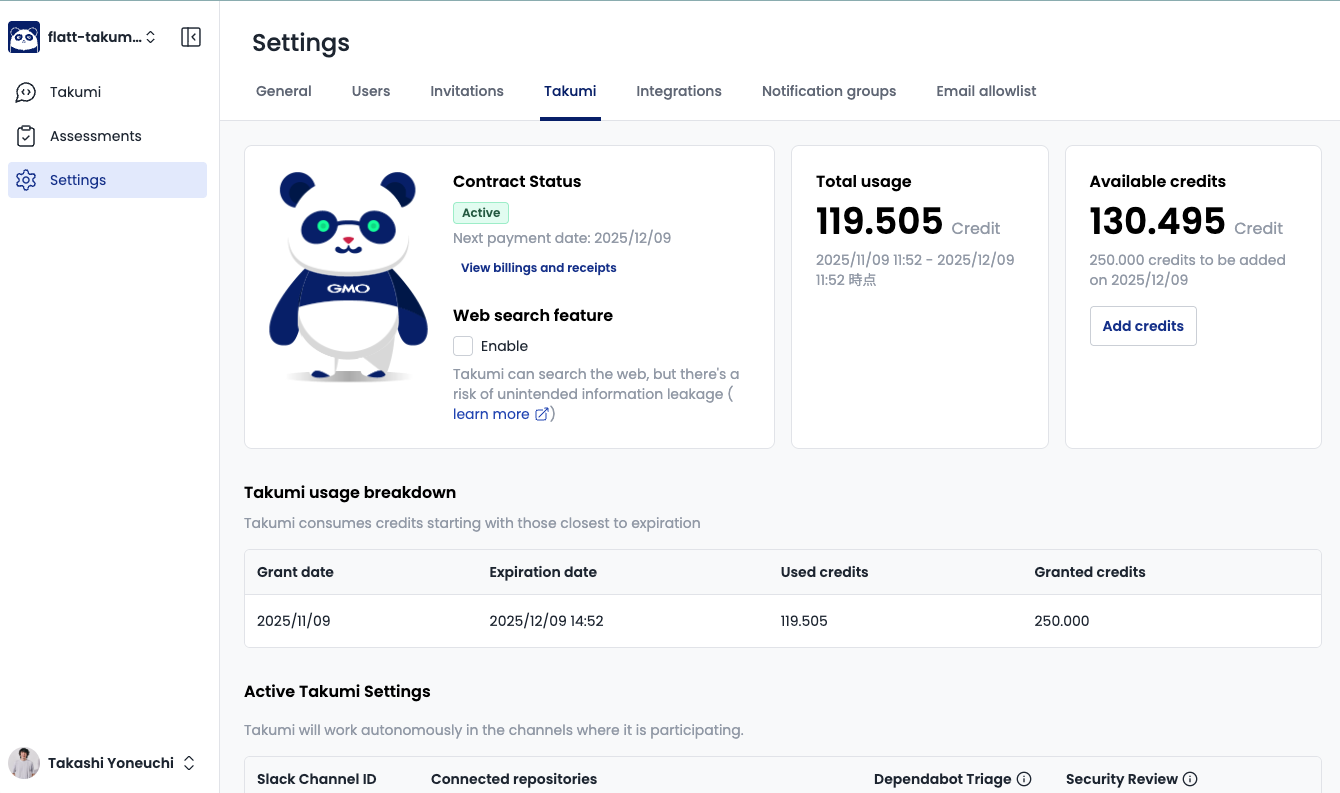
Upon completion, a screen like the following will be displayed:
Complete Required Integrations
After the purchase is complete, follow these steps to complete the required integrations.
When Using Takumi from the Web
You're already set up! No integrations are required as long as you use the blackbox assessment feature (AI-DAST feature).
If you want to feed code or other data to Takumi, complete the following integrations:
- Integrate GitHub (when using Takumi for AI whitebox assessments)
When Using Takumi from Slack
Of course, Slack App integration is required. Complete the following integrations:
You're all set! No integrations are required as long as you use the blackbox assessment feature (AI-DAST feature).
If you want to feed code or other data to Takumi, complete the following integrations:
- Integrate GitHub (when using Takumi for AI whitebox assessments)
Work with Takumi
Once the above setup is complete, let's actually work with Takumi.
Give Instructions and Have It Work
Takumi can handle various tasks according to instructions via chat or Slack.
Have It Work Without Instructions
Takumi can autonomously handle security tasks without being asked.
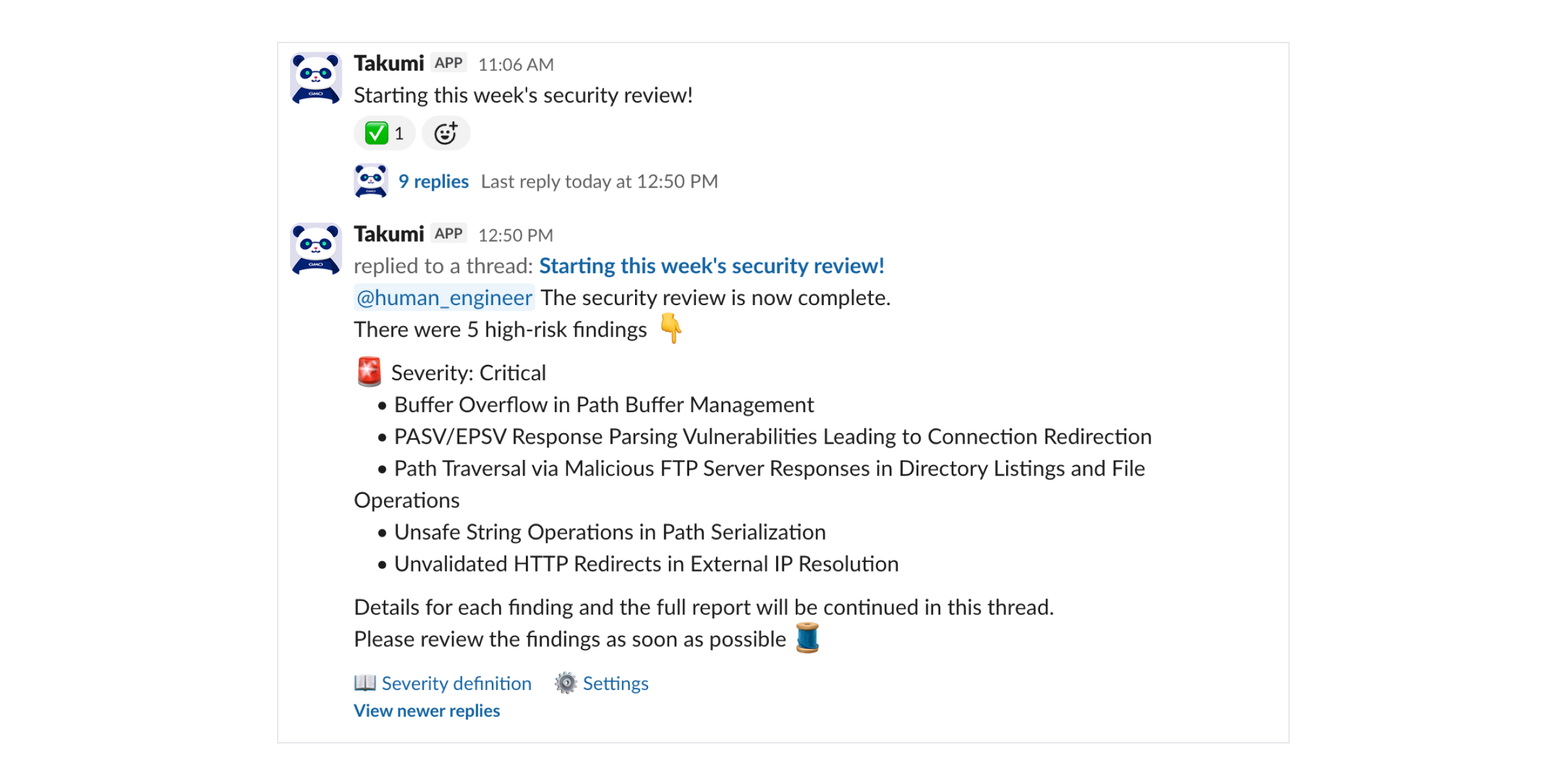
For example, the following features are available. Try enabling them!