Integrate Slack
The English user guide is currently in beta preview. Most of the documents have been automatically translated from the Japanese version. Should you find any inaccuracies, please reach out to Flatt Security.
When you integrate Takumi with Slack, you can give instructions to Takumi in Slack channels.
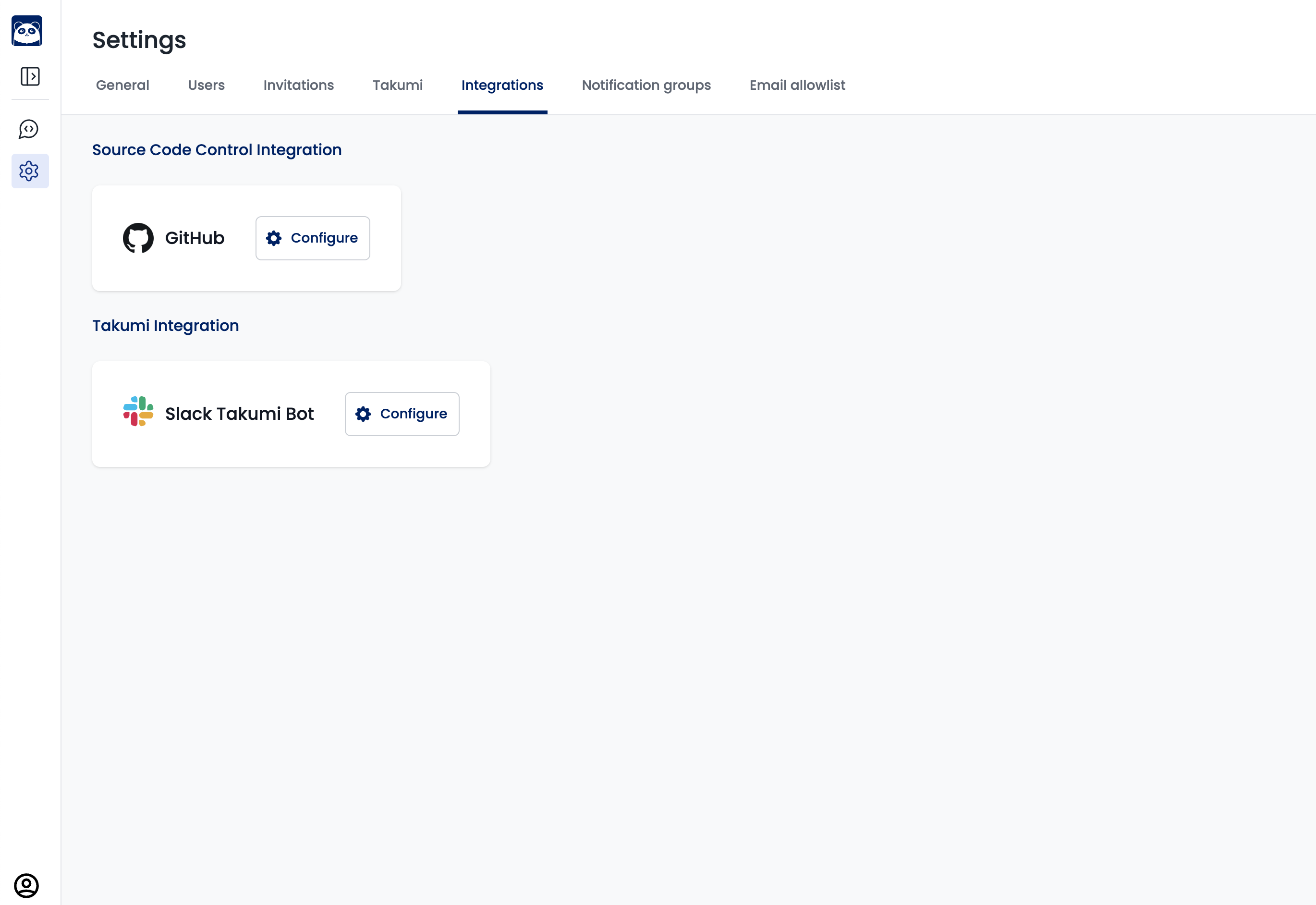
Takumi needs to be invited to your Slack workspace as a Slack App. You can connect your Slack workspace under "Settings > Integrations > Takumi Integration":
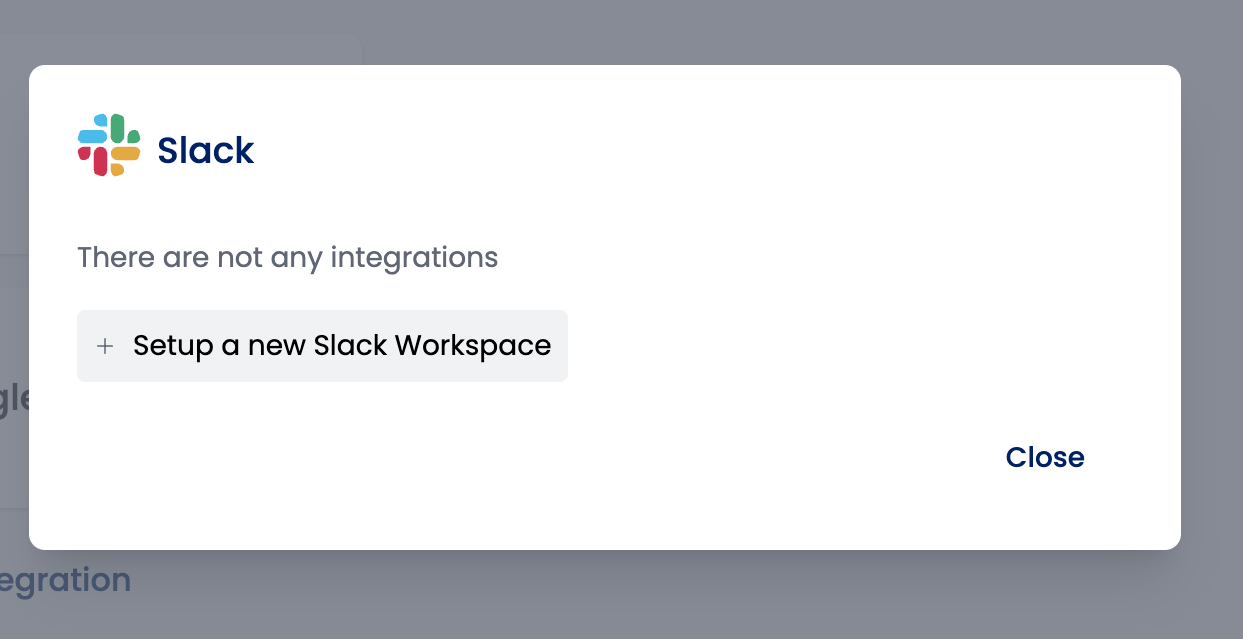
Click on "Set up a new Slack workspace" to be redirected to a screen provided by Slack. Review the details carefully and click "Allow":

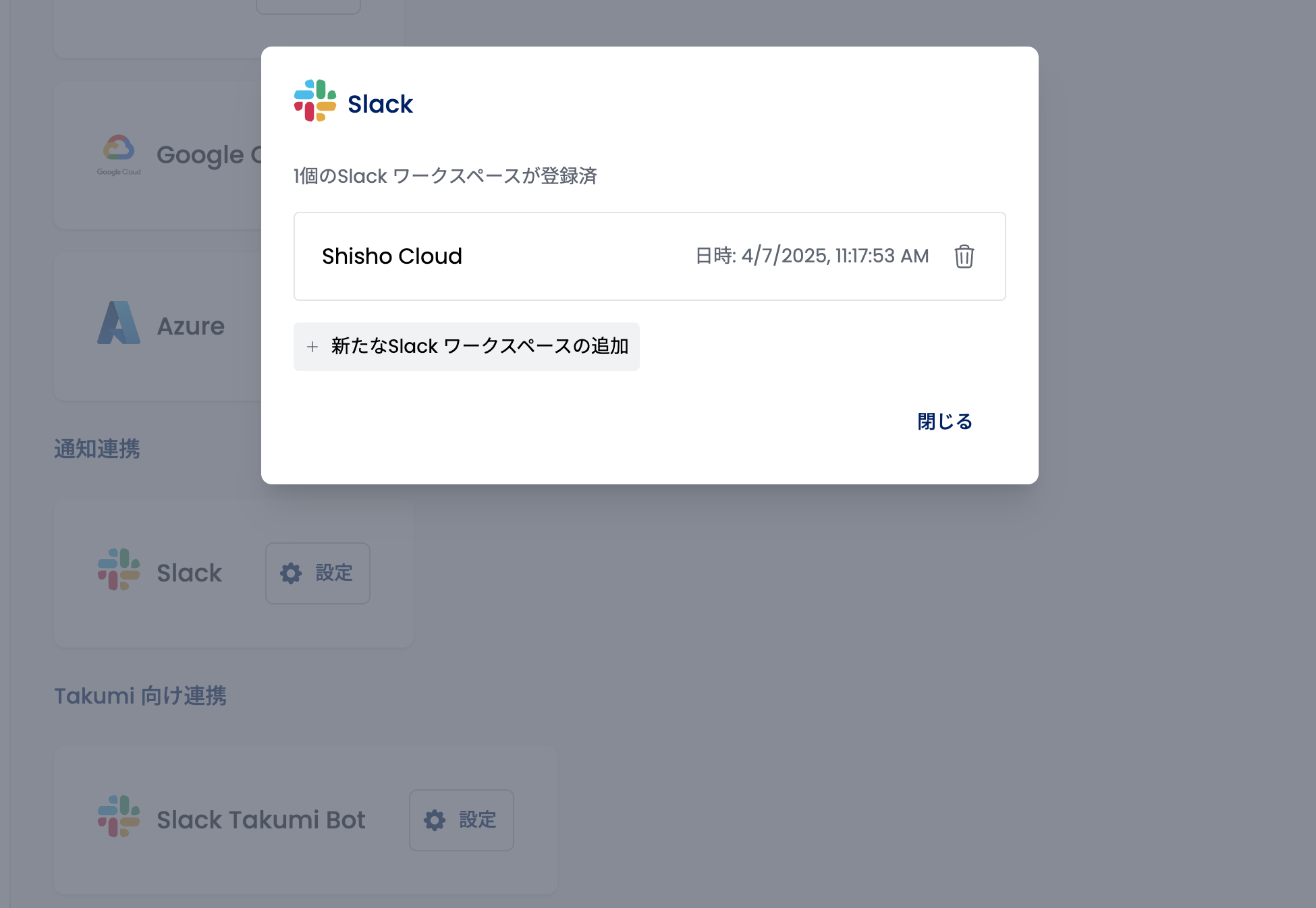
After clicking, the connection between your Slack workspace and Shisho Cloud byGMO will be completed. If successful, the Slack workspace should appear as shown below:
When performing this operation, approval from the Slack workspace owner may be required. In that case, please contact the Slack workspace owner and request approval for the Slack App.
After the Slack App integration is approved, please perform the Slack workspace and Shisho Cloud byGMO connection process again from the Shisho Cloud byGMO screen.