Troubleshooting
The English user guide is currently in beta preview. Most of the documents have been automatically translated from the Japanese version. Should you find any inaccuracies, please reach out to Flatt Security.
Each section below starts from what you see on the Mac or in the console.
The device shows Not protected or Needs attention
The panel shows a button wherever the user can fix something themselves. For example, when the Mac no longer trusts its device certificate, the panel turns red, explains why, and shows Re-trust CA…. The table after the screenshot lists each button.
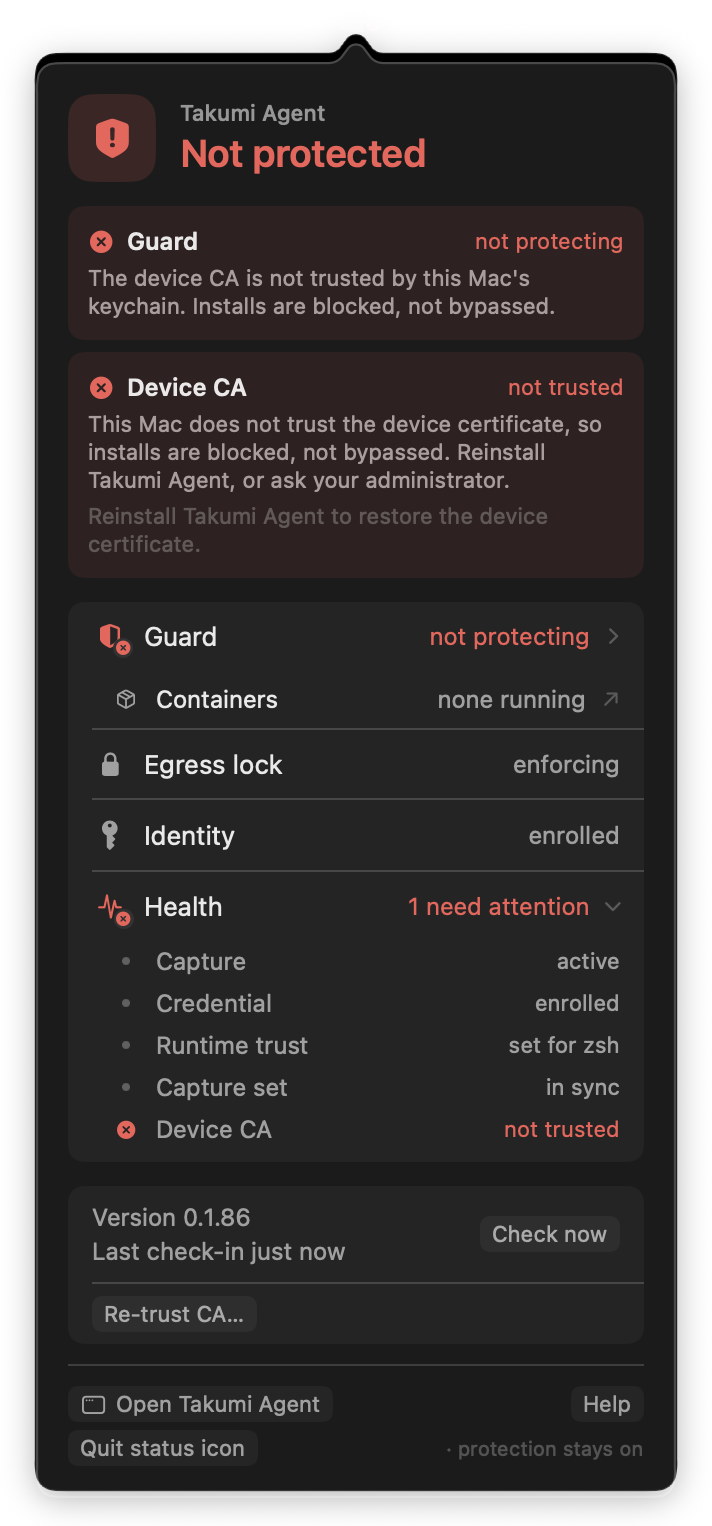
| Button | Shown when | What it does |
|---|---|---|
| Fix… | The system extension isn't approved or isn't active | Opens the setup checklist (Extension approved, Network filter on, Installs inspected), which updates as each step completes. |
| Turn on network filter | The network filter was switched off | Asks macOS to turn the network filter back on. While the filter is off, installs go straight to the registry without being checked. |
| Enable egress lock… | The egress lock is off and your policy requires it | Asks macOS again to allow content filtering. |
| Finish setup… | The device certificate isn't trusted and setup never finished | Asks macOS to trust the device certificate, with an administrator prompt. |
| Re-trust CA… | The device certificate was trusted, then trust was lost | Asks macOS to trust the device certificate again, with an administrator prompt. |
| Check now | The device is enrolled | Runs a fresh check and shows the result, so a fix shows up within seconds. |
| Copy diagnostics | Always, on the app window's Help page | Copies the diagnostics to the clipboard, with tokens and private keys removed. |
| Send to admin | Always, on the app window's Help page | Uploads the same diagnostics to your organization, so an administrator can read them in the console. |
| Open Takumi Agent | Always | Opens the app window, which shows the same information with more room. The panel's Containers row opens its Containers page directly. |
The Fix… action on the "This Mac is not protected" notification opens the same checklist. If the device is red because of tamper evidence, see The device reports tamper evidence.
The panel names a program
When a program on the Mac doesn't trust the device certificate, the menu-bar panel names it on the Runtime trust line under Health, and the affected ecosystem under Guard says "runtime trust". A blocked container is named on the Containers row and in the panel header. Each message has one fix:
| The panel shows | What to do |
|---|---|
<program> · old <Terminal> window / old shell | Open a new terminal window and run it again. |
<program> · opened before setup | Quit and reopen the app. |
<program> · service predates setup | Restart that service. |
<program> · shell skipped startup files | Your shell doesn't load the system startup files. For zsh, look in ~/.zshenv for unsetopt GLOBAL_RCS, NO_RCS, or a ZDOTDIR pointing elsewhere. After that line, add [ -r /etc/takumi-agent-endpoint/env.sh ] && . /etc/takumi-agent-endpoint/env.sh. |
check <file> | That file overrides one of the trust variables. Remove the line, or set the variable to the value in /etc/takumi-agent-endpoint/env.sh. |
<program> rejected the device certificate | Restart the program. For deno, set DENO_TLS_CA_STORE=system. |
Blocked in <runtime> | A container rejected the certificate. See Containers and VMs. |
Setup is done, but the Mac still isn't protected
Right after a first install, the setup window can say "This Mac is still not protected" with all three checklist steps checked, while the egress lock finishes starting. This clears on its own. Check the menu bar again a little later. If a row is still red there, use the button on that row (see the table above).
The console shows a device as Removed
A Removed device's detail has an Agent removed locally row with the value <kind> · <when>. The kinds are:
| Shown as | What happened |
|---|---|
| System uninstall | The uninstall command was run |
| User uninstall | An uninstall run without --system |
| Deactivated from the app | The app deactivated its own system extension |
| System extension deactivated | The system extension disappeared, for example after it was turned off |
| Path unknown | A removal this version of the console doesn't recognize |
Device states covers what to do about a Removed device.
The device reports tamper evidence
On the Mac, the panel says the device's protection reporting has been tampered with. In the console, the device shows Not protected and its detail has a Tamper evidence section describing what was observed.
Treat the Mac as compromised until you have investigated it. Once you have checked it, acknowledge the evidence. If the device keeps reporting evidence after that, decommission it and investigate the machine.
The uninstall command stops without removing anything
The uninstall command removes the system extension first. If that fails, it removes nothing and prints why. Running it again is safe:
| Cause | What to do |
|---|---|
| Nobody is logged in to the desktop | Log in to the Mac's desktop (screen sharing works too) and run it again. |
| The app was already deleted | Install the same package again, then run the command again. |
| The macOS removal prompt was declined | Run the command again and approve the prompt. |